All About Housekeeping
Set up HelloShift housekeeping — configure rooms, cleaning types, zones, and housekeeper assignments for your property.
HelloShift's Housekeeping module helps you manage room cleaning efficiently from assignment to inspection. Track room conditions, assign cleaners, monitor progress in real-time, and generate performance reports.
Overview
The Housekeeping system includes:
Accessing Housekeeping
Desktop
Click Cleaning in the left sidebar
You'll see the Room Board showing all rooms with their current status
Mobile
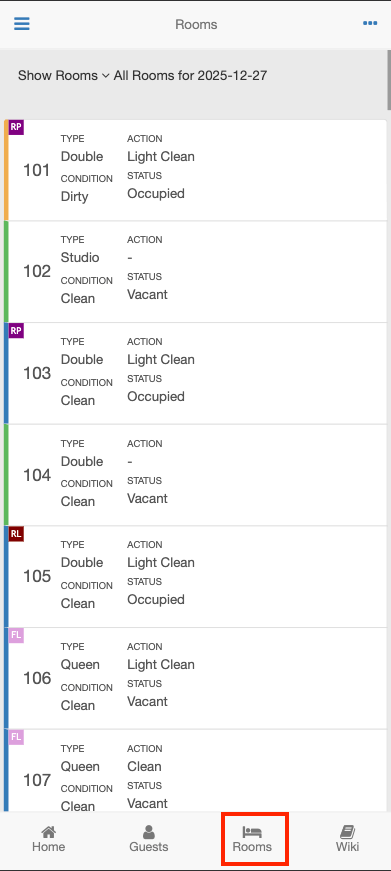
Tap Rooms in the bottom navigation
View rooms filtered by condition (Dirty, Clean, etc.)
Room Conditions & Status
Room Condition
The cleaning state of a room:
Room Status
Occupancy state (typically synced from your PMS):
Filtering Rooms
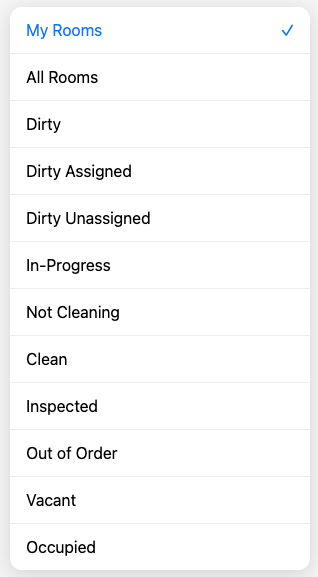
Filter the room board by condition or status:
Dirty - All rooms needing cleaning
Dirty Assigned - Dirty rooms with a cleaner assigned
Dirty Unassigned - Dirty rooms without a cleaner
In-Progress - Rooms currently being cleaned
Not Cleaning - Assigned but DND or refused service
Clean / Inspected / Out of Order
Vacant / Occupied
My Rooms - Rooms assigned to you (for cleaners)
Room Assignment Workflow
Basic Workflow
Rooms appear as Dirty - From PMS checkout or manual marking
Assign cleaners - Manually or using auto-assign
Cleaner starts room - Timer begins
Cleaner completes room - Room becomes Clean
Inspector checks room (optional) - Room becomes Inspected
Room ready for guest
Assignment Methods
AI Assign (Smarter Workload Distribution)
AI Assign uses historical information about your property's cleaning patterns to automatically distribute rooms in a way that mirrors how you run operations.
How AI Assign works:
Analyzes past assignments to understand typical room distribution
Balances workloads by cleaning history and staff efficiency
Reduces repetitive manual setup as the system "learns" your preferences
Tip: Use AI Assign as your default during busy check-in/check-out days to cut down on manual workload.
Manual Group Assign (Great for Small Properties)
Multi-select rooms in the assignment grid
Scroll to Bulk Actions at the bottom
Choose Assign Cleaner and select the cleaner
(Optional) Select an Inspector
Pick the Task Type (Checkout, Stayover, etc.)
Click Submit — assignments push instantly to each cleaner's device
Self-Assignment
Enable Self-Assign if you trust staff to choose their own rooms:
Cleaner opens All Rooms view
Selects a room and taps Assign to Me
Uses filters (Dirty, Vacant, Stayover) to pick efficiently
Tip: Keep Self-Assign off during training; enable once staff know room standards.
See Room Assignment System for detailed instructions.
Housekeeping Views
HelloShift provides four different views for managing housekeeping:
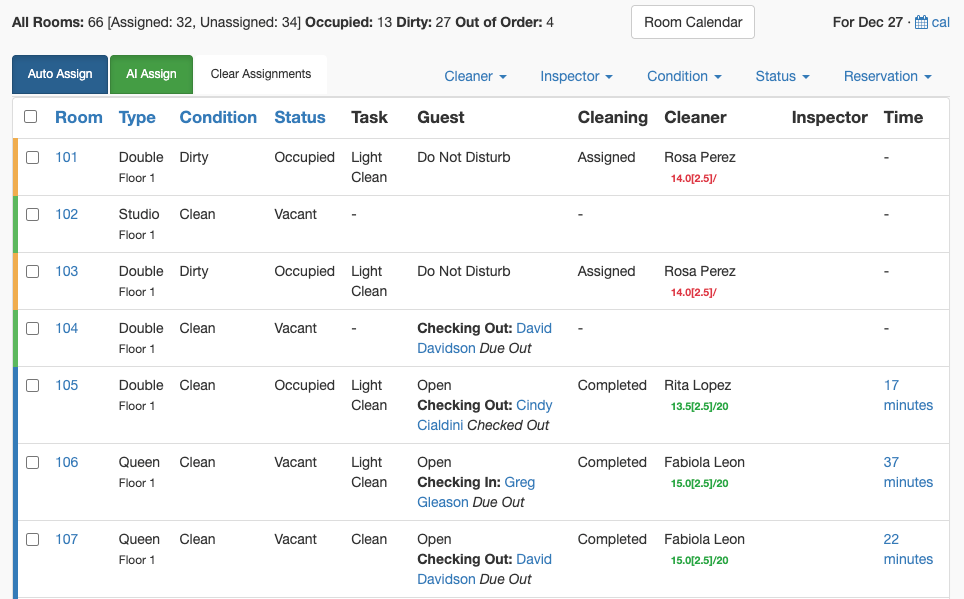
Room Statistics Bar
At the top of each view, you'll see real-time room counts:
All Rooms: Total active rooms
Assigned / Unassigned: Assignment status for today
Occupied: Rooms with current guests
Dirty: Rooms needing cleaning
Out of Order: Rooms unavailable

Room-Level Actions
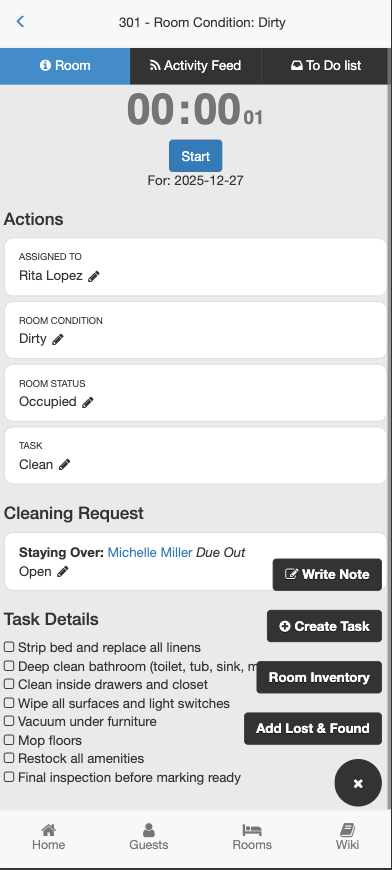
Inside any room card, you can perform several actions:
All notes and tasks link to the cleaning record for audit trails.
Assignments View
The Assignments view is where you assign cleaners to rooms:
Grid layout with rooms on the left, cleaner columns on the right
Use Auto-Assign or AI Assign buttons for automatic distribution
Set cleaner action (Checkout, Stayover, etc.) per room
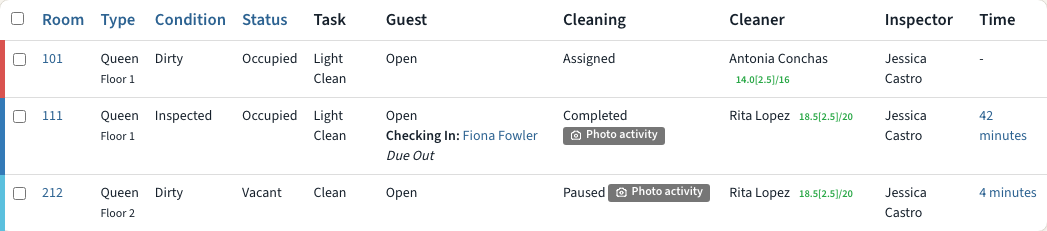
Photo activity badge in the Cleaning column for rooms with a photo on their feed today (see Photo Evidence)
See Room Assignment System for detailed assignment instructions.
Boards View
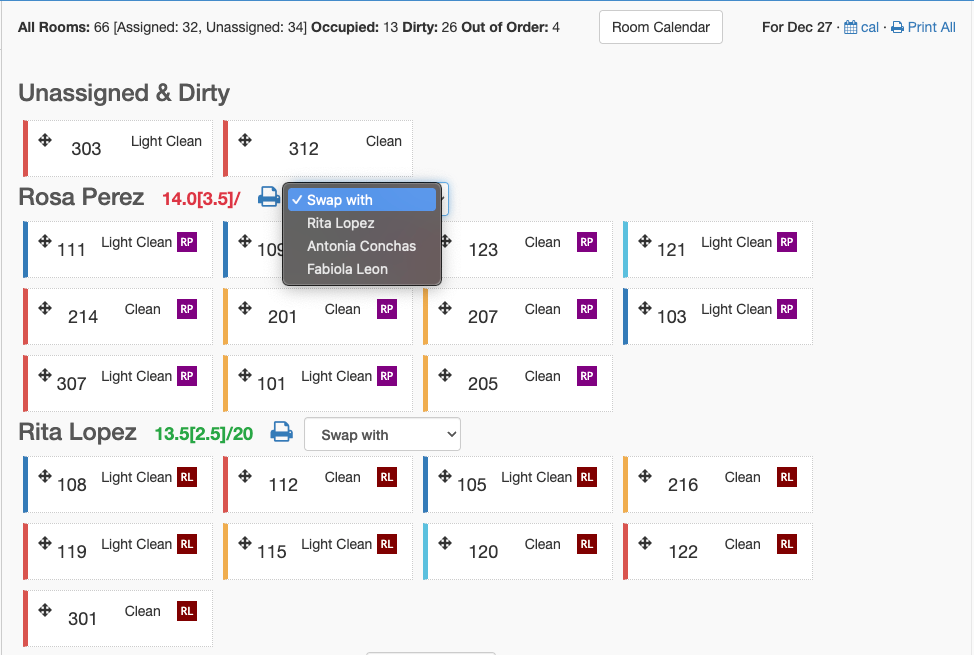
The Boards view organizes rooms by cleaner:
Features
Each cleaner has a section showing their assigned rooms
Credit totals display next to cleaner names
Drag and drop to reorder rooms within a cleaner's list
Swap cleaners - Exchange all assignments between two cleaners
Print - Print assignments for all cleaners or individual cleaners
Photo activity badge on room tiles that have a photo on their feed today
Swapping Cleaners
To swap all assignments between two cleaners:
Find the cleaner whose assignments you want to swap
Use the "Swap with" dropdown next to their name
Select the target cleaner
Click Swap Now
All rooms assigned to cleaner A move to cleaner B, and vice versa.
Calendar View
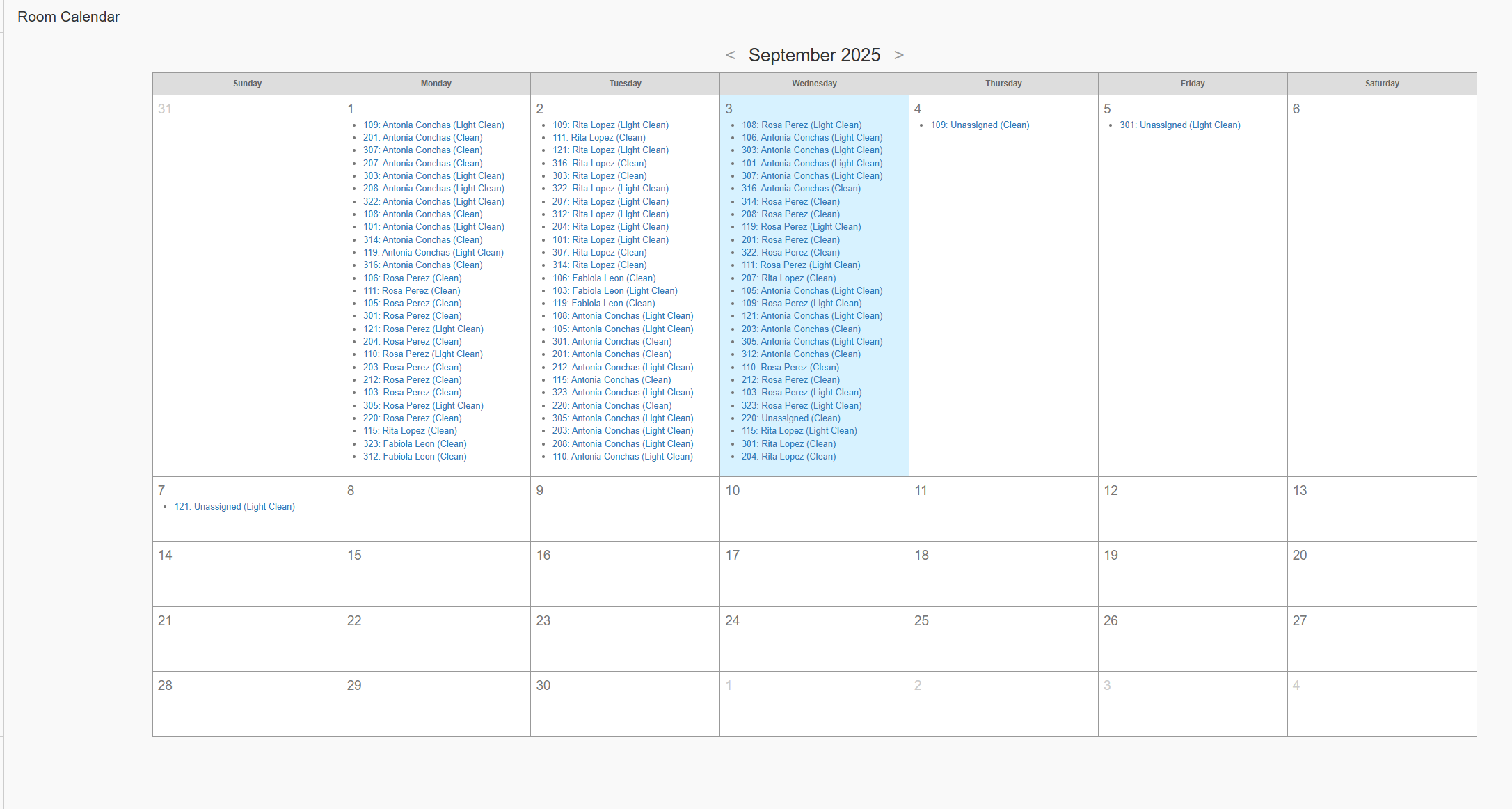
The Calendar provides a monthly overview of room assignments:
Features
Month-at-a-glance view of all assignments
Click any date to see assignments for that day
Filter by cleaner using the dropdown
Navigate between months with arrow buttons
Accessing the Calendar
Go to Cleaning > Calendar (if enabled)
Or click the Room Calendar button in the navigation bar
Printing Assignments
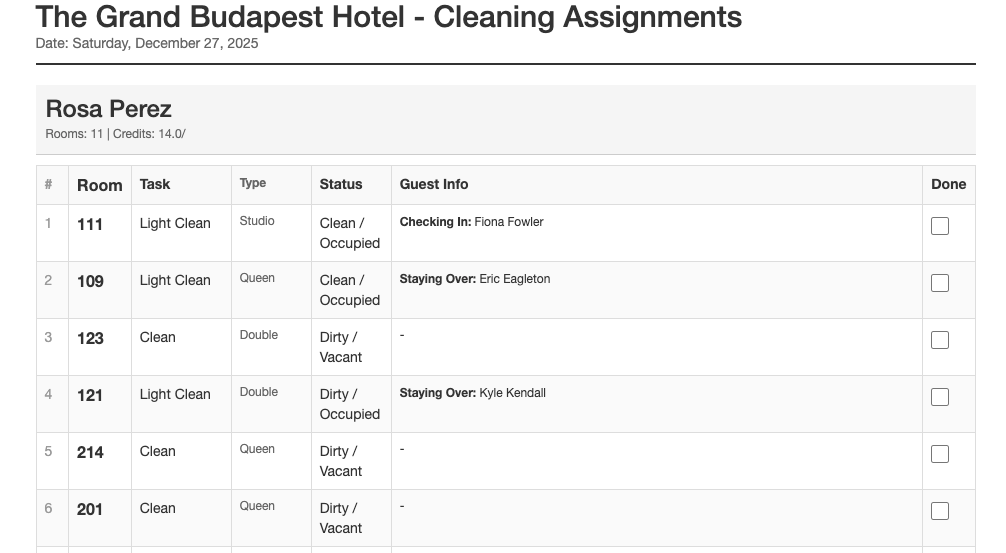
Print cleaning assignments for staff without mobile devices:
Print All Assignments
Go to Cleaning > Boards
Click the Print All icon in the navigation
Print dialog opens with all cleaner assignments
Print Single Cleaner
Go to Cleaning > Boards
Find the cleaner's section
Click the print icon next to their name
Print dialog opens with just that cleaner's rooms
Mobile Board View
On mobile, rooms display as cards you can tap to:
Start/Pause/Complete cleaning
View room details
Change assignments
Cleaning a Room (Cleaner Workflow)
Finding Your Rooms
Open Housekeeping on your mobile device
Tap My Rooms to see rooms assigned to you
Or tap Dirty to see all dirty rooms
Starting a Room
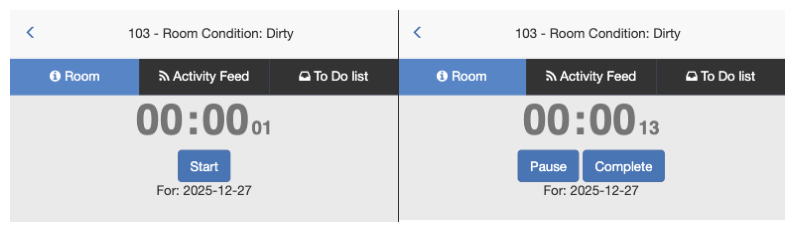
Tap the room you're ready to clean
Tap Start
The timer begins counting
During Cleaning
Timer displays elapsed time on your screen
If interrupted, tap Pause to stop the timer
Tap Restart when you resume
Review task details if a cleaning checklist is configured
Completing a Room
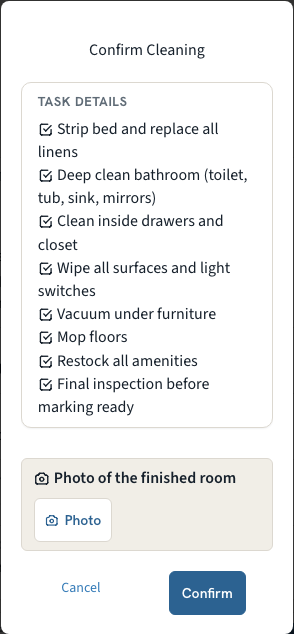
When finished, tap Complete
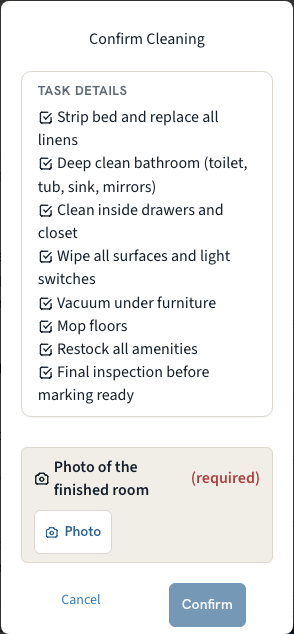
Confirm in the popup dialog. If your property has turned on Photo on Complete, the popup also shows Photo of the finished room: tap Photo and the camera opens directly. Confirm stays disabled until the upload finishes, and when the setting is Required you cannot confirm without a photo.
Room condition changes to Clean
If an inspector is assigned, they're notified
The photo, if you took one, is posted on the room's Activity Feed as Room cleaned — photo evidence
See the Photo Evidence section below for the setting and where photos appear.
Inspections
How Inspections Work
When a cleaner completes a room with an inspector assigned
The inspector receives a notification
Inspector opens the room and taps Inspect
Completes the inspection checklist with photos
Room passes or fails based on checklist score
Inspection Results
When a room fails inspection:
The room condition changes back to Dirty
Feedback from the inspector is attached
The cleaner can see what needs to be fixed
The room goes through the cleaning cycle again
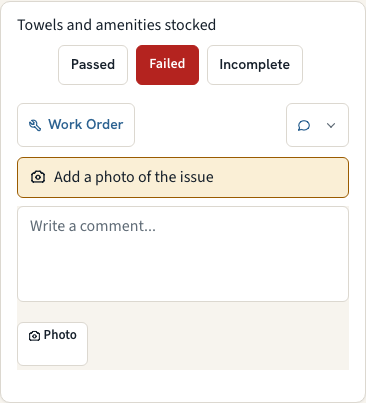
On the phone, the inspector is prompted to Add a photo of the issue. The photo is attached to the failed item and shows on the inspection report
Inspection scores appear on the room assignment card.
Setting Up Inspections
Create an inspection checklist in Checklists
Assign inspectors to rooms in the assignment grid
Inspectors receive inspections automatically on room completion
Photo Evidence
Cleaners and inspectors can attach a photo at the moment it matters: when a room is completed, and when an inspection item fails. Managers can then see at a glance which rooms have photo activity today.
Photo on Complete Setting
Go to Admin > Settings > Cleaning > General and set Photo on Complete:
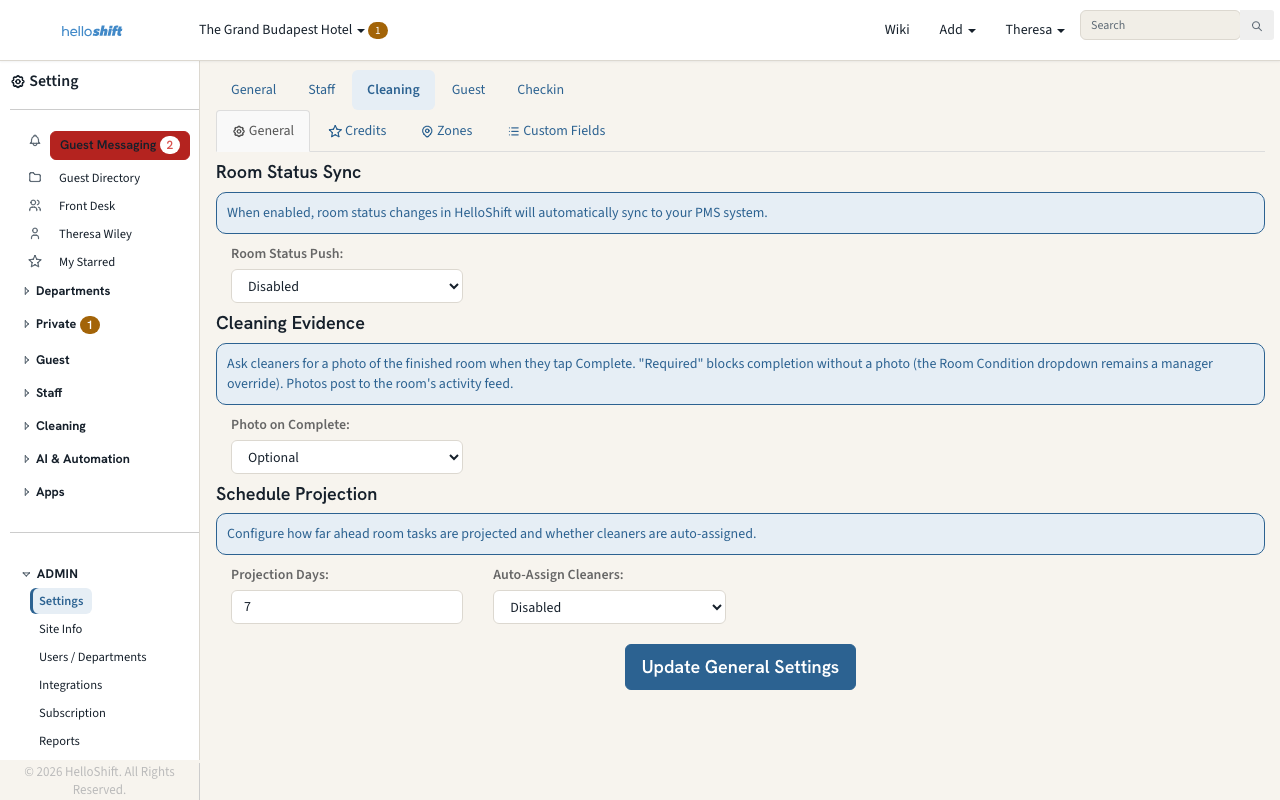
The rule applies to everyone who completes a room from the Complete popup, on the phone or on desktop, cleaners and managers alike. A manager can still set the room condition directly from the Room Condition dropdown on the room page, which is the override when a camera is broken.
Taking the Photo
On a phone, tapping Photo in the Complete popup or in the failed-item prompt opens the rear camera directly. Every other Photo button in HelloShift still lets you choose between the camera and your photo library.
Confirm and Save buttons stay disabled while a photo is uploading, so a tap mid-upload cannot lose the photo.
Phone photos are reduced to 1600 px before upload so they save quickly on hotel Wi-Fi. Photos under 500 KB are sent as they are.
Failed Inspection Items
When an inspector marks an item Failed on the phone, the item expands with Add a photo of the issue. The photo is posted as a comment on that item, so it shows in the checklist and on the inspection report next to the failed item. Adding the photo is encouraged, never required.
Where Photos Appear
Room Activity Feed: the completion photo is posted as Room cleaned — photo evidence by the person who completed the room. It does not send notifications.
Inspection report: failed items show their photo thumbnails inline, without expanding the comments.
Photo activity badge: see below.
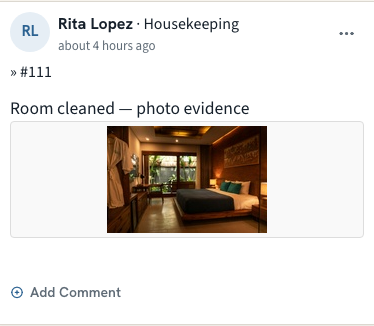
Photo Activity Badge
On Assignments, Overview and Boards, a room shows a Photo activity badge when any photo was posted on its Activity Feed today. Click the badge to open the room's feed.
The badge means photo activity on that room today, not proof that today's clean has a photo: a front-desk photo posted on the room (a maintenance issue, a guest's pet) lights it as well. Hover over the badge to see this reminder.
Settings & Configuration
Access housekeeping settings at Admin > Settings > Cleaning:
General Settings
Room Status Sync - Push room condition changes to your PMS
Photo on Complete - Off, Optional or Required: ask cleaners for a photo of the finished room in the Complete popup (see Photo Evidence above)
Credits Tab
Configure the credit system for workload balancing:
Credits by Cleaner - Daily capacity per cleaner by day of week
Credits by Task - Credit value for each room type × task type
See Housekeeping Credit System for details.
Zones Tab
Configure zone-based assignment optimization:
Zone Distances - Define how far apart zones are
Max Zones per Cleaner - Limit zones to reduce travel
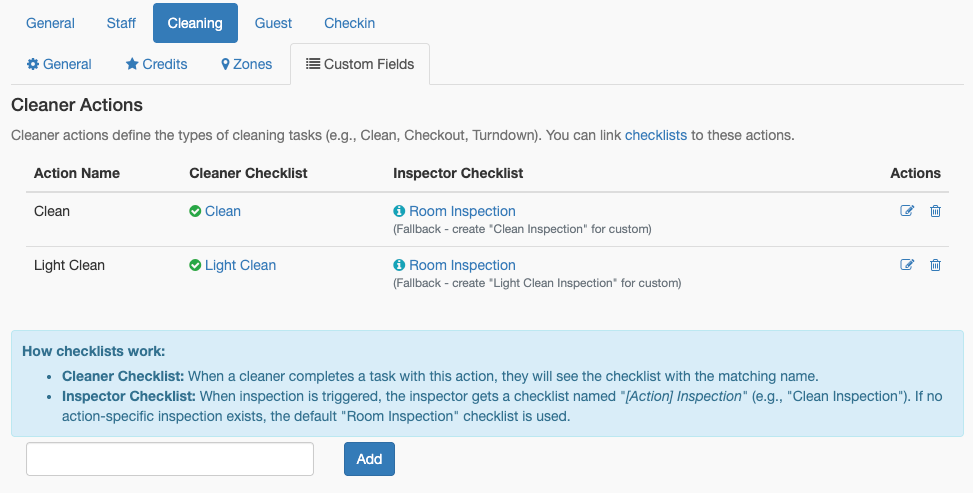
Custom Fields Tab
Define cleaning task types (Checkout, Stayover, Deep Clean, etc.)
Room Settings
Each room has individual settings:
Go to Staff > Assets & Tags > Rooms
Click a room to view its profile
Click Edit Room to configure:
PMS Integration
HelloShift syncs room data with your Property Management System:
From PMS to HelloShift
Guest check-ins → Room status changes to Occupied
Guest check-outs → Room status changes to Vacant, Condition to Dirty
Room changes → Updates reflected automatically
From HelloShift to PMS
When enabled in Cleaning settings:
Room condition Clean → Pushed to PMS as room ready
Room condition Inspected → Pushed to PMS as inspected
Guests can check in as soon as the inspector greenlights a room—no extra clicks needed
Note: You can use housekeeping tracking even without PMS integration. You'll manually update the room status on the PMS, but you can easily monitor and report on cleaner efficiency from HelloShift.
Supported PMS systems vary - contact support for your integration options.
Reports
Access housekeeping reports at Reports:
Overview Report (Housekeeping Section)
Summary metrics per cleaner:
Detailed Housekeeping Report
Average clean time per housekeeper
Time-of-day peaks for starts/completions
DND frequency and refused-service counts
Stacked bar charts by cleaner
Breakdown by task type
Date range filtering
Export CSV for payroll or analysis
See Housekeeping Time Tracking for time tracking details.
Best Practices
Daily Workflow
Morning: Run auto-assign for the day's rooms
Throughout day: Monitor board for completion status
Afternoon: Review any incomplete or overdue rooms
End of day: Check reports for any issues
For Cleaners
Start rooms promptly when you begin
Pause for any interruptions longer than a minute
Complete rooms immediately when done
Check your assignment list regularly
Use Photo Notes to document damages before checkout disputes
For Managers
Group by floor for faster cleans and fewer cart moves
Set up credits to match realistic cleaning times
Use zones to minimize travel between rooms
Review weekly reports to identify trends
Adjust staffing based on performance data
Monitor DND rates and high-refusal rooms
Troubleshooting
Room not appearing in assignment list
Verify room condition is Dirty
Check room status is not Out of Order
Confirm correct date is selected
Cleaner can't see their rooms
Verify rooms are assigned to that cleaner
Check the cleaner is using My Rooms filter
Confirm date filter matches assignment date
PMS sync not working
Check PMS integration is configured in General Settings
Verify Room Status Sync is enabled in Cleaning settings
Contact support for PMS-specific issues
Related Articles
Room Assignment System - Assignment methods and configuration
Housekeeping Credit System - Credit-based workload balancing
Housekeeping Time Tracking - Time tracking and reports
Room Inventory Management - Track supplies by room
Checklists - Cleaning and inspection checklists