Create Your Staff Wiki
Build an internal knowledge base for your hotel staff — document SOPs, policies, and procedures in HelloShift.
Build a centralized knowledge hub for your team with HelloShift's built-in Wiki. Store policies, procedures, schedules, and training materials in one searchable location that's accessible from any device.
Overview
The Staff Wiki is included with the Staff plan at no extra cost. It provides a simple way to:
Store and organize operational procedures, checklists, and schedules
Access information from any device (desktop, tablet, or phone)
Update content instantly without technical skills
Link related pages together automatically using CamelCase
Getting Started
Accessing the Wiki
Log into HelloShift
Navigate to Wiki in the top navigation
You'll see the main wiki landing page
Creating Your First Page
While viewing any wiki page, click Edit in the top-right corner
Type a CamelCase word anywhere in your content (e.g.,
StaffScheduleorHousekeepingChecklist)Click Save
The CamelCase word automatically becomes a clickable blue link
Click the link to create and edit the new page
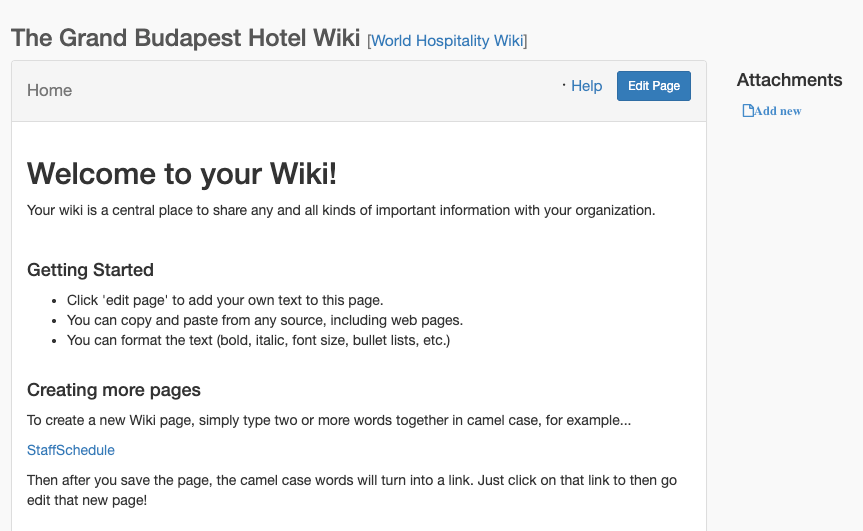
CamelCase Linking
CamelCase is a naming convention where the first letter is capitalized and there's at least one other capital letter within the word, with no spaces.
Valid CamelCase Examples
How Linking Works
When you type a valid CamelCase word in any wiki page:
HelloShift automatically converts it to a clickable link when you save
Clicking the link opens that wiki page
If the page doesn't exist, admins can create it; staff see a "page not found" message
Links between pages create a natural navigation structure
Pro Tip: Create an index page (like WikiHome) with links to all your main wiki pages for easy navigation.
Editing Content
Rich Text Editor
The wiki uses a rich text editor (TinyMCE) that supports:
Text formatting: Bold, italic, underline, strikethrough
Headings: Multiple heading levels for document structure
Lists: Bullet points and numbered lists
Links: Insert links to external websites
Images: Upload or embed images directly
Tables: Create data tables
Code: Format code snippets with monospace font
Source mode: Toggle to raw HTML for advanced layouts
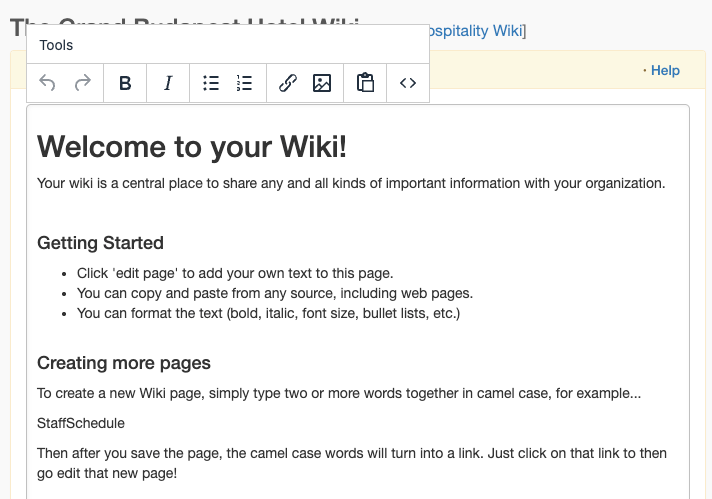
Adding Images and Files
Click Edit on any wiki page
Use the image icon to upload images directly into the content
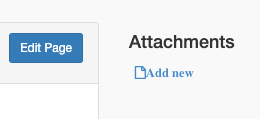
For files (PDFs, documents), use the Attachments section below the editor
Attachments can be uploaded from your computer, Dropbox, Google Drive, or via URL
Embedding External Content
Embedding Canva Designs
In Canva, click Share > More > Embed
Copy the HTML embed code
In the wiki editor, click Source to switch to HTML mode
Paste the embed code where you want the design to appear
Click Source again to return to visual mode
Save the page
Benefit: When you update the Canva design, the wiki automatically shows the latest version.
Embedding Other Content
You can embed content from many services by pasting their HTML embed code in Source mode:
Google Docs, Sheets, or Slides (Publish to web > Embed)
YouTube videos
Google Maps
Calendly scheduling widgets
And more
Auto-Linking URLs
The wiki automatically converts plain URLs and email addresses into clickable links. Just paste a URL like https://example.com and it becomes clickable when you save.
Popular Use Cases
Organizing Your Wiki
Create a Home Page
Create a page called WikiHome or MainPage as your central hub:
## Quick Links- StaffSchedule - Weekly shift schedule- LocationPolicies - Property rules and guidelines- EmergencyProcedures - Emergency protocols- VendorContacts - Vendor information## By Department### Front Desk- CheckInProcedures- CheckOutProcedures- GuestRequests### Housekeeping- CleaningStandards- RoomInspection- SupplyInventoryBest Practices
One topic per page - Easier to find and update
Use descriptive names -
HousekeepingChecklistis clearer thanHKListKeep content scannable - Use headings, bullets, and tables
Update regularly - Review critical SOPs quarterly
Replace outdated files - Don't keep multiple versions of the same document
Access & Permissions
Who Can View
All staff members on the Staff plan can view wiki pages
Pages are visible to everyone at your site
For multi-site organizations, related sites can also view each other's wiki pages
Who Can Edit
Admins only can create, edit, or delete wiki pages
Regular staff members can view pages but cannot modify them
The Edit button only appears for admin users
Mobile Access
Wiki pages are fully viewable on mobile devices
To edit a wiki page from mobile, you'll be redirected to the web version
For quick edits on the go, use a tablet or laptop
Troubleshooting
My CamelCase word isn't becoming a link
Verify the word starts with a capital letter
Verify there's at least one more capital letter inside the word
Make sure there are no spaces or underscores
Try:
FrontDesknotFront_Deskorfront desk
I can't edit a wiki page
Only admin users can edit wiki pages
Contact your site administrator to request admin access
Or ask an admin to make the changes for you
My embedded content isn't showing
Switch to Source mode and verify the embed code is complete
Check that the source allows embedding (some services block it)
Try refreshing the page after saving
I accidentally deleted important content
Wiki changes are saved immediately upon clicking Save
If you need to recover content, contact HelloShift support
Tip: Copy important content before making major edits
Related Articles
Checklists - Create recurring checklists and inspections
Template Tasks - Set up reusable task templates
Staff Shift Scheduling - Manage staff schedules