AI Assistant Configuration
Configure HelloShift's AI Assistant to handle guest questions automatically — set up FAQs, tone, and escalation rules.
HelloShift's AI Assistant handles guest queries through chat, SMS, and voice. Train it with your property information to provide accurate, consistent answers—even when staff is busy.
Overview
Requirements
Before setting up, ensure your HelloShift subscription includes:
Guest plan (for Text AI)
Check-In plan (for full AI features)
Staff plan (for AI Task Creation)
Accessing AI Settings
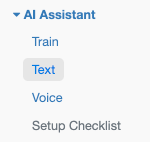
AI Assistant settings are organized into three main sections:
Enabling Text AI
Step 1: Enable AI
Go to AI & Automation > Text
Find Enable Assistant
Check the box to enable
Step 2: Configure Auto-Response
Enable auto-response for each channel:
For each channel, configure:
Enabled: Turn auto-response on/off
Delay: Seconds before AI responds (minimum 5 seconds)
Daily Hours: Limit AI to specific hours (optional)
Testing Before Going Live
Evaluate your assistant's training and tone of voice before enabling auto-response on channels:
Enable AI Assistant only: AI drafts responses and shows them to staff for review—nothing is sent to guests automatically
Enable channel auto-response: AI sends responses directly to guests on that channel
This lets you verify the AI is behaving correctly and referencing accurate information before guests receive automatic replies.
Tip: If you have guests contacting outside of office hours, turn auto-response ON for those channels. Start with Web Widget so visitors to your website get the information they need before navigating away to another site.
Step 3: Set Communication Style
Configure how the AI communicates:
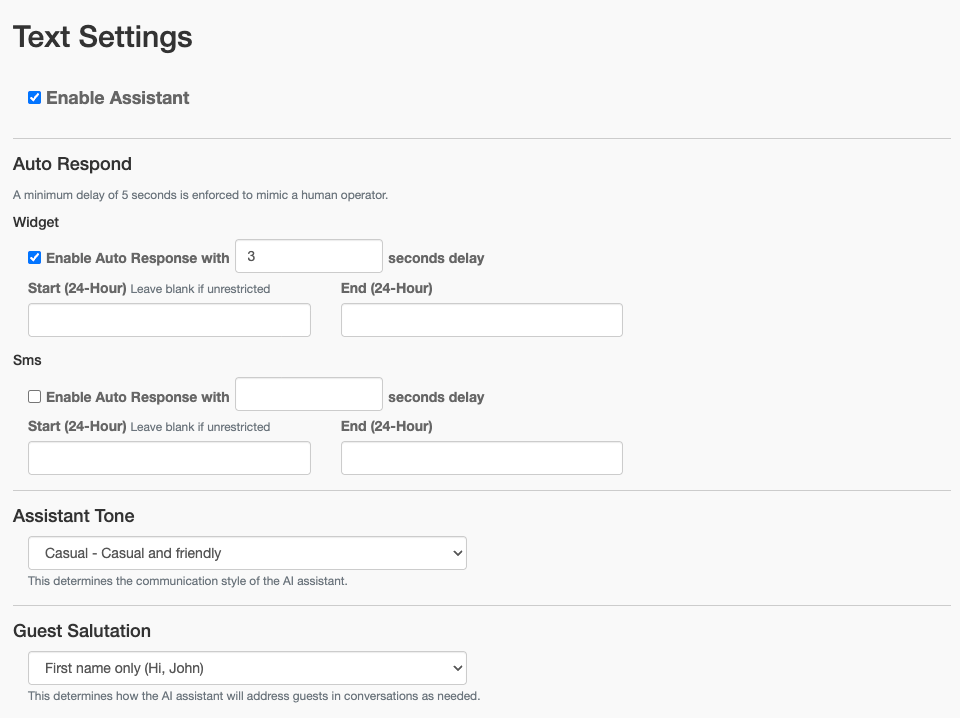
AI Communication Styles
Salutation Options
Tone Options
How AI Responds
Response Flow
Guest sends a message
AI analyzes the message content
AI searches FAQs and property information
AI generates a response with confidence score
Based on confidence level:
High (60%+): Auto-respond and mark resolved
Medium (30-60%): Auto-respond but keep unresolved for staff review
Low (<30%): No auto-response, routes to staff
Response Delay
Configure a delay before AI responds:
Tip: A short delay makes responses feel more natural and gives staff a chance to respond first.
FAQ Training
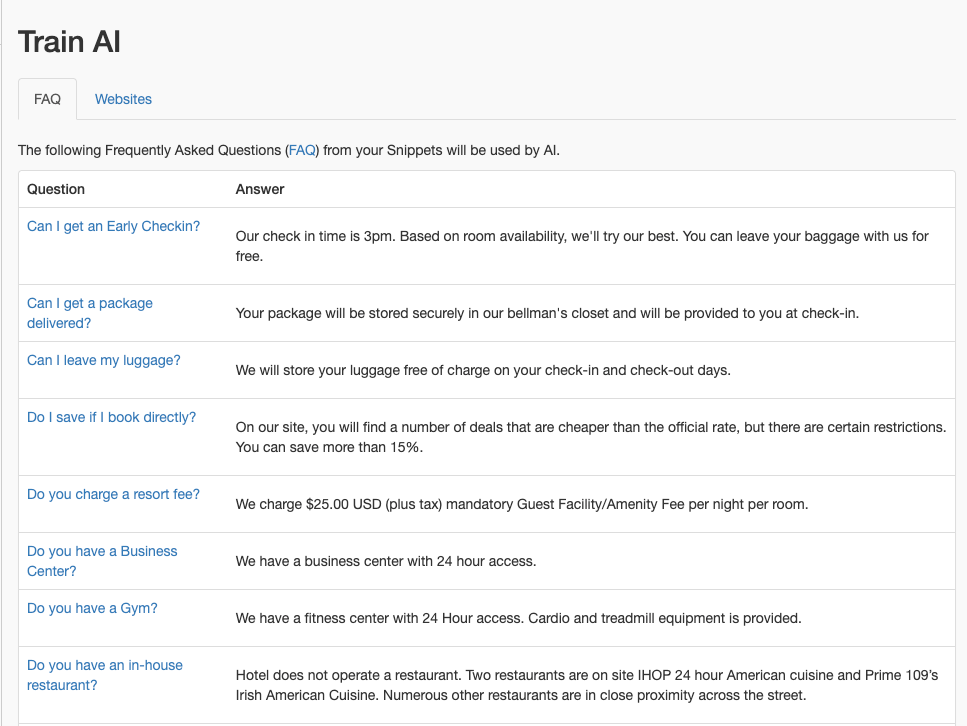
Train the AI with common questions and answers using FAQ snippets.
Accessing FAQs
Go to AI & Automation > Train > FAQ
View all active FAQ snippets
Click any FAQ to edit it in Snippets
Default FAQ Questions
HelloShift provides these starter FAQ questions:
Do you provide breakfast?
Do I save if I book directly?
Can I leave my luggage?
Do you provide room service?
Do you have parking?
Do you provide transportation?
What is your Pet Policy?
Do you have WIFI Availability?
How to connect to WIFI?
What are the Check-in and Check-out times?
Can I get an Early Checkin?
What is your Smoking Policy?
Do you have a Gym?
Do you have a Business Center?
Is there a swimming pool?
Do you have an in-house restaurant?
Is there a conference room?
What is your cancellation policy?
Do you charge a resort fee?
Can I get a package delivered?
What room amenities do you have?
What are the phone numbers for Reservation, Group sales etc?
What are the emails for GM, reservations etc?
Creating FAQ Snippets
Go to Guest > Snippets
Click New Snippet
Select FAQ as the type
Enter the Question as the Name
Enter the Answer as the Body
Set Status to Active
Click Save
The new FAQ will automatically appear in AI & Automation > Train > FAQ.
Example FAQ
Name (Question):
What time is checkout?Body (Answer):
Checkout is at 11 AM. Late checkout may be available upon request—just let the front desk know and we'll do our best to accommodate you!Training from Websites
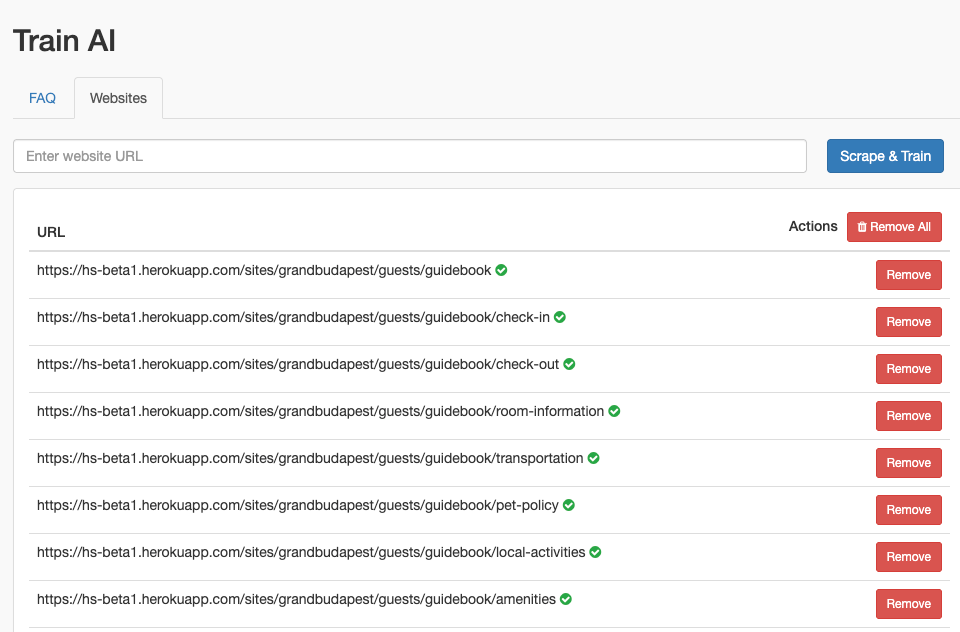
HelloShift can learn from your website content:
Go to AI & Automation > Train > Websites
Enter your website URL
Set crawl depth and max pages
Click Add to start crawling
The AI will learn from your website content
The AI scans your website pages and uses the content to answer guest questions.
Site Knowledge
The AI uses your property information to provide context-aware responses.
Information Sources
Adding Knowledge Sources
Websites:
Go to AI & Automation > Train > Websites
Add your property website URL
Configure crawl depth and max pages
What AI Knows
The AI has access to:
Property name and address
Phone number
Website content (if configured)
All active FAQ snippets
Guest's stay information
What AI Cannot Do
The AI has limitations:
For booking inquiries, the Voice AI offers to send a personalized booking link via text after the call. For text channels, the AI collects information and creates a task for staff follow-up.
Daily Hours Configuration
Limit AI auto-responses to specific hours:
Setting Hours
Go to AI & Automation > Text
Find the channel's Daily Hours section (under each channel)
Set Start (24-Hour) and End (24-Hour)
Click Update
Examples
Tip: Set hours to match your staffing schedule. Outside these hours, messages go to the inbox for staff response.
Service Hours
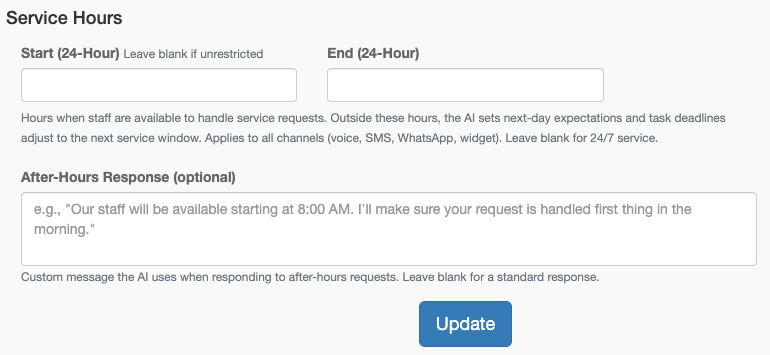
Service Hours define when your staff are available to handle guest requests. Unlike Daily Hours (which turn AI on/off), Service Hours keep the AI active but change how it responds outside your staffing window.
Setting Up Service Hours
Go to AI & Automation > Text
Find the Service Hours section
Set Start (24-Hour) — the hour staff begin (0–23)
Set End (24-Hour) — the hour staff finish (0–23)
Optionally enter an After-Hours Response message
Click Update
Leave both fields blank for 24/7 service (no restrictions).
After-Hours Behavior
When a guest contacts you outside service hours, the AI adjusts its behavior across all channels:
Channels Affected
Service Hours apply to all AI channels:
SMS — AI adjusts response wording
WhatsApp — AI adjusts response wording
Web Widget — AI adjusts response wording
Voice AI — AI adjusts spoken responses; call summaries are tagged with "After-hours request"
Service Hours vs. Daily Hours
Overnight Windows
Service Hours support overnight shifts. For example, setting Start to 22 and End to 6 means staff are available from 10 PM to 6 AM. All times use your site's configured timezone.
Multi-Language Support
The AI automatically detects and responds in the guest's language.
How It Works
Guest sends message in Spanish
AI detects the language
AI responds in Spanish
Staff can still respond in their preferred language
Supported Languages
The AI supports most major languages. If a guest uses multiple languages, it responds in the most recently used language.
Voice AI Setup
The Voice AI shares the same training data as Text AI and handles phone calls automatically.
Enabling Voice AI
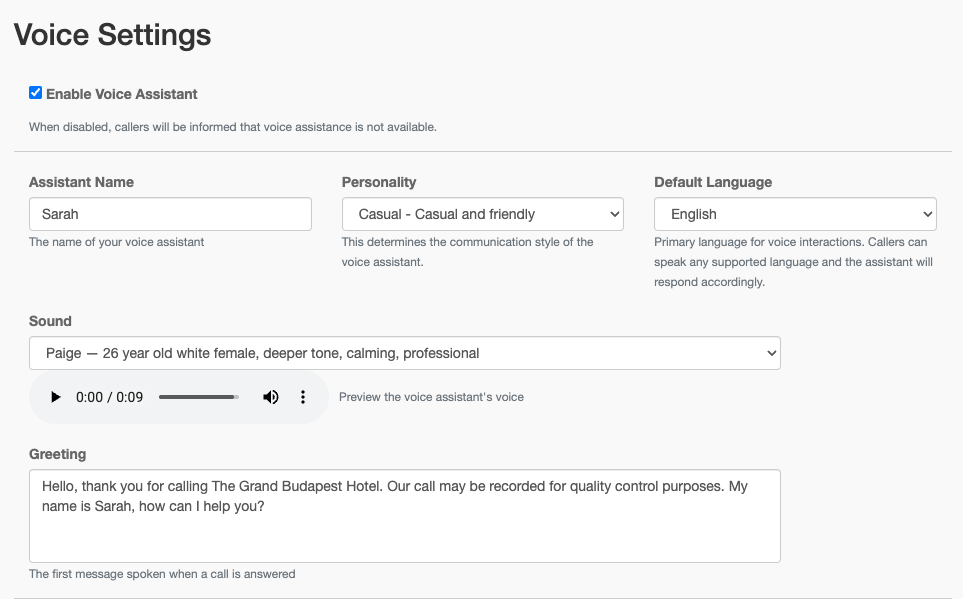
Go to AI & Automation > Voice
Check Enable Voice Assistant
Configure voice settings below
Click Update
Voice Configuration Options
Guest Matching
Enable Guest Matching so the Voice AI can identify callers:
Matches caller's phone number to guest records
Only works if caller has a reservation in the system
Provides personalized responses with stay information
Dial First
Try to reach staff before AI answers:
Check Enable Dial First
Enter phone number to dial first
Set wait time (1-60 seconds)
Optionally set daily hours for dial first
How it works: When a call comes in, the system first tries to reach the configured phone number. If no one answers within the wait time, the AI takes over.
Call Transfer
Configure when and where calls should transfer:
Go to AI & Automation > Voice
Check Enable Phone Transfer
Enter the transfer phone number and extension (optional)
When calls transfer:
Caller explicitly asks to speak with a human
Guest has a request the Assistant cannot fulfill
Caller wants to make a reservation and encounters difficulties
Conversation reaches an impasse
IVR Routing (Advanced)
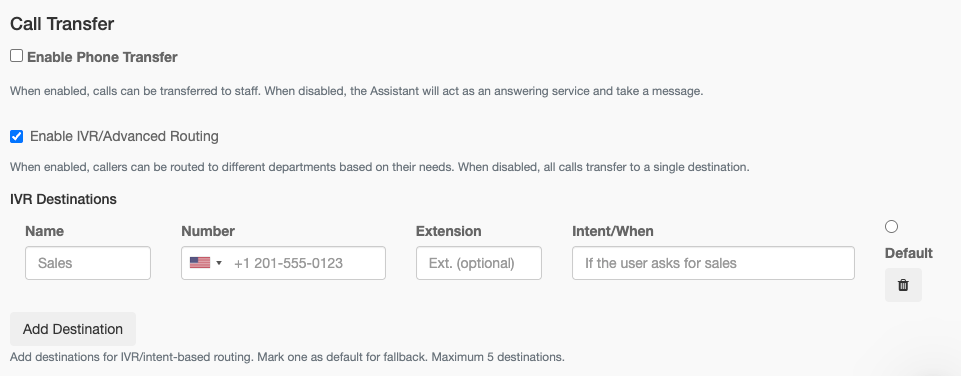
Route calls to different departments based on caller intent:
Go to AI & Automation > Voice
Check Enable IVR/Advanced Routing
Add destinations with:
Name: Department name (e.g., Sales)
Number: Phone number to transfer to
Extension: Optional extension
Intent/When: When to route here (e.g., "If the user asks for sales")
Mark one destination as Default for fallback
Click Update
Example: If caller says "I need to speak to someone about booking a wedding", the AI routes to the Events destination.
Testing Voice AI
Test your Voice AI by calling your HelloShift texting number:
Dial your property's HelloShift number
The Voice AI will answer with your greeting
Ask test questions to verify responses
Test language switching if applicable
AI Task Creation
With the Staff Plan, the AI Assistant can automatically create tasks for Maintenance or Housekeeping when guests make requests.
How It Works
Guest sends a message like:
"The AC in my room isn't working"
"Can I get extra towels in Room 212?"
AI interprets the intent
AI creates appropriate task:
Maintenance Task for AC repair
Housekeeping Task for towel delivery
Task appears in Staff Task Board
Enabling AI Task Creation
Task creation is automatic when AI is enabled. The AI will:
Detect service requests in guest messages
Create tasks with appropriate categories
Assign to the correct department
Task Routing
Testing Task Creation
Send a test message: "The TV in room 101 isn't working"
Check the Staff Task Board
Verify task was created with correct department
Confirm task details are accurate
Benefits
Service requests are never missed
Automates routing without manual logging
Speeds up response times
Improves guest satisfaction
Monitoring AI Performance
Viewing AI Responses
Go to Guest Messaging
Look for messages from AI Assistant
Review AI-generated responses
Checking Confidence Scores
AI responses include confidence information:
View in the message details
Lower confidence messages remain unresolved
High confidence messages may be auto-resolved
Improving AI Performance
If AI responses are inaccurate:
Add/Update FAQs - Create snippets for common questions
Review Low Confidence - See what questions AI struggles with
Update Website - Ensure your website has accurate information
Generate FAQs - Re-run FAQ generation after website updates
Best Practices
FAQ Training
Cover common questions - Start with check-in/out times, WiFi, parking
Be specific - Include exact times, passwords, addresses
Use variations - Add different ways guests ask the same question
Keep current - Update FAQs when policies change
Response Quality
Review AI responses - Check the inbox for AI messages
Correct mistakes - If AI gets something wrong, add/update FAQ
Test thoroughly - Send test messages to verify responses
Monitor unresolved - Low confidence messages need review
Timing
Set appropriate delay - 5-15 seconds feels natural
Configure hours - Match your staffing schedule
Enable per channel - Start with Widget, expand to SMS
Safety
Never share codes - AI won't share sensitive access codes
Booking safety - AI collects info but doesn't complete bookings
Staff oversight - Keep reviewing AI responses regularly
Troubleshooting
AI not responding
Verify AI is enabled in settings
Check channel has auto-response enabled
Verify current time is within daily hours
Check confidence threshold (may be too low)
Wrong answers
Add or update FAQ for that question
Check for conflicting FAQ entries
Update website if information is outdated
Review site information in settings
AI sounds robotic
Adjust tone setting (try Casual)
Update FAQ answers to be more conversational
Add personality to your FAQ responses
AI over-responding
Increase delay before responding
Set daily hours to limit when AI responds
Keep more messages unresolved for staff review
AI not resolving conversations
This is intentional for lower confidence responses
High confidence (60%+) auto-resolves
Medium confidence keeps for staff review
Staff can always resolve manually
Pausing AI Responses
You can temporarily pause AI auto-responses at two levels: site-wide or per guest.
Site-Wide Pause
To stop the AI from responding to all incoming messages across all channels:
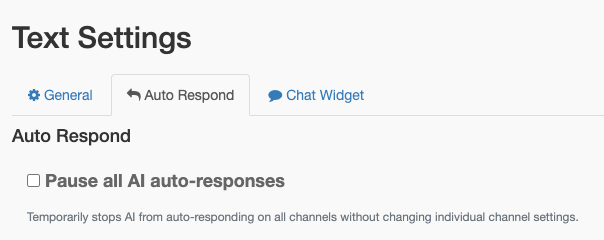
Go to AI & Automation > Text > Auto Respond
Check Pause all AI auto-responses
Click Update
This overrides individual channel settings without changing them. When you uncheck it, all previously enabled channels resume responding.
Per-Guest Pause
To pause AI responses for a single guest while keeping AI active for everyone else:
Open the guest conversation
Click the pause AI button in the guest toolbar (robot icon)
The AI stops responding to this guest until you click resume AI
Use this when a staff member is actively handling a complex issue and does not want the AI to interrupt the conversation.

Availability & Booking Enquiries (ARI)
When connected to a supported PMS (Cloudbeds, Mews, or Opera), the AI assistant can answer guest questions about room availability, pricing, and booking — in real time.
How It Works
A guest asks about availability (e.g., "Do you have any rooms next weekend?")
The AI parses the dates, guest count, and preferences from the message
HelloShift queries your PMS for live availability and rates
The AI responds with room options, nightly rates, total pricing, and a direct booking link
Example AI Response
When a single room type is available:
"Great news! We have the Double Queen available at $150 per night ($600 total for 4 nights). Would you like me to help you book?"
When multiple options are available, the AI lists them with pricing and indicates low availability (e.g., "only 2 left!").
Rate Selection
You can configure how rates are presented to guests:
Requirements
A supported PMS connected: Cloudbeds, Mews, or Opera
AI Assistant enabled
The PMS integration must support availability queries (contact support@helloshift.com to verify)
ARI works across both text and voice AI channels. When a guest calls and asks about availability, the Voice AI assistant uses the same service to provide spoken pricing and availability.
Related Articles
All About Guest Messaging - Complete messaging overview
Snippets & Templates - Creating FAQ snippets
Guest Automations - Automated message delivery