Create Private Conversation
Start private one-on-one or group conversations with staff members in HelloShift for confidential communication.
Private conversations allow staff members to communicate one-on-one without the messages appearing in shared notes or task feeds. Use private messages for sensitive discussions, quick questions, or personal matters.
Overview
Starting a Private Conversation
Step 1: Access Private Messages
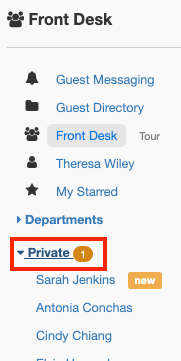
Go to Staff in the left navigation menu
Click Private
You'll see an orange badge if you have unread messages
Step 2: Select a Staff Member
Click the + button or select a name from the list
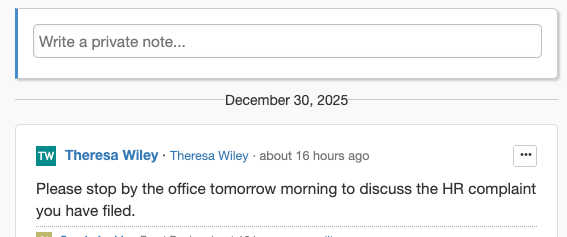
Type your message
Press Send
Managing Private Conversations
Reading Messages
Unread conversations show a "new" label
Click the conversation to view the full history
Messages are marked as read automatically
Notifications
Push notifications are sent for new private messages
Notifications follow your personal notification settings
See User Settings & Notifications to configure
Use Cases
Tips
Keep it brief: For complex discussions, consider a task or meeting
Use for the right purpose: Sensitive topics only - operational notes should be shared
Check notifications: Ensure you receive private message alerts
Mobile access: Private messages sync across all devices