Room Assignment System
Assign rooms to housekeepers using AI-powered, credit-based, zone-based, or manual assignment methods in HelloShift.
Efficiently assign rooms to housekeepers using HelloShift's flexible assignment system. Choose from AI-powered assignment, credit-based auto-assign, zone-based grouping, or manual assignment based on your property's needs.
Overview
HelloShift offers multiple ways to assign rooms to housekeeping staff:
Accessing the Assignment Page
Go to Housekeeping > Assignments in the left sidebar
Select the date you want to assign rooms for
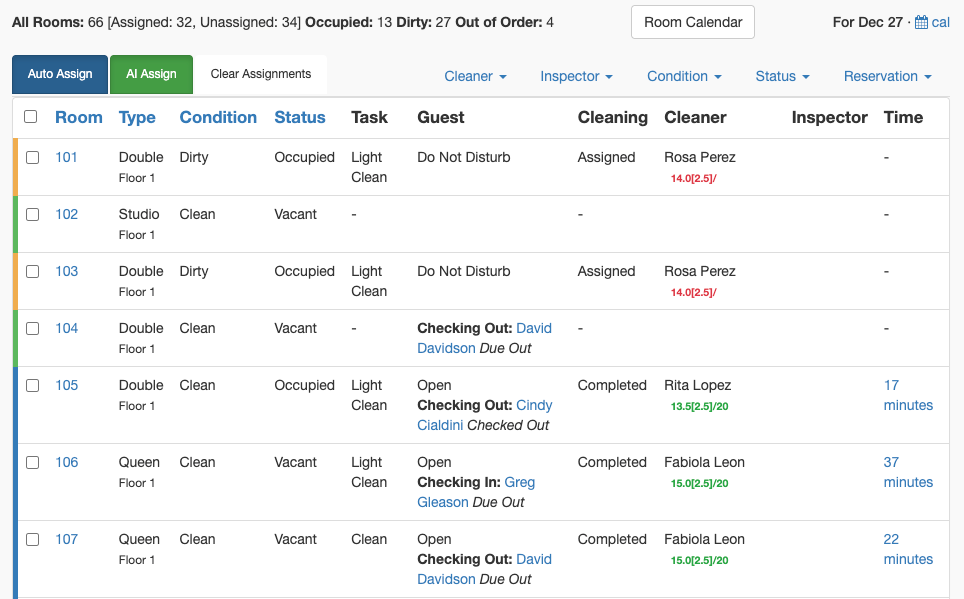
You'll see:
List of rooms with current status (Dirty, Clean, DND)
Check-in/check-out indicators from your PMS
Available cleaners with their credit capacity
Assignment controls
AI-Powered Assignment
AI Assign uses historical cleaning data to distribute rooms in a way that matches your property's established patterns.
How AI Assign Works
Analyzes the past 15 days of assignments
Identifies patterns in how rooms are typically distributed
Considers cleaner preferences and zone assignments
Balances workloads based on actual cleaning history
Using AI Assign
Navigate to Housekeeping > Assignments
Click AI Assign button
Review the suggested assignments
Make manual adjustments if needed
Click Save Assignments
Benefits
Saves time by auto-distributing rooms in seconds
Maintains consistency with your property's real-world practices
Reduces repetitive manual setup
Learns and improves over time
Tip: Use AI Assign as your default during busy check-in/check-out days to minimize manual work.
Credit-Based Auto-Assignment
Credit-based assignment distributes rooms proportionally based on each cleaner's available capacity and the credit value of each room.
Understanding Credits
Credits represent the time/effort required to clean a room. For example:
Setting Up Credits
Step 1: Configure Cleaner Capacity
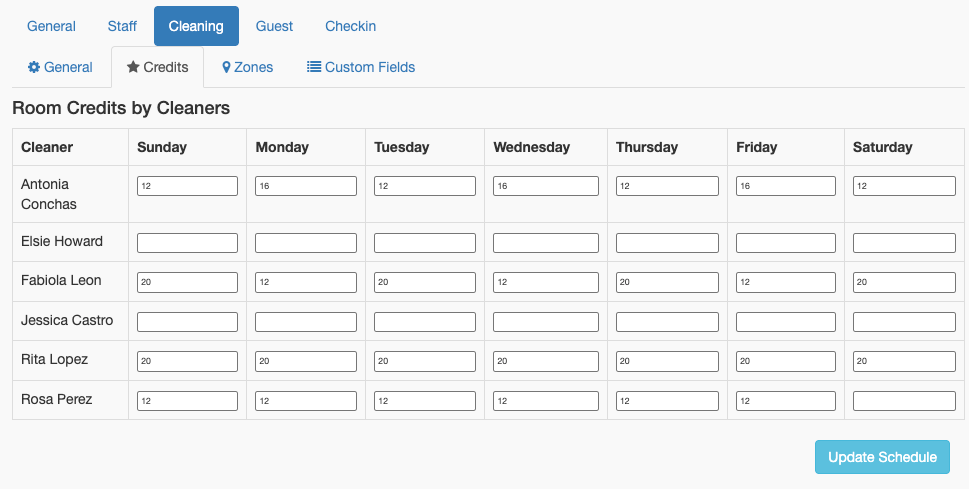
Go to Admin > Settings > Cleaning
In the Credits by Cleaner section, set each cleaner's daily capacity
Enter credits by day of week (leave empty for days off)
Step 2: Configure Room Credits
In the Credits by Task section, set credit values for each room type × cleaning type combination
Values represent relative effort (1 = base unit, 2 = twice as long, etc.)

How Auto-Assign Works
Calculates each cleaner's available credit for the day
Computes each room's credit requirement based on:
Room type
Cleaning task type (Clean, Checkout, Check-in, etc.)
Distributes rooms to fill each cleaner's capacity proportionally
Balances workload so no cleaner is over- or under-assigned
Using Auto-Assign
Navigate to Housekeeping > Assignments
Click Auto-Assign
Review and adjust assignments
Click Save Assignments
Assigning Inspectors — Multi-Select with Round-Robin
In the Auto Assign modal, rooms, cleaners, and inspectors are selected together in one step, each section with its own Select All toggle. Check as many inspectors as you like — HelloShift distributes them evenly across the eligible room assignments, round-robin, so inspection workload balances automatically.
A Task filter at the top of the Assignments page narrows the room list (Clean, Checkout, or any custom task) before you assign.
Zone-Based Assignment
Zone assignment groups rooms by location (floor, building, wing) to minimize cleaner travel time.
Setting Up Zones
Step 1: Assign Zones to Rooms
Go to each room's settings
Set the Zone field (e.g., "Floor 1", "Floor 2", "Building A")
Repeat for all rooms
Step 2: Configure Zone Distances (Optional)
Go to Admin > Settings > Cleaning > Zones
Enter distances between zones:
0 = Same zone
1 = Adjacent zones
2+ = Distant zones

Step 3: Set Max Zones Per Cleaner
Configure how many different zones a cleaner can work in per day:
Go to Admin > Settings > Cleaning > Zones
Set Max Zones per Cleaner (e.g., 2)
How Zone Assignment Works
During assignment:
System tracks zones already assigned to each cleaner
New room assignments prefer zones the cleaner already has
If adding a new zone, system checks adjacency
Adjacent zones (distance ≤ 1) are allowed within the max limit
Non-adjacent zones require cleaner to be under their zone limit
Benefits
Reduces travel time between rooms
Keeps cleaners focused in familiar areas
Improves efficiency on large properties
Works with both auto and manual assignment
Manual Assignment
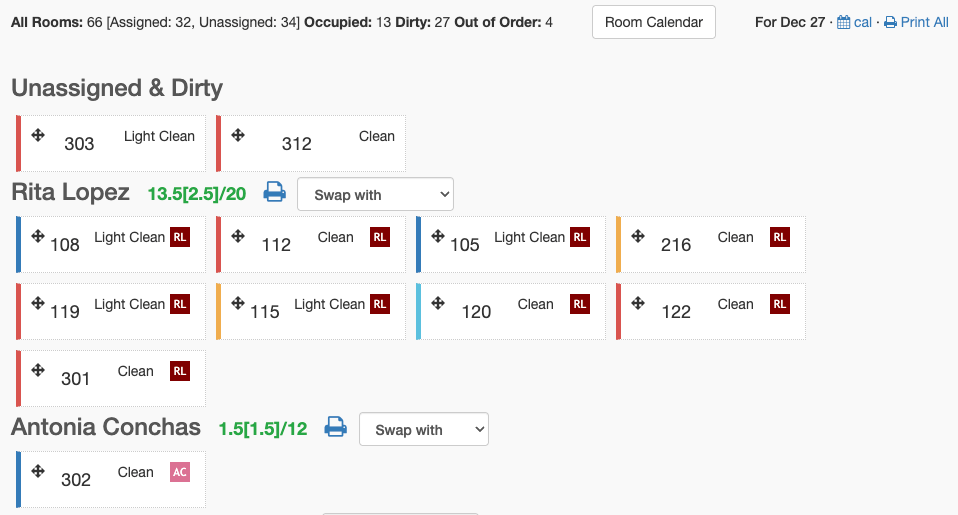
Assign rooms to specific cleaners using drag-and-drop or bulk selection.
Drag-and-Drop Assignment
Navigate to Housekeeping > Boards
View rooms in the left column, cleaners in right columns
Drag a room to a cleaner's column to assign
Room moves to that cleaner's list
Bulk Assignment
Select multiple rooms using checkboxes
Scroll to Bulk Actions at the bottom
Choose:
Assign Cleaner - Select the cleaner
Inspector (optional) - Select the inspector
Task Type - Choose Clean, Checkout, etc.
Click Submit
Assignments are pushed instantly to each cleaner's device.
Setting Default Cleaners
Assign a default cleaner to rooms for automatic assignment:
Open a room's settings
Set Default Cleaner
Set Default Inspector (optional)
When assignments are generated, this room auto-assigns to this cleaner
Self-Assignment
Allow housekeepers to choose their own rooms when you trust them to manage their workload.
Enabling Self-Assignment
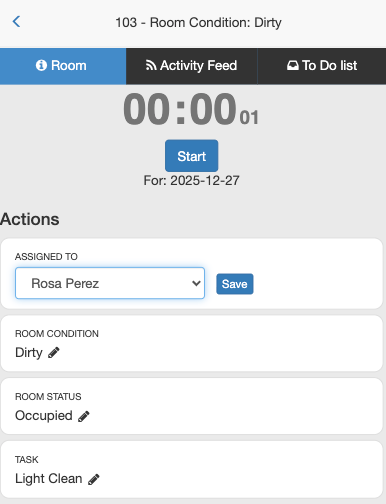
Self-assignment is available by default. Cleaners can:
Open Housekeeping on their mobile device
Tap All Rooms to see unassigned rooms
Filter by: Dirty, Vacant, Stayover
Select a room and tap Assign to Me
Best Practices
During training: Keep self-assignment disabled until staff know room standards
For experienced staff: Enable to reduce management overhead
Monitor workload: Review assignments to ensure fair distribution
Assignment Priority
Mark a room assignment as Urgent to push it to the top of the cleaner's queue and visually flag it across every housekeeping view. Useful for early-arriving VIPs, rush turns, or any room that needs to clear before the rest of the floor.
Setting Priority on a Single Assignment
Go to Housekeeping > Assignments
Click the priority field on the room row to open inline edit
Choose Urgent (or Normal to downgrade) and save
Setting Priority in Bulk
Select multiple rooms with the row checkboxes
In the Bulk Actions bar, open the action menu and choose Set Priority
Pick Urgent or Normal and click Submit

How Urgent Assignments Appear

Best Practices
Reserve urgent for real urgency. When the red badge is everywhere, cleaners stop reacting to it.
Escalate at assignment time for early arrivals and known rush turns — the cleaner sees the priority on their first look at the queue.
Pair escalation with reassignment mid-shift — move the room to a closer or faster cleaner and mark it urgent in the same action.
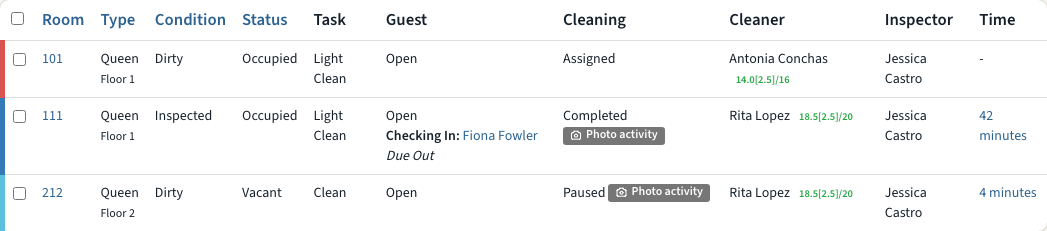
Assignment Status Flow
Rooms progress through these statuses:
Rooms with a photo posted on their Activity Feed today also show a Photo activity badge next to their status on Assignments, Overview and Boards. It reads as activity on the room, not proof of the clean; see All About Housekeeping for details.
Clearing and Reassigning
Clear All Assignments
To start over for a date:
Go to Housekeeping > Assignments
Click Clear Assignments
All assignments for that date are removed
Re-run auto-assign or manually assign
Reassign a Room
Find the room in the assignment grid
Drag to a different cleaner, or
Use bulk actions to reassign selected rooms
Viewing Assignments
Calendar View
See assignments across multiple days:
Go to Housekeeping > Calendar
View assigned cleans by day
Spot unassigned rooms
Click a day to manage assignments
On mobile: The mobile app includes a weekly Room Calendar — the week's room assignments at a glance, with My Rooms / All Rooms filters and week-by-week navigation, so cleaners and supervisors can plan beyond today.
Board View
See rooms flow through cleaning stages:
Go to Housekeeping > Overview
View Kanban-style board: Dirty → In Progress → Clean → Done
Drag rooms between columns to update status
Tiles with a photo on the room's feed today carry a Photo activity badge.
Troubleshooting
Auto-assign isn't distributing rooms evenly
Check that cleaner credits are set correctly for the day of week
Verify room credit values match expected cleaning times
Ensure cleaners are set as Housekeeping department members
Rooms aren't appearing in the assignment list
Verify rooms are marked as Dirty in room status
Check that rooms aren't Out of Order
Ensure the correct date is selected
Zone assignment isn't working as expected
Verify zones are assigned to all rooms
Check zone distance matrix is configured
Confirm max zones per cleaner setting
Schedule Projection
Schedule Projection automatically generates room cleaning assignments for upcoming days based on your existing room automations. Instead of assignments appearing only on the day they are due, the system projects them forward so your team can see the full cleaning schedule in advance.
How It Works
Each night, HelloShift looks at your active room automations and calculates which rooms will need cleaning over the next several days
It creates assignments for each future date, matching the same rules your automations use (room schedules, stay-based triggers, etc.)
The system reconciles nightly — adding new assignments, removing stale ones, and preserving any manual assignments you have made
Configuring Projection
To configure schedule projection:
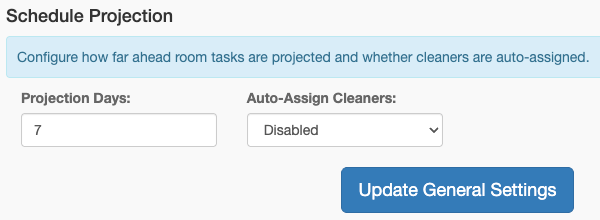
Go to Admin > Settings > Housekeeping > General
Find the Schedule Projection section
Set Projection Days — how many days ahead to project (1–14 days, default: 7)
Set Auto-Assign Cleaners — when enabled, projected assignments automatically include cleaner assignments based on your usual assignment patterns
Projection vs. Manual Assignments
Projected assignments are tracked separately from manual ones. If you manually assign a room on a future date, the system preserves your manual assignment and does not overwrite it during nightly reconciliation.
To identify projected assignments, look for the automation source label on the assignment card.
Preview
Admins can preview the projected schedule before it runs. The preview shows which rooms will receive assignments on each future date, along with the automation rule that generated them. Use this to verify your automations are configured correctly.
Related Articles
All About Housekeeping - Complete housekeeping overview
Housekeeping Credit System - Credit configuration details
Housekeeping Time Tracking - Cleaning duration tracking