AI Automations
Set up AI-powered automations to handle guest requests, route messages, and trigger actions in HelloShift.
AI Automations enable your AI Assistant (text and voice) to automatically execute actions when guests make specific requests. When a guest asks for towels, requests their room key, or needs to speak with staff, the AI detects the intent and triggers the appropriate workflow.
What is an Intent? An intent is the underlying purpose or goal behind a guest's message. When a guest texts "Can I get some extra towels?" the intent is "request towels" - regardless of the exact words used. The AI analyzes guest messages to identify these intents and trigger the appropriate automation.
Overview
Requirements
Before setting up, ensure:
AI Assistant is enabled for your property
Voice Assistant is enabled for your property
Task Templates are created (for task-based automations)
Snippets are configured (for message-based automations)
Smart Locks are integrated (for key automation)
Accessing AI Automations
Go to AI & Automation > AI Automations
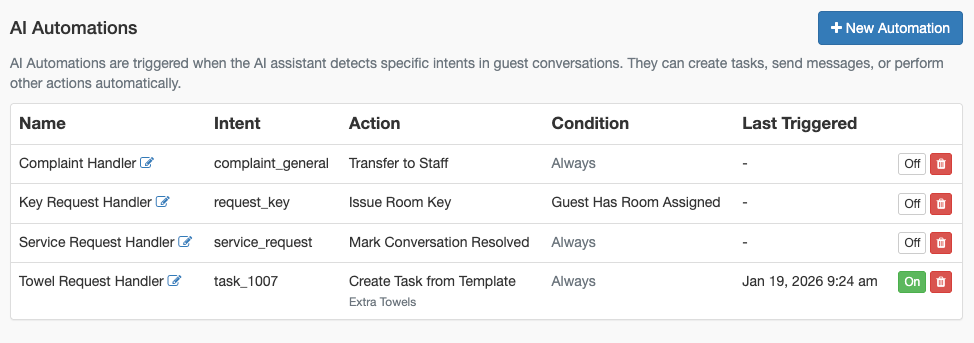
View all automations with their status
Click New AI Automation to create a custom automation

Understanding AI Automations
How AI Automations Work
Guest Message/Call: Guest sends a text or makes a voice call
AI Response: AI Assistant processes and responds to the guest
Intent Detection: AI identifies what the guest wants (e.g., "request towels")
Workflow Triggered: Matching AI Automation executes its action
Action Completed: Task created, message sent, or key issued
AI Automation Components
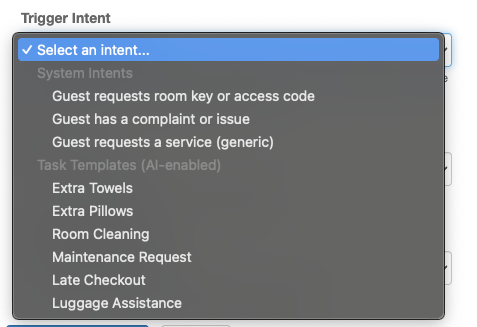
Available Intents
AI Automations can respond to two types of intents:
Global Intents
Built-in intents that work across all properties:
Door codes: when Door Codes & Access Details is turned on for your property, the AI handles access requests itself by following your key automations, and the Request Key intent is no longer offered. Existing Request Key automations stop running. See AI Assistant Configuration > Door Codes & Access Details.
Task Template Intents
Site-specific intents derived from AI-enabled Task Templates:
When you enable a Task Template for AI, it becomes available as an intent option. The AI uses the template's name and description to match guest requests.
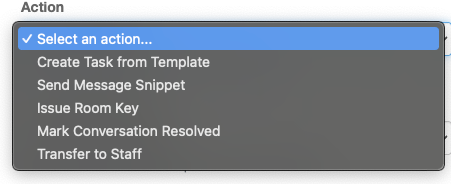
Available Actions
Task Actions
Communication Actions
Key Management Actions
Setting Up Your Booking Link
The Send Booking Link action needs to know where your guests should book. You set this once, and every booking link the AI sends is built from it.
Adding your booking link
Go to AI & Automation → Text, then the General tab
Scroll to Room Booking
Open your own booking engine and search for any stay — any dates, any number of guests
Copy the link from your browser's address bar and paste it into Booking Link
Click Update
Paste the link with the dates and guest count still in it. HelloShift recognizes those values and swaps in each guest's own dates, so one saved link works for every conversation. Because the link comes from your own booking engine, it already points at the right property and uses whatever format your engine expects.
What gets personalized
Everything else — your property ID, currency, language, room count — is kept exactly as you pasted it. If the conversation never established a guest count, those values are left out and your booking engine applies its own defaults.
Tracking codes are removed automatically. Links copied from a browser often carry analytics tags such as _ga or gclid that belong to your own browsing session rather than your guest's. HelloShift strips these when you save. Campaign tags (utm_source and similar) are kept, so you can still attribute bookings that came from the AI.
If you use Real-Time Availability
With Real-Time Availability enabled, the AI quotes live rates and prefers the booking link your PMS returns. Your saved Booking Link is the fallback for when the PMS doesn't return one, so it's worth setting either way.
Leave Booking Link blank if you'd rather the AI never sent booking links at all.
Creating an AI Automation
Step 1: Navigate to AI Automations
Go to AI & Automation > AI Automations
Click New AI Automation
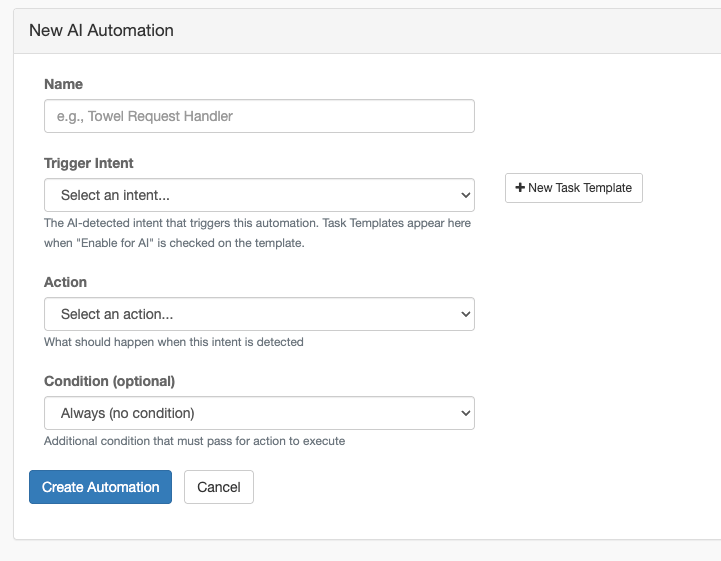
Step 2: Configure Basic Settings
Step 3: Select Action
Choose what happens when the automation triggers:
Step 4: Configure Channels (Optional)
Limit which communication channels trigger this automation:
Leave empty to trigger on all channels.
Step 5: Save
Click Create AI Automation
Toggle Active to enable
Setting Up Task Templates for AI
To use Task Templates with AI Automations, you must enable them for AI:
Step 1: Create or Edit a Task Template
Go to Staff > Tasks > Templates
Click New Template or edit an existing one
Step 2: Enable AI
Check Enable for AI checkbox
Enter an AI Trigger Description (e.g., "Guest requests extra towels")
The AI Trigger Description helps the AI match guest requests to this template. Be descriptive but concise.
Step 3: Save
The Task Template now appears in the AI Automation intent dropdown.

Task Template Fields
Incremental Request Handling
AI Automations intelligently handle follow-up requests within a 15-minute window.
How It Works
Why This Matters
Prevents duplicate tasks for conversational requests
Preserves context by keeping related requests together
Handles corrections when guests add to their original request
Respects staff work by reopening only when necessary
Channel Filtering
Control which communication channels trigger each automation:
Voice-Only Automations
Useful for actions that only make sense during phone calls:
Post-call follow-up automations are also voice-only, sending text messages after a call ends:
Text-Only Automations
Useful for sending links or information that can't be conveyed verbally:
Common AI Automation Examples
Housekeeping Request Automation
Tasks created by AI include a dynamic subject showing the guest's request. For example: "Housekeeping Request: Can I get some extra towels for..."
Room Key Request
Complaint Handler
When a guest expresses a complaint, the automation creates a Staff Review task for front desk staff to follow up.
Post-Call Booking Link
When a guest calls to inquire about booking, the voice assistant offers to send a booking link via text. After the call ends, the system automatically sends an SMS with a personalized booking link containing the dates and guest count discussed during the call.
Parking Information
Managing AI Automations
Enabling/Disabling
Find the automation in the list
Click Edit
Toggle Status to Active or Inactive
Click Update
Editing an Automation
Click Edit on the automation
Modify settings as needed
Click Update AI Automation
Deleting an Automation
Click Delete on the automation
Confirm deletion
Best Practices
Intent Naming
Write clear, specific AI Trigger Descriptions for Task Templates:
"Guest asks for extra towels or linens"
"Guest requests room service or food delivery"
"Guest needs help with WiFi or internet connection"
"Guest wants to extend their stay or late checkout"
Task Template Design
Channel Considerations
Testing Automations
Keep automation Inactive initially
Test with sample guest messages
Verify intent detection works
Check task/action created correctly
Enable for production use
AI Automations vs Triggers vs Scheduled Automations
Use AI Automations for:
Responding to guest service requests
Issuing keys when asked
Creating tasks from conversations
Creating tasks for staff review
Use Triggers for:
Automatic key issue on booking
Room status updates on checkout
Post-check-in welcome messages
Use Scheduled Automations for:
Pre-arrival messages (day before)
Mid-stay check-ins
Post-stay review requests
Troubleshooting
Automation not triggering
Possible Causes:
Automation is inactive
Intent not matching guest request
Channel filter blocking trigger
Task Template not AI-enabled
Solutions:
Verify automation is active
Check AI Trigger Description is clear
Review channel filter settings
Ensure Task Template has "Enable for AI" checked
Wrong task created
Possible Causes:
Multiple automations matching same intent
Wrong Task Template linked
AI Trigger Description too broad
Solutions:
Review all active automations for conflicts
Verify correct Task Template selected
Make AI Trigger Description more specific
Duplicate tasks created
Possible Causes:
Requests more than 15 minutes apart
Different Task Templates triggered
Automation configured incorrectly
Solutions:
This may be expected behavior for separate requests
Review which automations are triggering
Check incremental handling is working (same template within 15 min)
Voice automation not working
Possible Causes:
Voice AI not configured
Channel filter excludes voice
Intent not detected in speech
Solutions:
Verify Voice AI integration is active
Check automation includes "voice" channel
Test with clearer voice commands
Task missing guest message
Possible Causes:
Task Template body not preserved
Incremental append not working
Solutions:
Check Task Template has instructions
Verify follow-up is within 15-minute window
Review task to see if message was appended
Booking link not sent
Possible Causes:
No Booking Link saved under AI & Automation → Text → General → Room Booking
The conversation never established arrival and departure dates
Channel filter excludes the channel the guest used
Solutions:
Add your booking link (see Setting Up Your Booking Link)
Review the conversation to confirm the AI captured both dates
Check the automation includes the guest's channel
Related Articles
Triggers - Event-driven automations
Guest Automations - Scheduled message automations
Snippets & Templates - Message template configuration
Smart Lock Integration - Key automation setup
Still need help? Ask the team