Snippets & Templates
Create reusable message snippets and templates for fast, consistent guest communication in HelloShift.
Snippets are reusable message templates in HelloShift that allow you to save frequently-used messages and personalize them with variables. Use snippets to ensure consistent messaging, speed up response times, and automate guest communications.
Overview
Accessing Snippets
Go to Guest > Snippets
View all snippets organized by type
Click New Snippet to create a new template
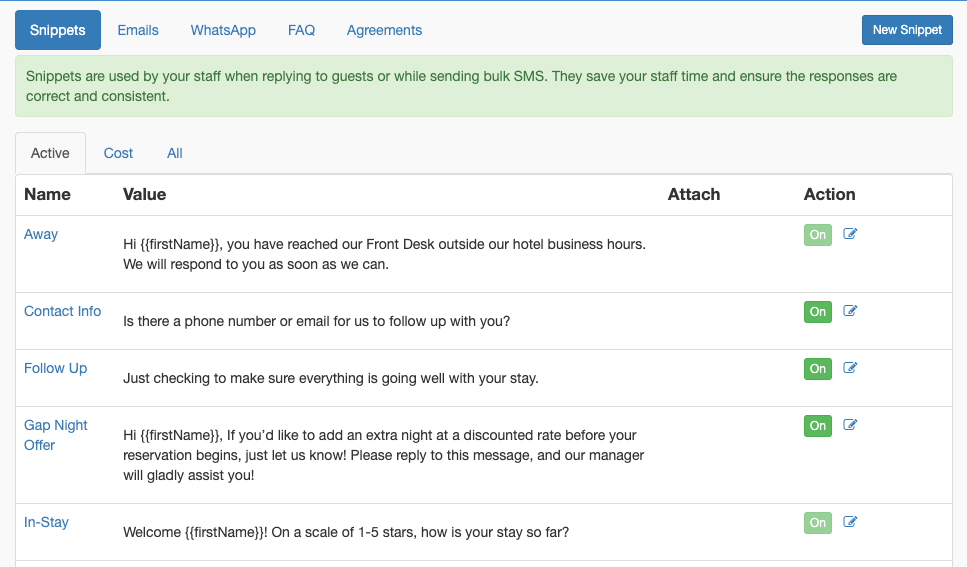
Snippet Types
HelloShift supports five types of snippets:
Text Snippets (SMS)
Plain text format
160 character limit per SMS segment
HelloShift replaces variables before sending
Best for short, actionable messages
Email version. The snippet list shows, under each text snippet, the segment count of the rendered message and whether an email snippet with the same name exists ("Email version: None · Create"). When a guest is reached by email, HelloShift sends the email version if there is one, otherwise the text itself.
Email Snippets
Rich HTML formatting
Subject line support
Longer content allowed
Can include images and links
WhatsApp Snippets
WhatsApp Business API format
Support for templates (if using approved templates)
Can include media attachments
FAQ Snippets
Used by AI Assistant for auto-responses
Question pattern as the name
Answer as the body
Agreement Snippets
HTML format for terms and conditions
Displayed during check-in process
Guest signs digitally
Linked via
{{agreementUrl|append: 'Name'}}
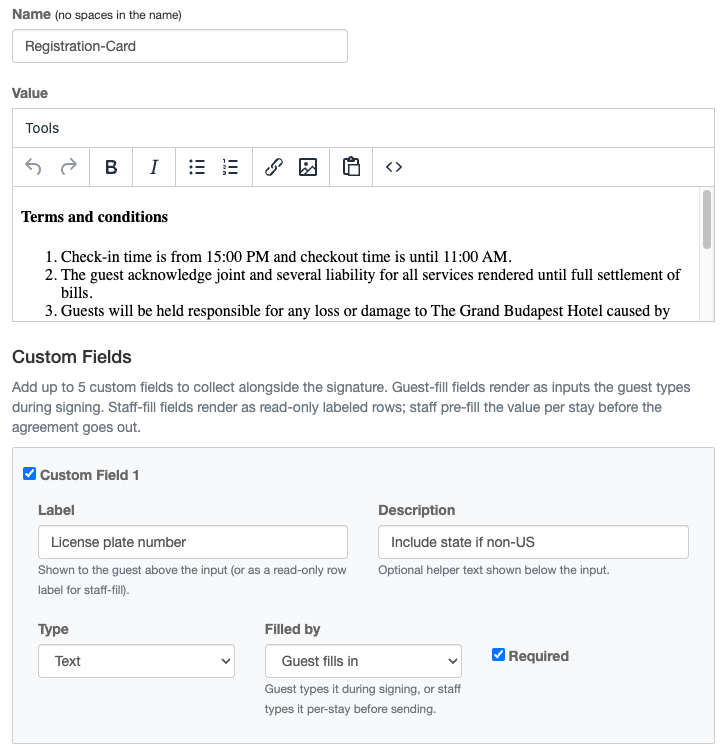
Custom fields on agreement templates
Each agreement template can include up to 5 custom fields collected at signing. Every field is one of two kinds:
Guest-fill — the guest types this value while signing (e.g., vehicle plate, emergency contact).
Staff-fill — you pre-fill this per reservation before sending; the guest sees it as read-only on the signed document (e.g., rate, deposit, room number).
Each signed copy stores its own snapshot of the field labels and answers at the time of signing, so later edits to the template do not change previously signed agreements. Re-signing creates a new signed record, and all signatures for a stay are listed with the template name and date.
Using field values in messages and automations: every field's value is available as a message variable, keyed by the field's label:
{{agreementStaffFields["Label"]}}— the staff-entered value as it is right now. It renders before and after signing and follows later edits on the reservation.{{agreementGuestFields["Label"]}}— what the guest entered on the signed agreement. Blank until they sign; re-signing updates it.
Hi {{firstName}}, we have your vehicle {{agreementGuestFields["Vehicle make and model"]}} on file. Balance due at checkout: {{agreementStaffFields["Total Due From Guest"]}}.The variable picker lists a ready-to-insert token for each configured label. In trigger and scheduled-automation conditions the same values are available as guest_stay.agreement_staff_fields["Label"] and guest_stay.agreement_guest_fields["Label"]. One naming rule: a field label may contain single or double quotes, but not both — a label with both cannot be referenced from a template, and HelloShift will not let you save one.
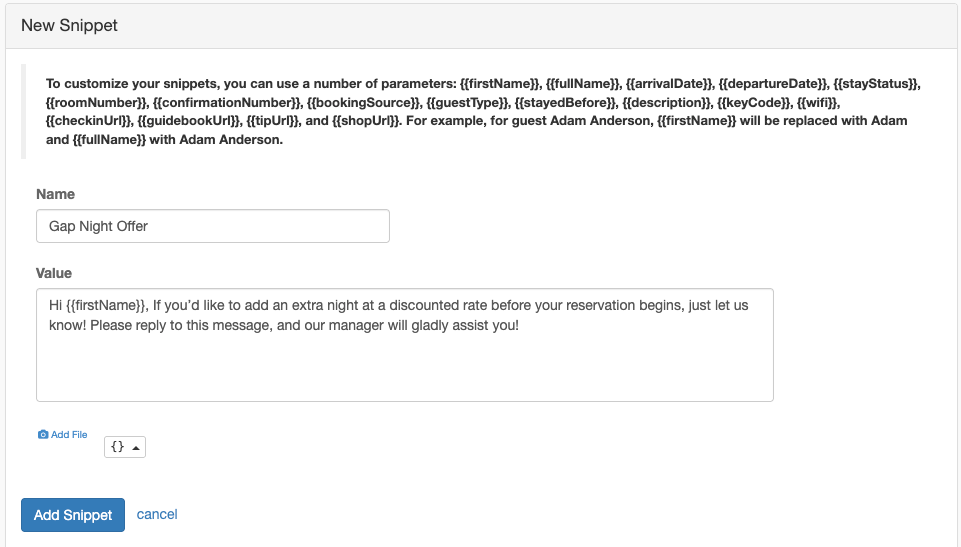
Creating a Snippet
Step 1: Click New Snippet
Go to Guest > Snippets
Click New Snippet
Step 2: Configure Snippet
Step 3: Add Variables
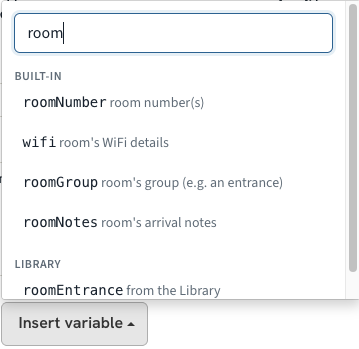
Click Insert variable. Built-in variables are listed first, each with a short description of what it becomes; names defined in your Snippet Library appear under Library. Type to filter the list and press Enter to insert the first match. Variables use double curly braces:
Hi {{firstName}}, welcome to our hotel!Your room {{roomNumber}} is ready.Step 4: Save
Click Save to create the snippet.
Preview Before Saving
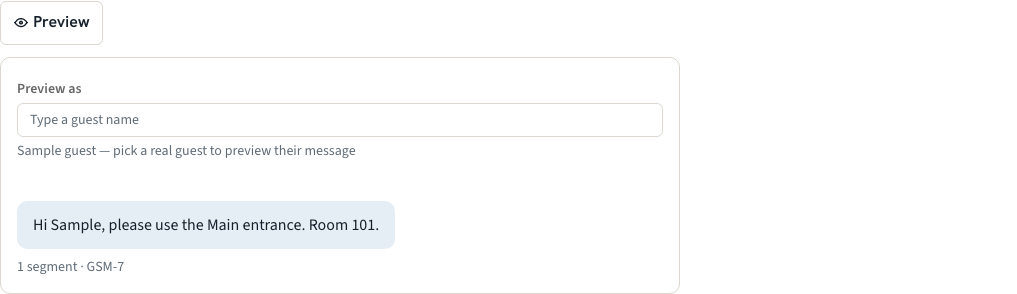
Click Preview under the editor to see the message as a guest would receive it. The preview renders your draft (including anything from the Snippet Library) for a sample guest; type a guest's name to preview it with a real reservation. For text snippets the preview shows the segment count and whether the message stays in GSM-7. A door code that does not exist yet shows as [no door code yet].
Variable Reference
Guest Information
Stay Information
Access & Amenities
URLs & Links
Example Using Multiple Tags
Hi {{firstName}}!Welcome to our hotel. Your reservation details:Room: {{roomNumber}}Check-in: {{arrivalDate}}Check-out: {{departureDate}}Confirmation: {{confirmationNumber}}Access your digital key: {{checkinUrl}}WiFi Password: {{wifi}}Questions? Reply to this message!System Snippets
HelloShift creates these default snippets when your site is set up:
Default System Snippet Examples
Pre-Stay:
Hi {{firstName}}, welcome to [Hotel Name]! Need anything for yourupcoming stay? Reply to this text and we'll get right on it.Reply STOP to opt out.Welcome:
Hi {{firstName}}, welcome to [Hotel Name]! Need anything? Reply tothis text and we'll get right on it. Reply STOP to opt out.In-Stay:
Welcome {{firstName}}! On a scale of 1-5 stars, how is your stay so far?Post-Stay:
Thanks {{firstName}} for staying with us. If you're happy with ourservice, please share your feedback [Review Link]Send-Key:
Hi {{firstName}}, your room key is ready! Room: {{roomNumber}},Code: {{keyCode}}Conditional Content with Liquid
Use Liquid syntax for dynamic, conditional content in snippets.
Basic If/Else
{% if guestType == 'VIP' %}As our VIP guest, enjoy complimentary late checkout!{% else %}Checkout time is 11 AM.{% endif %}Returning Guest Check
Hi {{firstName}}, welcome {% if stayedBefore %}back{% endif %} to our hotel!Guest Type Personalization
{% if guestType contains 'Gold' %}Thank you for being a Gold member! Your upgrade is confirmed.{% elsif guestType contains 'Silver' %}As a Silver member, enjoy 10% off at our restaurant.{% else %}Join our loyalty program for exclusive benefits!{% endif %}Conditional VIP Perks
Hi {{firstName}}, welcome to our hotel!{% if guestType == 'VIP' %}Your first drink at the bar is on us!{% endif %}Room-Based Logic
{% if roomNumber contains '5' %}You're on our top floor! Enjoy the views.{% endif %}Available Liquid Variables
In addition to the variables above, these Liquid variables are available for conditional logic:
Day-of-Stay Personalization
{% if guest_stay.stay_day_number == 0 %}Welcome to your first day! Here's what to expect...{% elsif guest_stay.stay_day_number == 1 %}Good morning! How was your first night?{% else %}We hope you're enjoying your stay!{% endif %}Using Snippets
In Direct Messages
Open message composer
Click Use Snippet (or snippet icon)
Search or browse available snippets
Click to insert into message
Variables are replaced with guest data
Edit if needed, then send
In Automations
Create an automation (Guest > Automations)
Select the action "Send Message"
Choose a snippet from the dropdown
The snippet is sent when automation triggers
In Broadcast Messages
Select guests in directory
Click Broadcast
Click Use Template or Use Snippet
Variables are personalized per recipient
Translations
When Translate automated messages into the guest's language is on (Settings → Guest → Messaging), HelloShift translates each Text and Email snippet into every language your guests have on file and sends the translated version to guests whose language is not English. The English snippet stays the single source of truth: translations are made from it and follow it.
The Translations Panel
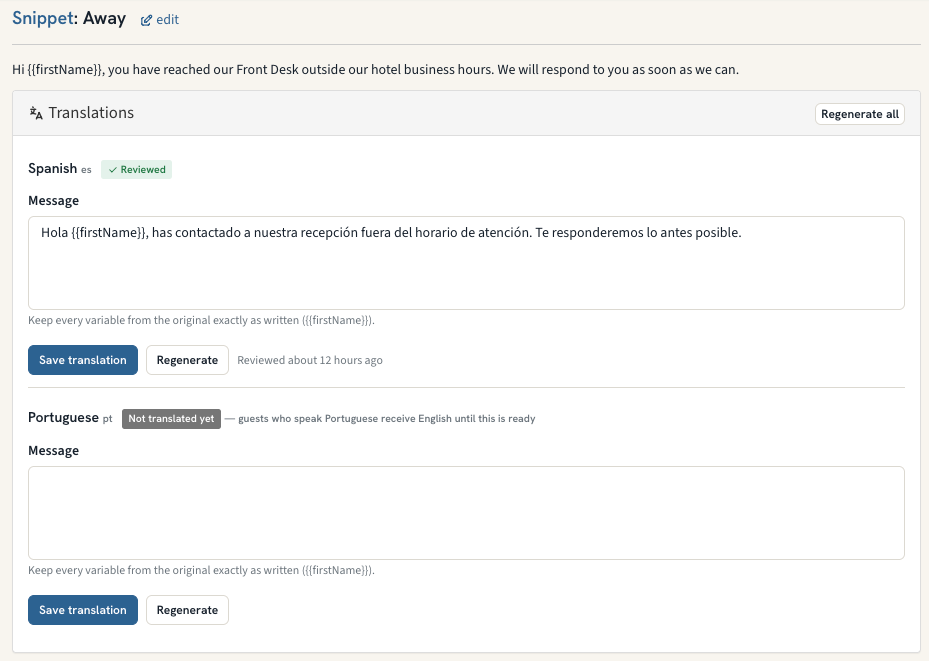
Open any Text or Email snippet. Below the snippet, the Translations panel lists one entry per guest language seen at your property, each with a status:
Correcting a Translation
Edit the text in that language's box (Email snippets also have a Subject).
Keep every variable exactly as it appears in the English snippet —
{{firstName}},{{guidebookUrl}},{% if %}blocks. HelloShift will not save a translation that is missing one.Click Save translation. The entry is marked Reviewed with your name and the time.
Regenerate discards the current translation, including your edits, and creates a new one from the English text. Regenerate all does this for every language.
Note: Editing the English snippet automatically retranslates every language, so reviewed edits are replaced — re-check translations after changing a snippet. Translations are for correcting wording, not for writing different content per language; the English snippet remains the source.
What is translated: the snippet text, the email subject, and the Service Policies block ({{servicePolicies}}). Names, dates, room numbers, codes, links and other variables are inserted after translation, unchanged. WhatsApp snippets are not translated (Meta approves each language separately). Languages appear in the panel as guests write in, talk to the Voice AI, or pick a language at the top of the online check-in page or the guidebook. These translations are also what guests receive when staff insert a snippet into a reply and send it unchanged.
SMS Segment Calculation
SMS messages are billed by segment (160 characters for standard, 70 for Unicode):
Tips to reduce segments:
Avoid emojis when possible
Use standard English characters
Keep messages concise
Check segment count before saving
HelloShift shows segment count when editing snippets.
Translated messages (see Translations above) usually contain accented characters and therefore use Unicode segments: a one-segment English snippet can take two or more segments in Spanish.
Non-GSM7 Characters to Avoid
These common characters trigger Unicode mode (70 char segments):
The count is taken from the rendered message: Liquid tags and library logic do not count toward the segments.
Snippet with Attachments
Add images or files to snippets for richer messages.
Adding an Attachment
Edit the snippet
Click Add Attachment
Upload image or file
Save snippet
Attachment Considerations
Best Practices
Personalization
Always use
{{firstName}}for a personal touchInclude stay-specific details (room, dates)
Acknowledge guest type when applicable
Message Length
Testing
Create a test guest with your phone number
Use "Test Send" feature if available
Verify all variables render correctly
Check formatting on mobile device
Organization
Use consistent naming conventions
Group related snippets with prefixes (e.g., "Arrival-", "Checkout-")
Keep system snippets active unless replacing them
Document custom snippets for team reference
Compliance
Include opt-out instructions in marketing messages (e.g., "Reply STOP to opt out")
Don't send automated messages at inappropriate hours
Respect guest communication preferences
Follow local regulations (TCPA, GDPR, etc.)
Editing Snippets
To Edit a Snippet
Go to Guest > Snippets
Find the snippet in the list
Click Edit
Modify name, type, or body
Click Save
To Deactivate a Snippet
Edit the snippet
Change Status to Inactive
Save
Inactive snippets won't appear in snippet picker but can be reactivated later.
To Delete a Snippet
Find the snippet
Click Delete
Confirm deletion
Note: System snippets cannot be deleted, only deactivated.
Troubleshooting
Variable not replaced
Verify spelling matches exactly (case-sensitive)
Ensure guest has the data (e.g., room number assigned)
Check for typos in curly braces
Liquid syntax error
Verify
{% %}and{{ }}are properly closedCheck for unmatched if/endif pairs
Test in the snippet editor (errors are shown on save)
SMS too long
Check segment count indicator
Remove emojis or special characters
Shorten message text
Consider splitting into multiple messages
Snippet not appearing in picker
Verify snippet is Active (not Inactive)
Check you're filtering by correct type
Ensure snippet was saved successfully
Related Articles
Snippet Library - Define a variable once for every snippet and condition
All About Guest Messaging - Complete messaging overview
Guest Automations - Automated message delivery
AI Assistant Configuration - FAQ snippet configuration
Contactless Check-in Setup - Agreement snippets usage