Guest Guidebook
Create a digital guest guidebook with local recommendations, property info, and house rules for your hotel.
Create a digital guidebook for your guests with property information, local recommendations, amenities, and house rules. Guests access the guidebook through a link in your messages—no app download required.
Overview
Requirements
Before setting up, ensure your HelloShift subscription includes:
Guest+ plan
Accessing Guidebook Management
Go to Guest > Guidebook
View all guidebook pages with their titles, URLs, and publish status
Use the toolbar to create pages, preview as a guest, or bulk publish/unpublish

Creating a Guidebook Page
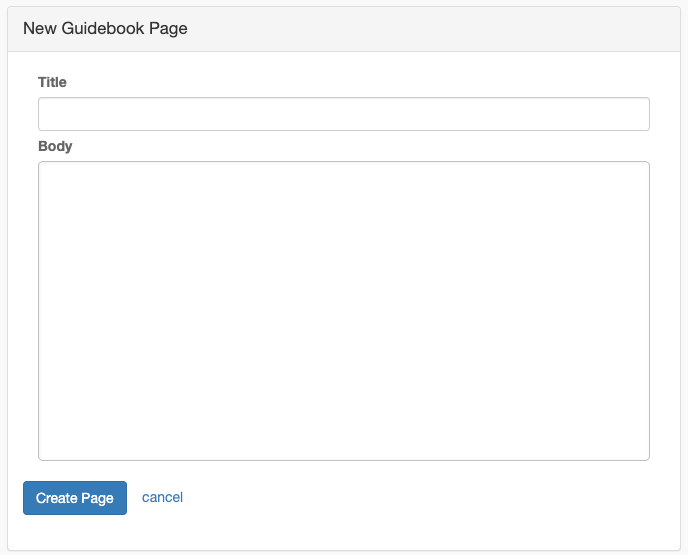
Step 1: Click New Guidebook Page
Go to Guest > Guidebook
Click New Guidebook Page
Step 2: Enter Page Details
Step 3: Add Content
Use the rich text editor to add:
Formatted text (headings, bold, lists)
Images
Links
Embedded content
Step 4: Save the Page
Click Create Page to save. You will be redirected to the edit page where you can:
See a live preview of how the page looks to guests
Upload a cover image
Set the URL slug
Publish the page when ready
Note: New pages are created as drafts. Publish them to make them visible to guests.
Managing Pages
Viewing Pages
The guidebook management page shows:
Publishing Pages
You can publish pages individually or in bulk:
Individual: Click the Publish/Unpublish button next to each page in the list
Bulk: Use the Publish All or Unpublish All buttons in the toolbar to change all pages at once
Reordering Pages
Grab the drag handle (move icon) on the left
Drag the page to a new position
Drop to save the new order
Pages appear in this order on the guest guidebook.
Editing a Page
Click the page title to view it
Click Edit Page
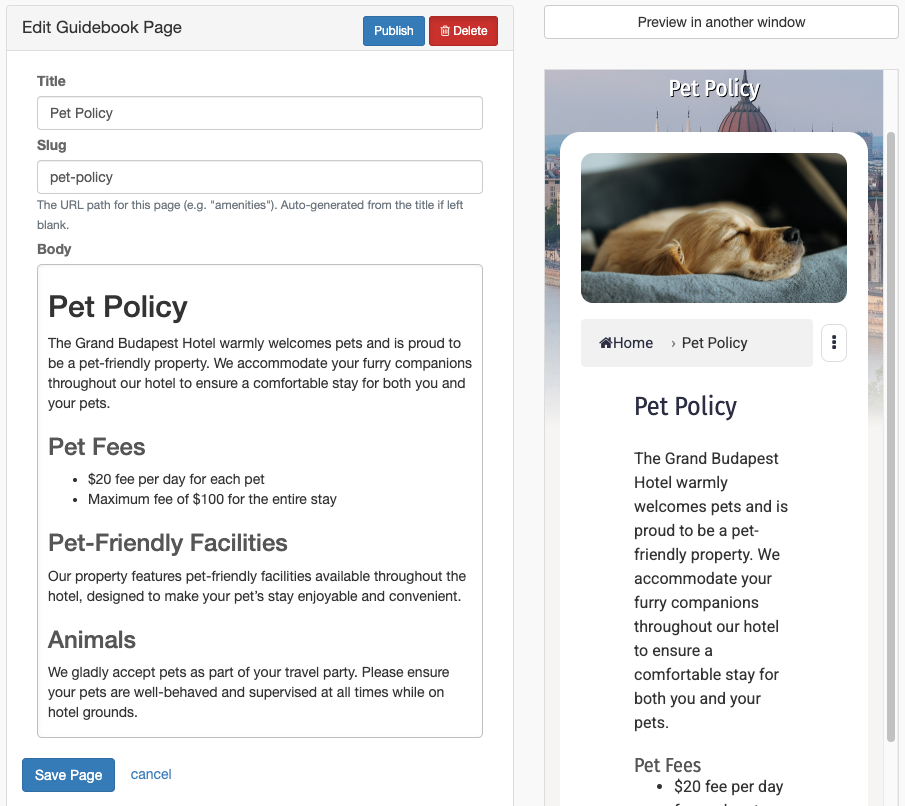
The edit page shows your form on the left and a live preview on the right
As you type, the preview updates in real-time — no need to save first
Click Save Page when done
The edit page also includes:
Deleting a Page
Open the page (click the title) or go to the edit page
Click the Delete button
Confirm deletion
Note: Deleted pages cannot be recovered.
Page Cover Images
Each page can have a cover image that appears at the top of the page in the guest guidebook.
Go to the edit page for any guidebook page
Scroll below the form to the Page Image section
Click Upload Image to select a file
The image uploads and saves automatically
Image Guidelines:
Recommended width: 1024px
The image is displayed as a cover (cropped to fit, 200px height)
Use landscape orientation for best results
To remove an image, click Remove Image
Guidebook Display Settings
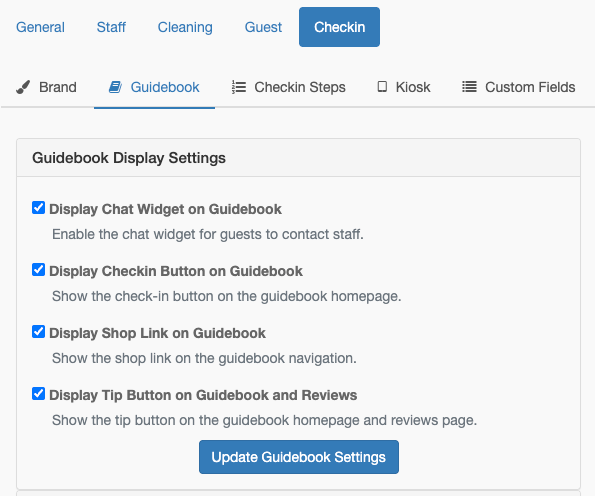
Configure what appears on the guidebook homepage.
Accessing Display Settings
Go to Admin > Settings > Checkin
Click the Guidebook tab
Display Options
Click Update Guidebook Settings to save.
Default Guidebook Pages
HelloShift creates default page templates to help you get started:
Customize these templates with your property's specific information.
Guest Experience
Accessing the Guidebook
Guests access the guidebook through:
Message Link:
{{guidebookUrl}}variable in snippetsDirect URL:
https://app.helloshift.com/sites/{site}/guests/guidebookPost-Booking Message: Include link in booking confirmation
Guidebook Homepage
When guests open the guidebook, they see:
Welcome Message: Customizable welcome heading and text
Check-in Button: If they have a pending check-in
Digital Keys Button: If FlexiPass WebKeys is active — opens the door-unlock page
Page Navigation: List of all published pages with cover images
Shop Link: If shopping is enabled
Tip Button: If tipping is enabled
Chat Widget: If chat is enabled
Viewing Pages
Click any page title to view content
Use the kebab menu (three dots) to navigate between pages
Return to homepage using the Home breadcrumb link
Guest Actions
Guest Languages
Guidebook pages — along with shop, tipping, and other guest-facing pages — are available in English, Spanish, and Portuguese. Guests can switch language with the English · Español · Português links at the top of the guidebook and the online check-in page; the choice is remembered on their guest record and follows them across every guest page, greetings, and (when enabled) translated messages. HelloShift's labels and navigation follow the guest's language (their picked language, their saved preference, a language set by staff on the guest profile, or their browser language), while page content you wrote is always shown exactly as you wrote it. To reach guests in their own language, consider writing your page content bilingually.

Best Practices
Page Organization
Essential Info First: WiFi, check-in/out times, house rules
Group Related Content: Local restaurants in one page, activities in another
Keep It Scannable: Use headings, lists, and short paragraphs
Update Seasonally: Refresh local recommendations
Recommended Pages
Content Tips
Keep titles short and descriptive
Use images to show locations or amenities
Include phone numbers and addresses
Update hours for seasonal businesses
Add maps or directions where helpful
Communication
Include guidebook links in:
Post-booking confirmation
Pre-arrival messages
In-stay messages
Room information cards
Snippet Example:
Welcome to [Hotel Name]! View our digital guidebook for WiFi, amenities, and local recommendations: {{guidebookUrl}}Brand Customization
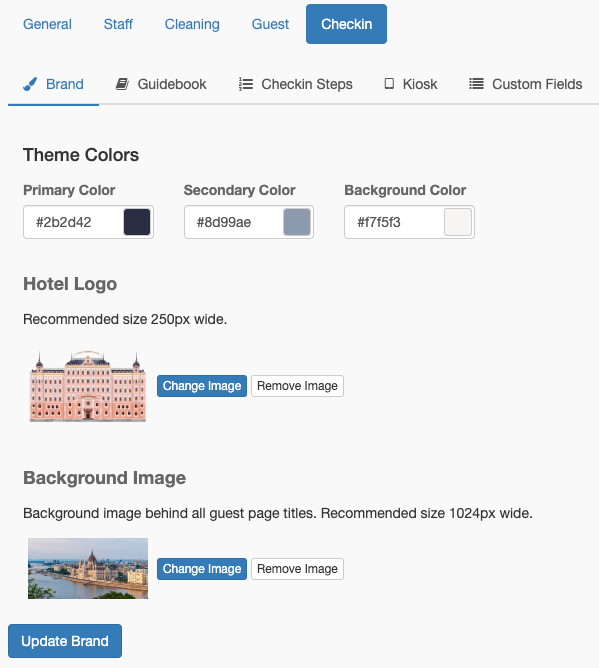
Customize the visual appearance of your guidebook and check-in pages to match your property's branding.
Accessing Brand Settings
Go to Admin > Settings > Checkin
Click the Brand tab
Color Settings
Color Format: Use hex codes (e.g., #42313d) or click the color picker.
Tips for Color Selection:
Choose primary color that matches your logo
Ensure sufficient contrast for readability
Test on mobile devices (colors may appear differently)
Logo and Images
Image Requirements:
Formats: PNG, JPG, or GIF
Logo: Transparent background recommended (PNG)
Splash: Landscape orientation works best
File size: Under 2MB for faster loading
Saving Changes
Configure all desired settings
Click Update Brand Settings
Changes apply immediately to guest-facing pages
Preview Your Branding
After saving, preview your guidebook to verify:
Click Preview as Guest from the guidebook index page, or open your guidebook URL in a new browser tab
Check colors on buttons and links
Verify logo displays correctly
Confirm splash image fits properly on mobile
URL Structure
Page URLs
Each page has a unique URL based on its slug:
https://app.helloshift.com/sites/{site}/guests/guidebook/{slug}Examples:
WiFi:
/guests/guidebook/wifi-instructionCheck-in:
/guests/guidebook/check-inLocal Activities:
/guests/guidebook/local-activities
Guest-Specific URLs
Include guest code for personalized access:
https://app.helloshift.com/sites/{site}/guests/guidebook?guest_code={code}&stay_id={stay}The {{guidebookUrl}} variable automatically includes guest context.
For FlexiPass WebKeys properties, {{keyUrl}} links straight to the guest's door-unlock page — the same page as the guidebook's Digital Keys button — with guest and stay context included. It appears in the Variables menu only when FlexiPass WebKeys is active, and renders empty when the guest has no reservation on file.
Troubleshooting
Page not appearing for guests
Possible Causes:
Page is in draft (not published)
Wrong slug in URL
Page was deleted
Solutions:
Verify page is published (use Publish All to publish everything at once)
Check URL matches page slug
Recreate page if deleted
Images not displaying
Possible Causes:
Image upload failed
Image URL is broken
Image is too large
Solutions:
Re-upload the image from the edit page
Use smaller image file
Use hosted image URL
Chat widget not showing
Possible Causes:
Chat widget disabled in settings
Checkin plan not active
Solutions:
Enable in Admin > Settings > Checkin > Guidebook
Verify Guest+ plan is active
Shop/Tip buttons not showing
Possible Causes:
Stripe not connected
Feature disabled in settings
Solutions:
Connect Stripe account
Enable in Guidebook display settings
Related Articles
Contactless Check-in Setup - Configure check-in settings
Digital Tipping - Set up guest tipping
Shopping Feature - Configure guest shop
Snippets & Templates - Use
{{guidebookUrl}}variable