Automation Jobs
Schedule recurring automation jobs to run housekeeping, messaging, or operational tasks on a set cadence.
📲 Guest Messaging Automations in HelloShift
HelloShift makes it easy to stay connected with your guests at every stage of their journey. Automated messages for Pre-Stay, In-Stay, and Post-Stay are already powerful, but sometimes you need more flexibility — like promoting your bar’s happy hour, offering late check-out, or upselling upgrades.
That’s where Guest Messaging Automations come in. With just a few steps, you can set up automations that send the right message to the right guest at the right time.
1. Create Your Snippet
Every automation starts with a snippet — the text or message template you’ll send to guests.
👉 Navigate to Guests > Snippets and create a new snippet.
Examples:
“Join us for Wine & Cheese at Happy Hour every Tuesday from 6–8 PM!”
“Would you like to extend your stay at a discounted rate?”
2. Create a New Guest Automation
Go to Automation > Jobs and click New Guest Automation.
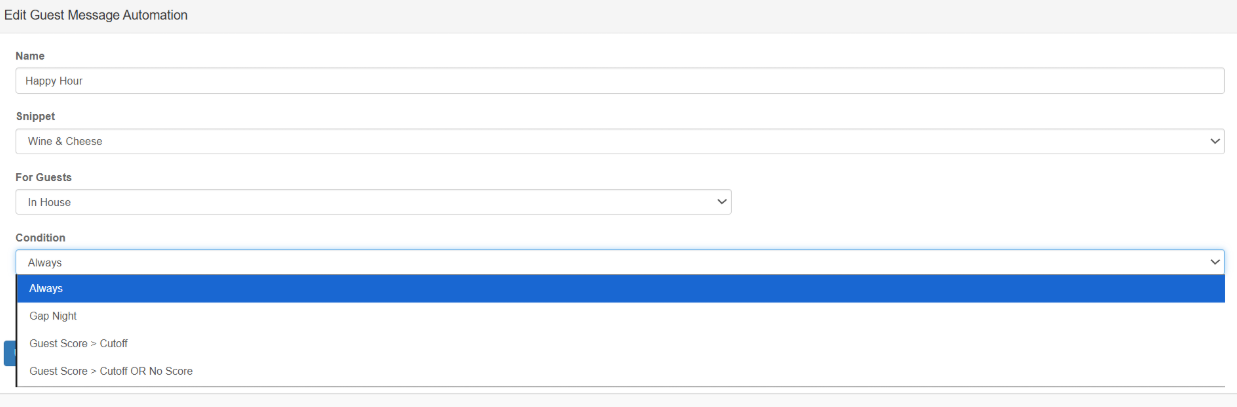
3. Configure Automation Settings
Fill out the form:
Name → Give your automation a clear, memorable name (e.g., Happy Hour Reminder).
Snippet → Select the snippet you created.
For Guests → Choose which group of guests should receive the message (e.g., In-House, Pre-Stay, Post-Stay).
Schedule → Set the time of day and frequency the message should be sent.
4. Choose Conditions
Conditions help you fine-tune when and to whom automations are sent. This prevents awkward or poorly timed messages and ensures your offers are relevant.
Available Conditions
Always
Message will always send to the selected guest group.Gap Night
Checks if the guest’s room will be available the following night.Perfect for sending discounted stay extension offers.
Example: “Stay another night with us for 20% off — your room is available!”
Guest Score > Cutoff
Only sends if the guest’s satisfaction score is above your cutoff threshold.Helps ensure only happy guests receive public review requests.
Example: Guests rating 4 or 5 receive a review link, while those rating lower are routed to internal follow-up.
Guest Score > Cutoff OR No Score
Similar to above, but also includes guests who haven’t yet provided a score.Useful when you don’t want to exclude first-time or unscored guests.
5. Turn the Automation On
🚨 Don’t forget: The automation will not run until you toggle it ON.
✅ Best Practices
Give each automation a clear, memorable name (e.g., Post-Stay Review Invite).
Write and save your snippet before creating the automation.
Use conditions to target messages thoughtfully.
Schedule messages at times when guests are most likely to engage.
Regularly review performance and update snippets to keep messaging fresh.