Kiosk Self-Checkin
Set up a self-service check-in kiosk for your hotel lobby using HelloShift's tablet-based kiosk mode.
Overview
The Kiosk feature allows guests to complete self-checkin from a tablet at the front desk. This is ideal for guests who didn't receive their personal checkin link, lost it, or prefer to check in on-site. The kiosk provides a secure, device-authorized interface for guests to look up their reservation and complete the checkin process.
What is Kiosk Mode?
Kiosk mode is a dedicated self-service interface designed for tablets placed at hotel front desks or lobbies. Unlike the personal checkin links sent to guests, the kiosk:
Runs on a shared device (tablet) at your property
Requires device authorization via a secure token
Allows guests to look up reservations by confirmation number or contact info
Automatically resets sessions for guest privacy
Uses the same checkin flow as personal links
Getting Started
Step 1: Enable the Kiosk Feature
Contact HelloShift support to enable the kiosk feature for your site. Once enabled, you'll see the Kiosk tab in your Checkin settings.
Step 2: Generate a Kiosk Token
Navigate to Settings > Checkin
Click the Kiosk tab
In the "Kiosk Device Authorization" panel, click Generate Kiosk Token
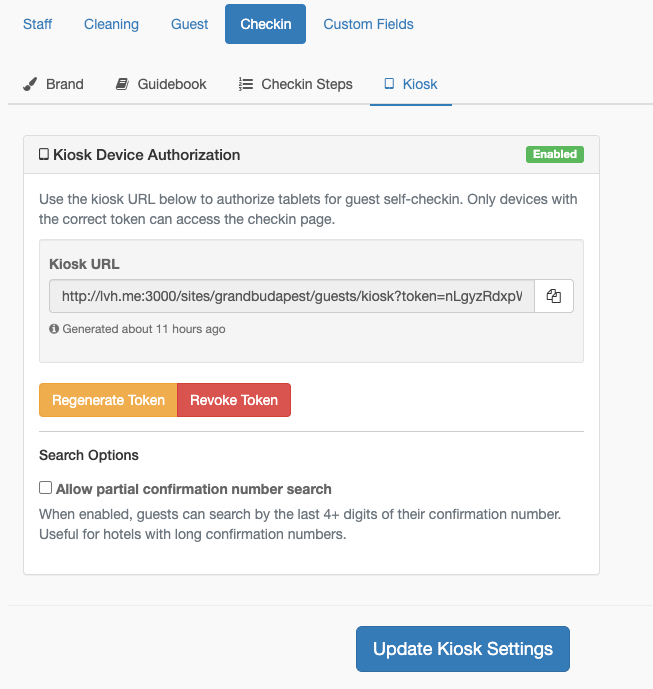
Once generated, you'll see:
Kiosk URL: The secure URL to bookmark on your tablet
Generated timestamp: When the token was created
Regenerate Token: Create a new token (invalidates the old one)
Revoke Token: Disable all kiosk access
Step 3: Set Up Your Tablet
Copy the Kiosk URL from the settings panel
On your tablet, open the browser and paste the URL
Bookmark the page for easy access
Optionally, add the bookmark to your home screen
Tip: The URL contains a secure token. Only devices with this URL can access the kiosk interface.
Guest Experience
Finding a Reservation
When guests approach the kiosk tablet, they see the lookup screen:
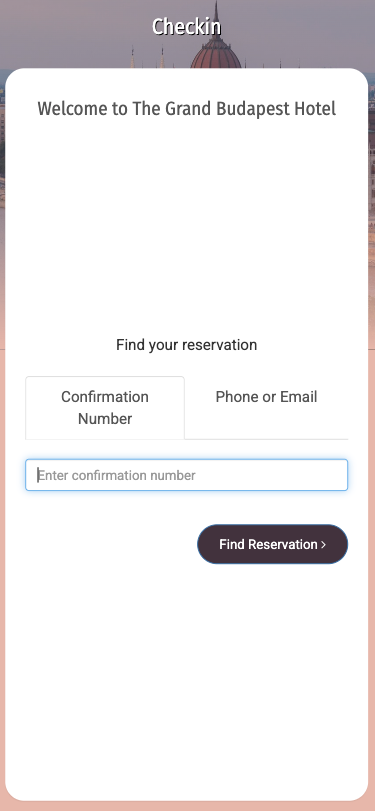
Lookup Methods:
Confirmation Number (default tab)
Guest enters their booking confirmation number
Search is case-insensitive (ABC123, abc123, AbC123 all work)
Click "Find Reservation"
Phone or Email
Guest enters their phone number or email address
Guest enters their last name
Guest selects their check-in date
Search allows ±1 day flexibility on dates
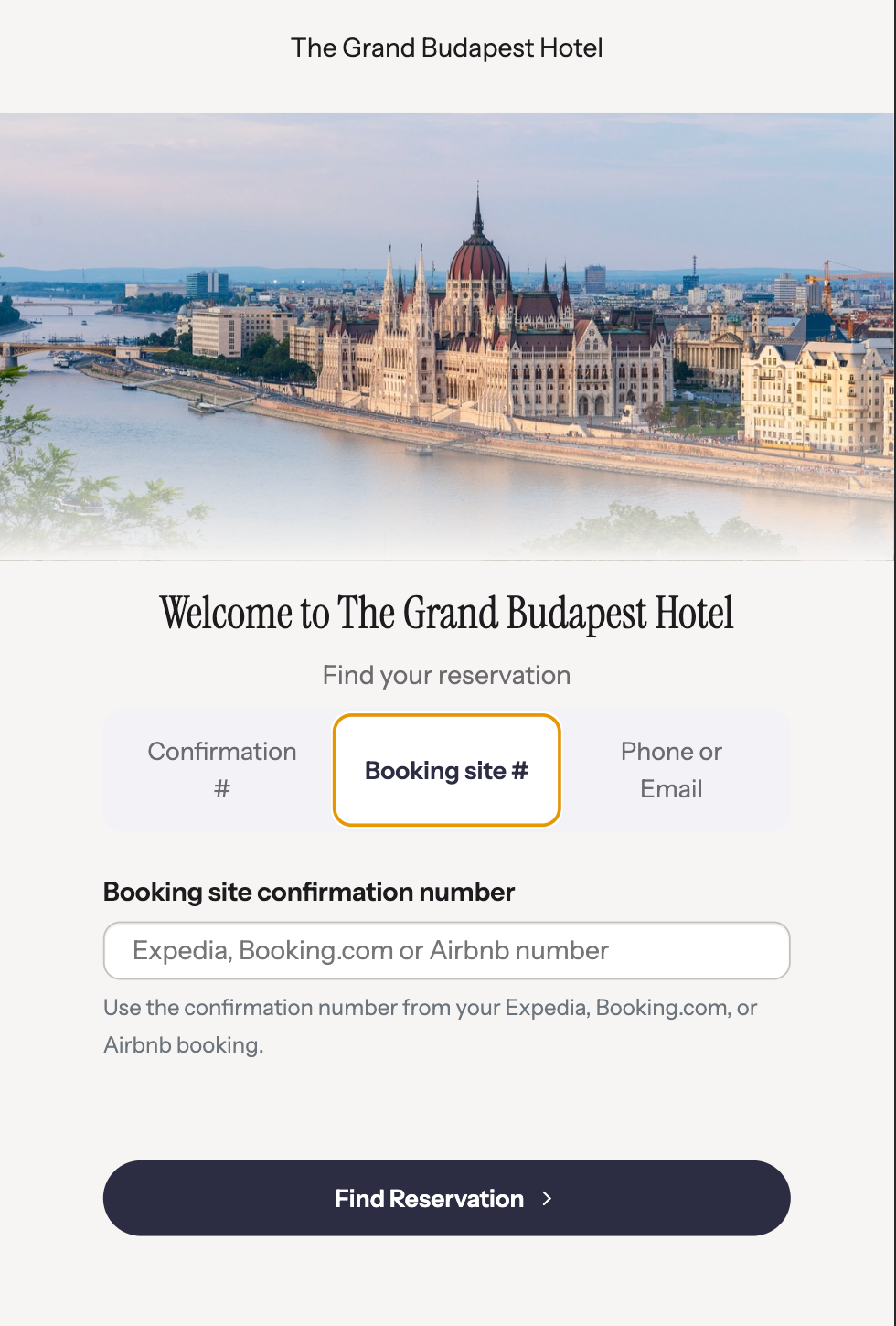
Booking site # (OTA bookings)
Shown on supported PMS integrations — guests who booked through Expedia, Booking.com, Airbnb, and other booking sites enter the confirmation number from their booking-site email
HelloShift matches it to the PMS reservation automatically
For privacy, matches are limited to reservations arriving within a day of today
After Finding Reservation
Once the reservation is found:
Guest selects their name (if multiple guests on reservation)
Guest proceeds through the standard checkin flow
Completes all required steps (ID verification, agreements, etc.)
Receives confirmation of successful checkin
Session Privacy
For guest privacy, the kiosk includes:
Automatic Timeout: After 3 minutes of inactivity, the screen resets to the lookup page
Start Over Button: Guests can manually reset their session at any time
No Data Storage: Guest information is not stored on the device
Guest Languages
Check-in pages are available in English, Spanish, and Portuguese.
Guests can pick their language on the first check-in screen (each language is shown in its own name — English, Español, Português). The choice is remembered for the rest of their visit.
If a guest has not picked a language, pages follow the language HelloShift already knows for that guest, then the guest's browser language, then your site default.
Content you wrote yourself — welcome text, agreement wording, custom instructions — is always shown exactly as you wrote it. Only HelloShift's own labels, buttons, and step instructions translate.
Admin Settings
Kiosk Tab Options
Navigate to Settings > Checkin > Kiosk to configure:
Kiosk Device Authorization
View current token status (Enabled/Disabled)
See when the token was generated
Copy the Kiosk URL
Regenerate or revoke the token
Search Options
Allow partial confirmation number search: When enabled, guests can search by the last 4+ digits of their confirmation number. Useful for hotels with long confirmation numbers from PMS systems.
Token Management
When to Regenerate:
Staff member with tablet access leaves
Tablet is lost or stolen
Security audit requires token rotation
When to Revoke:
Temporarily disabling kiosk service
Security concern requiring immediate access removal
Security Features
Device Authorization
Each kiosk URL contains a unique 256-bit secure token
Only devices with the correct token can access the kiosk
Invalid or missing tokens display a "Device Not Authorized" page
Tokens use timing-safe comparison to prevent attacks
Search Privacy
Phone/email search requires last name match (prevents enumeration)
Date range limits broad searches
No guest data exposed until verified match
Failed searches show helpful messages without revealing data
Session Management
Automatic timeout after 3 minutes of inactivity
Timer resets on any user interaction (tap, type, scroll)
"Start Over" button clears session immediately
Redirect preserves device authorization
Troubleshooting
"Device Not Authorized" Message
Causes:
Token was revoked or regenerated
URL is missing the token parameter
URL was copied incorrectly
Solutions:
Go to Settings > Checkin > Kiosk
Copy the current Kiosk URL
Update the bookmark on your tablet
Guest Can't Find Reservation
Causes:
Booked through a booking site (Expedia, Booking.com, Airbnb)? Switch to the Booking site # tab and use the confirmation number from the booking-site email — it differs from the hotel confirmation number
Typo in confirmation number
Wrong phone/email on file
Check-in date is off by more than 1 day
Reservation not yet synced from PMS
Solutions:
Suggest trying the other lookup method (phone/email or confirmation)
Verify reservation exists in HelloShift
Check guest contact info in their profile
Manually assist the guest if needed
Kiosk Keeps Resetting
Cause: Automatic timeout after inactivity
Solution: This is expected behavior for privacy. Guests need to interact with the screen within 3 minutes to prevent reset.
Token Shows as Disabled
Cause: Token was never generated or was revoked
Solution:
Go to Settings > Checkin > Kiosk
Click "Generate Kiosk Token"
Update the bookmark on your tablet with the new URL
Best Practices
Initial Setup
Generate token before setting up the tablet
Test the kiosk URL on your own device first
Create a test reservation to verify the full checkin flow
Position tablet in a visible, accessible location
Consider a tablet stand or enclosure for security
Ongoing Management
Check kiosk functionality weekly
Regenerate tokens quarterly for security
Monitor for any unauthorized access attempts
Keep tablet software updated
Ensure stable WiFi connection
Guest Experience
Place clear signage directing guests to the kiosk
Train front desk staff to assist guests using the kiosk
Have backup process for guests who can't use kiosk
Consider multiple tablets during peak check-in times