Room Inventory Management
Manage your hotel's room inventory — track room types, availability, and status across your property in HelloShift.
Track supplies, amenities, and equipment across your property with HelloShift's Inventory system. Monitor stock levels, get automatic low-inventory alerts, and keep rooms properly stocked.
Overview
The Inventory system helps you:
Track items by location - Organize supplies by room, storage area, or department
Set par levels - Define minimum stock thresholds for each item
Get automatic alerts - Receive tasks when inventory drops below par
Update from mobile - Adjust counts on the go with +/- buttons
Filter and search - Find items by type, location, or name
Accessing Inventory
From the Sidebar (Desktop)
Click Apps in the left sidebar to expand the section
Click Inventory
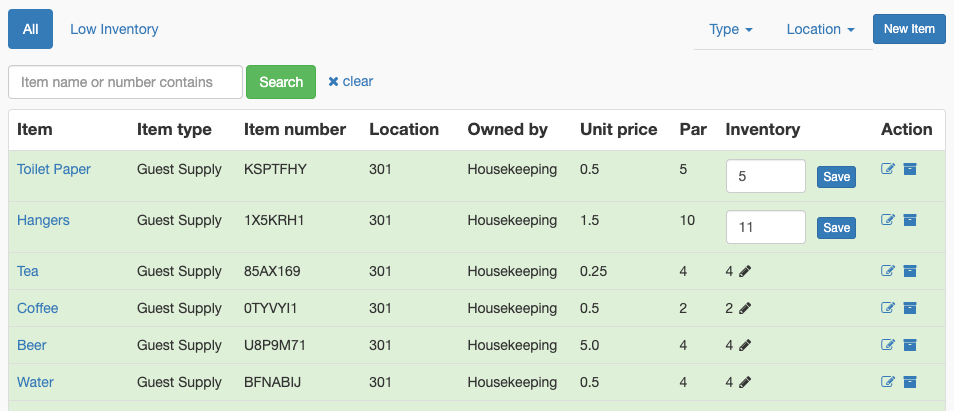
You'll see a list of all inventory items with current stock levels
From a Room Page (Mobile)
When viewing a specific room on mobile:
Open the room from Housekeeping
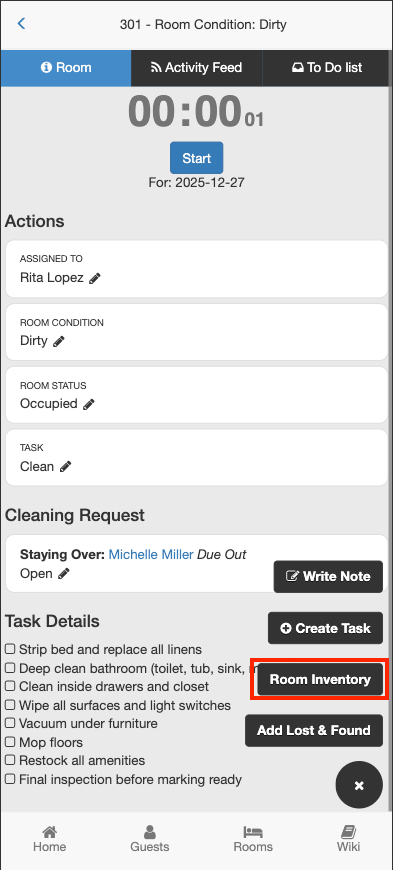
Tap Room Inventory in the footer actions
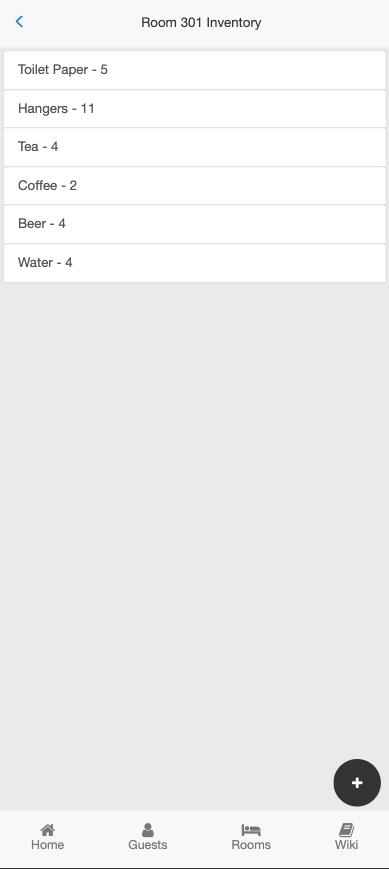
View inventory items filtered to that room's location
From the Mobile Menu
Tap the menu icon in the mobile header
Select Inventory from the menu
View all inventory items across locations
Adding Inventory Items
Creating a New Item
Go to Apps > Inventory
Click New Item
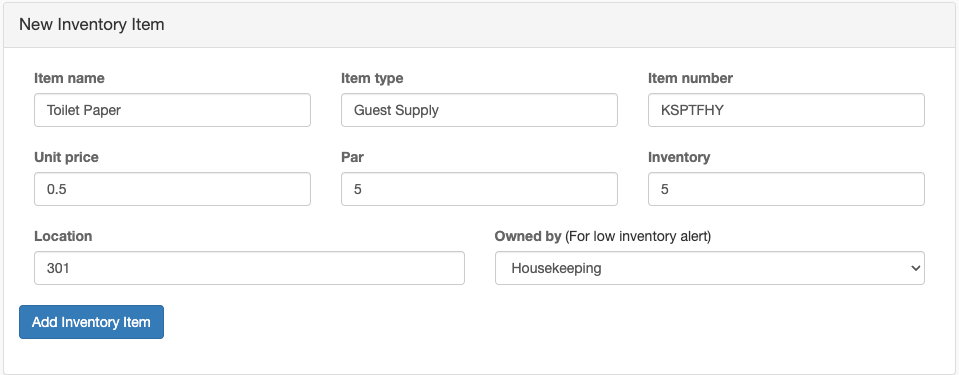
Fill in the item details:
Click Add Inventory Item
Adding Items from a Room
When you're viewing a room and want to add an item for that room:
From the room page, tap Room Inventory
Tap New Item
The Location field auto-fills with the room number
Complete the item details and save
Updating Inventory Counts
Quick Update (Desktop)
Go to Apps > Inventory
Find the item in the list
Click the pencil icon next to the current count
Enter the new quantity
Click Save
Mobile Update with +/- Buttons
Open Inventory from the menu or a room page
Tap the item's current count
Use the + and - buttons to adjust
Tap Confirm to save the change
Low Inventory Alerts
How Alerts Work
When an item's inventory count drops below its par level:
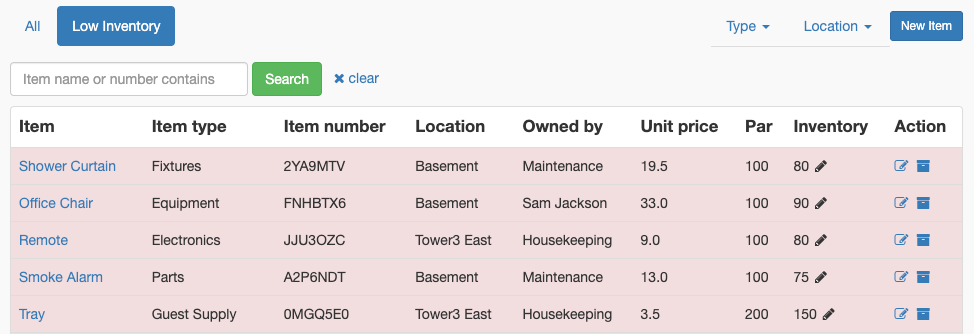
The item appears in the Low Inventory filtered view
The item row shows with a red/danger background
If an Owner is assigned, HelloShift creates a task:
Task subject: "Low inventory, order X items"
Assigned to the item's owner
Links to the inventory item for easy access
Viewing Low Inventory
Go to Apps > Inventory
Click the Low Inventory tab
View all items that need restocking
The sidebar also shows a badge count of low inventory items next to the Inventory link.
Resolving Low Inventory Alerts
When you restock an item:
Update the inventory count to be at or above par
The low inventory task automatically marks as complete
The item moves out of the Low Inventory view
Filtering and Searching
Filter by Type
Click the Type dropdown
Select an item type (Amenities, Linens, etc.)
View only items of that type
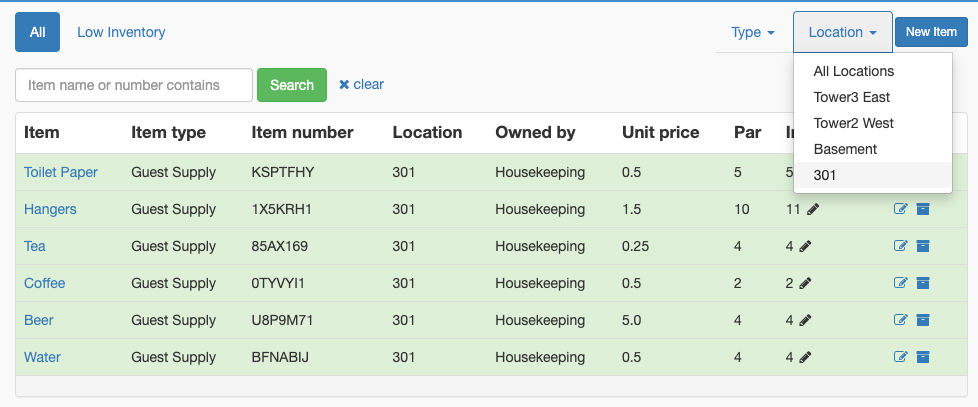
Filter by Location
Click the Location dropdown
Select a location (room number, storage area)
View only items at that location
Search by Name or Number
Enter search text in the search field
Click Search
Results show items matching name or item number
Clear Filters
Click clear next to the search to reset all filters.
Item Types
HelloShift suggests common item types, or you can create your own:
When you enter a new item type, it becomes available in the dropdown for future items.
Managing Inventory Items
Editing Items
Click the edit icon (pencil) next to any item
Update the item details
Click Update Inventory Item
Archiving Items
When you no longer stock an item:
Click the archive icon next to the item
Confirm the archive
The item is removed from active inventory
Archived items aren't deleted - they're preserved for historical reference.
Restoring Archived Items
Search for the archived item
Click the unarchive icon
The item returns to active inventory
Inventory from Room Context
Viewing Room-Specific Inventory
When you access inventory from a room page:
Items are automatically filtered to that room's location
The header shows "Room [Number] Inventory"
New items default to that room's location
This makes it easy for housekeepers to:
Check what amenities should be in the room
Update counts after restocking
Report missing items
Using Inventory During Cleaning
A typical workflow:
Cleaner opens assigned room on mobile
Taps Room Inventory to see expected items
Verifies amenities are stocked
Adjusts counts for any items used or added
Low inventory items trigger reorder tasks
Best Practices
Setting Par Levels
High-use items (toilet paper, shampoo): Set par higher to avoid frequent restocking
Room-specific items (minibar): Set par per room based on typical usage
Shared storage: Set par based on property-wide daily needs
Organizing by Location
Use consistent location names (e.g., "101", "102" not "Room 101", "Rm 102")
Create logical locations for shared storage ("Floor 1 Closet", "Main Storage")
Assign room-specific consumables to each room
Assigning Owners
Assign items to the person responsible for ordering
Use department heads for bulk ordering
Assign room items to housekeeping supervisor
Troubleshooting
Low inventory task not created
Verify an Owner is assigned to the item
Check that inventory count is actually below par
Ensure the item status is "active" (not archived)
Can't find an item
Check if the item is archived
Clear any active filters
Search by item number instead of name
Inventory button disabled on room page
No inventory items exist with that room as the location
Add items for that room location to enable the button
Wrong items showing for a room
Check the Location field on items
Location must exactly match the room name/number
Update item locations if room names changed
Related Articles
Room Assignment System - Assign rooms to cleaners
Housekeeping Time Tracking - Track cleaning duration
All About Housekeeping - Complete housekeeping overview