Checklists
Create recurring operational checklists for your hotel team — daily inspections, shift handoffs, and audits in HelloShift.
Checklists help you standardize daily operations, maintain consistency across departments, and ensure routine tasks are completed on time. They're ideal for inspections, cleanings, maintenance routines, and shift handoffs.
In HelloShift, Checklists are created from Checklist Templates, which can be:
Manually generated on-demand for specific rooms or tags
Automatically scheduled on a recurring basis (daily, weekly, monthly, etc.)
Trigger-created — generated automatically when a guest event fires, like a checkout clean the moment a guest departs (see Triggers)
Key Features
Template-Based: Create reusable templates with predefined tasks
Inspection Types: Mark templates as "Inspection" for pass/fail workflows
Scheduling: Automate checklist generation on custom schedules
Room/Tag Assignment: Generate individual checklists for specific rooms, equipment, or public spaces
Batch Selection: Select All/Clear All for quick room selection
History Tracking: View completed and incomplete checklists with filtering
Library: Browse and copy pre-built templates from HelloShift's checklist library
Print Support: Generate PDF versions for offline use
Getting Started
Accessing Checklists
Navigate to Staff > Checklists from the main menu. You'll see two tabs:
Templates: Your checklist templates with scheduling and creation options
History: Completed and in-progress checklist results
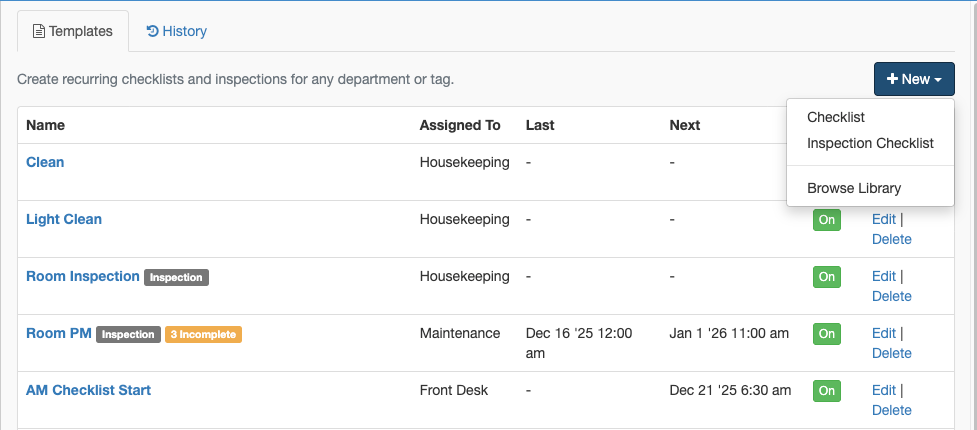
Creating Checklist Templates
Option 1: Create from Scratch
Click + New button
Select Checklist or Inspection Checklist
Fill in the template form:
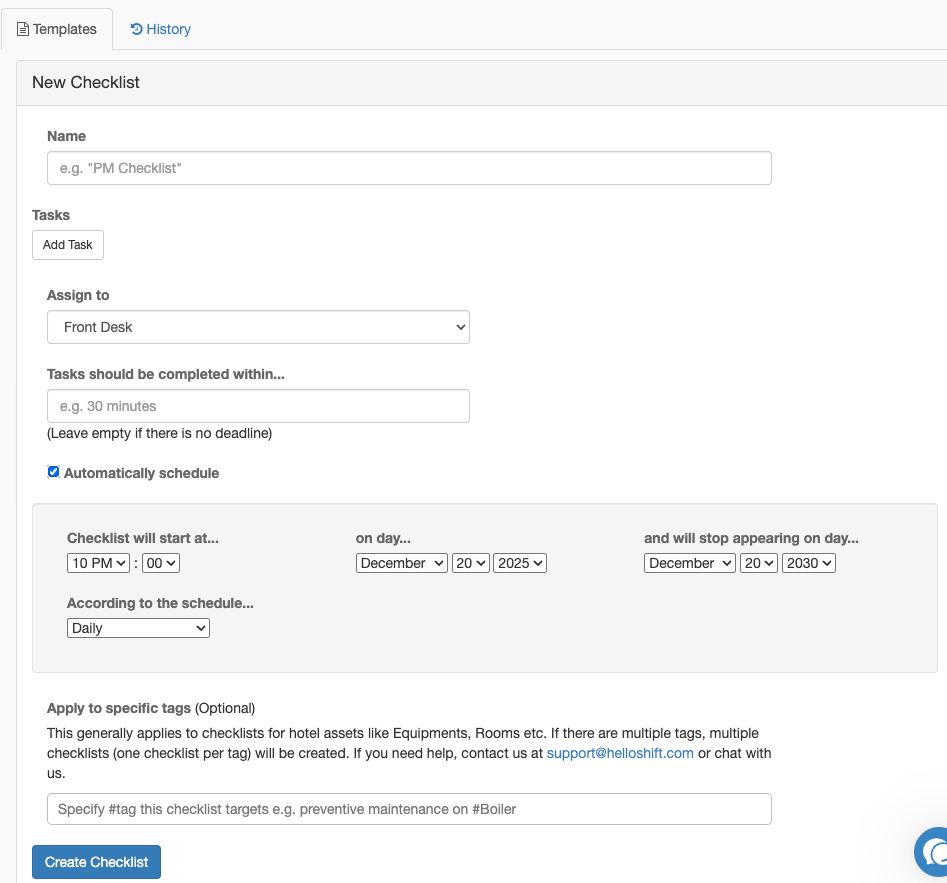
Template Fields:
Scheduling Options (when "Automatically schedule" is checked):
Checklist will start at: Time of day tasks appear
on day: Start date for scheduling
and will stop appearing on day: End date (can be years in the future)
According to the schedule: Daily, Weekly, Monthly, or custom patterns
Click Create Checklist
Option 2: Copy from Library
Browse pre-built templates from HelloShift's checklist library:
Click + New > Browse Library
Review available templates organized by department
Click Copy to [Your Hotel Name] on any template
Edit the copied template to match your needs
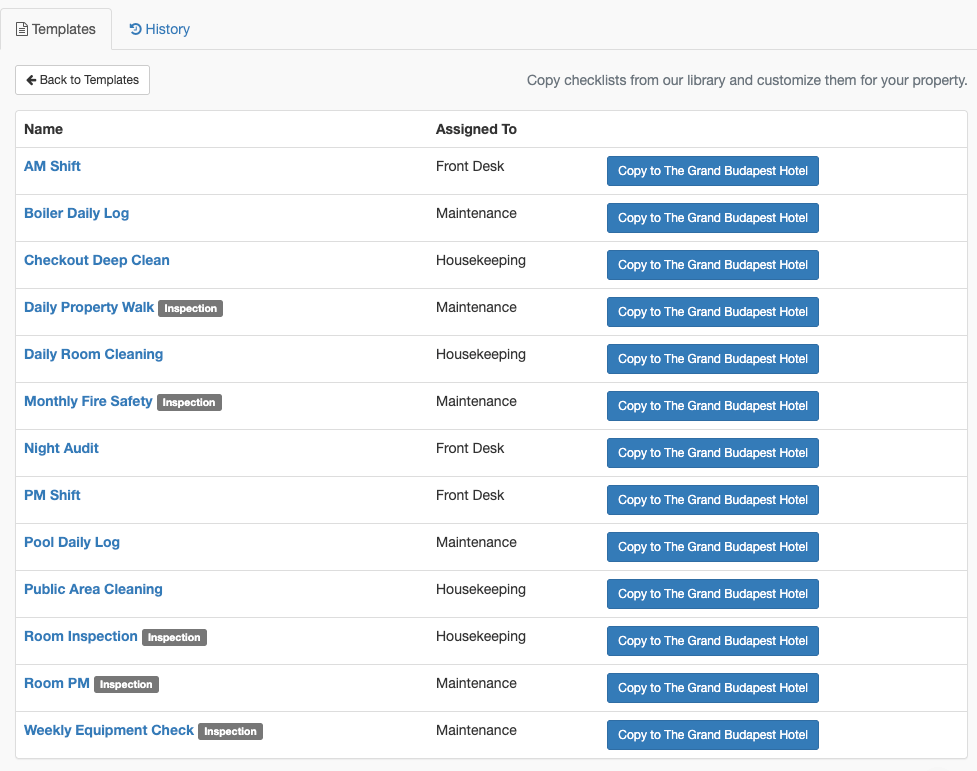
Available Library Templates:
AM Shift / PM Shift / Night Audit (Front Desk)
Daily Room Cleaning / Checkout Deep Clean (Housekeeping)
Room Inspection / Daily Property Walk (Inspection)
Boiler Daily Log / Pool Daily Log / Weekly Equipment Check (Maintenance)
Public Area Cleaning (Housekeeping)
Option 3: Clone an Existing Template
Go to a checklist template page
Click Actions > Clone
Edit the cloned template as needed
Scheduling Recurring Checklists
To automate checklist generation:
Open your checklist template
Click Actions > Edit (or check "Automatically schedule" when creating)
Configure the schedule:
Daily: Every day at the specified time
Weekly: Select specific days (Mon/Wed/Fri, etc.)
Monthly: On a specific day of the month
Set the time when checklists should appear
Save changes
How Recurring Works:
Checklists automatically assign to the appropriate department
They appear on staff task lists at the scheduled time
Each occurrence creates a new checklist result that can be completed independently
Generating Checklists Manually
You can create checklists on-demand from any template.
From the Template Page
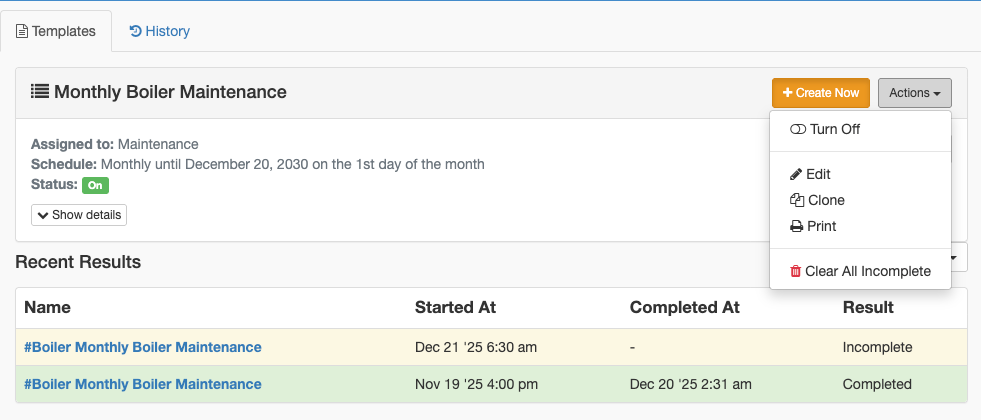
Navigate to the checklist template
Click + Create Now
In the creation modal:
Assign to: Select department or specific user
Apply to specific tags: Optionally select rooms/equipment
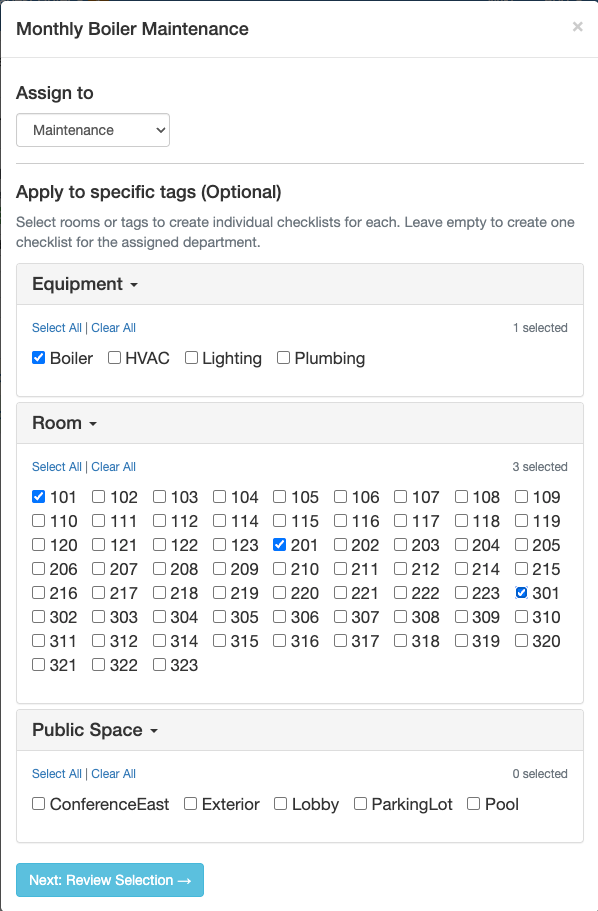
Selection Tools:
Select All / Clear All: Quickly select or deselect all items in each section
Selection Count: Shows "X selected" for each category (Room, Equipment, Public Space)
Help text explains: "Select rooms or tags to create individual checklists for each. Leave empty to create one checklist for the assigned department."
Click Next: Review Selection →
Review your selection on the preview page:
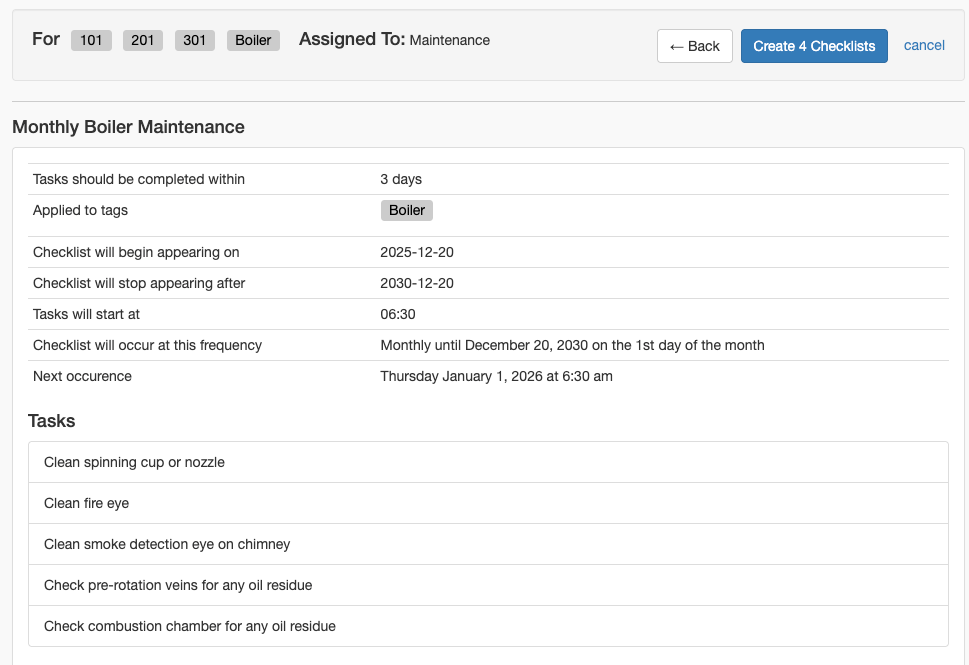
See all selected rooms/tags displayed as badges
Review the checklist details (completion deadline, schedule, tasks)
Button shows count: "Create 4 Checklists"
Use ← Back to modify selection
Click cancel to abort
Click Create X Checklists to generate
Success modal confirms creation:
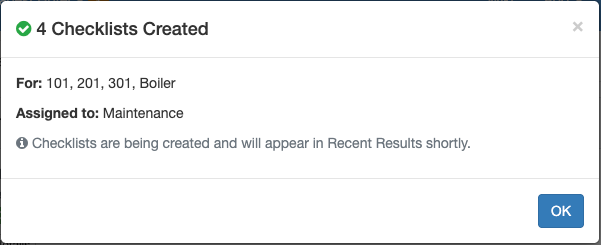
Shows count and type created
Lists rooms/tags included
Shows assignee
Click OK to dismiss and create more, or navigate away
Completing Checklists
Once assigned, checklists appear on the staff member's or department's task wall.
Staff workflow:
Open the checklist from your task list
Check off tasks as they're completed
Add comments for clarity or escalation
Create follow-up tasks if issues are found
Mark the checklist as Complete
For Inspection checklists:
Each task has Pass/Fail options instead of simple checkboxes
Failed items can trigger automatic follow-up tasks
Overall result shows Pass/Fail based on individual items
Reviewing Completed Checklists
History Tab
Navigate to Staff > Checklist > History to view all checklist results.
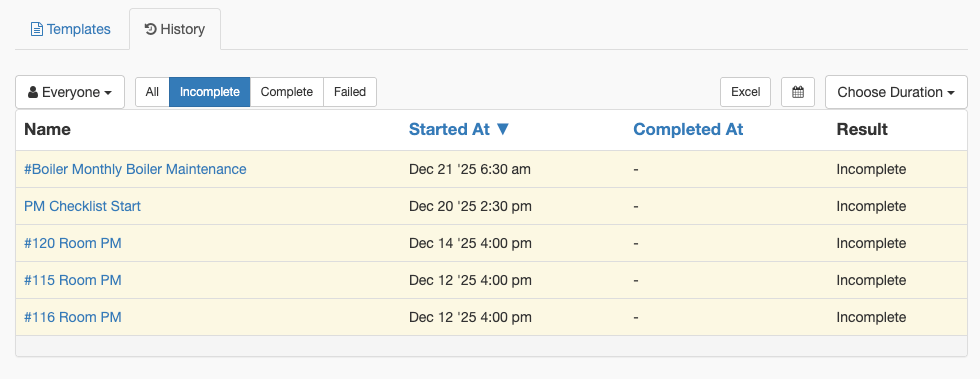
Filtering Options:
Assignee: Filter by "Everyone" or specific staff member
Status: All, Incomplete, Complete, Failed
Date Range: Use calendar picker or duration presets
Export: Click Excel to download results
History Columns:
Viewing Individual Results
Click any checklist name to view:
All tasks and their completion status
Comments added by staff
Time stamps for each action
For inspections: Pass/Fail status per item
Pausing Checklist Generation
If operations are paused or you're short-staffed:
Go to the checklist template
Click Actions > Turn Off
Status changes from "On" to "Off"
Toggle it back On when ready to resume
Clearing Incomplete Checklists
To remove clutter from old, unfinished checklists:
Open the checklist template page
Click Actions > Clear All Incomplete
Confirm deletion
All incomplete results for that template are removed
Printing Checklists
Generate PDF versions for offline use or paper trails:
Go to the checklist template
Click Actions > Print
A PDF is generated matching the mobile app format
Save or print as needed
Why Print?
Share physical copies during shift handovers
Keep paper records for compliance or audits
Provide backup for staff without mobile devices
Preview task layout before deployment
Common Use Cases
Best Practices
Template Design
Keep task lists focused (5-15 items ideal)
Use clear, action-oriented task names
Group related tasks together
Set realistic completion deadlines
Scheduling
Schedule checklists to appear at shift start times
Use "Monthly on day 1" for month-start routines
Set end dates far in the future (e.g., 2030) for ongoing schedules
Room Selection
Use Select All for property-wide inspections
Create separate templates for different room types if tasks differ
Use Equipment tags for non-room assets (HVAC, Boiler, etc.)
Monitoring
Review History regularly to spot incomplete patterns
Use Excel export for management reporting
Clear old incomplete checklists monthly to reduce clutter
Troubleshooting
"Checklists aren't appearing automatically"
Cause: Schedule is turned off or misconfigured
Solution:
Check the template's Status is "On"
Verify the schedule dates include today
Confirm the start time hasn't passed for today
"Can't see Create Now button"
Cause: Insufficient permissions
Solution: Contact your admin to ensure you have checklist creation permissions for your role
"Too many incomplete checklists"
Cause: Old checklists accumulating
Solution:
Go to template page
Click Actions > Clear All Incomplete
Consider adjusting schedule frequency if staff can't keep up
"Checklist created for wrong rooms"
Cause: Room selection error during creation
Solution:
Use the Review Selection step to verify before creating
Check the selection count shows expected number
Clear All and re-select if needed