FAQs
Answers to frequently asked questions about HelloShift — setup, features, billing, integrations, and troubleshooting.
Forgot Password or Can’t log in
You have a staff member who comes to you and can’t log in to HelloShift — what should you do? The most likely issue we see here is that a password or username isn’t being entered correctly. Let’s troubleshoot this — here’s how:
Step 1: Access the employee’s account under Your Name > Admin:
Step 2: Check the username for the employee.
Once you have accessed the Admin page for Users, you can see the username the employee should be using to log in. Are they entering that name exactly as it appears on this screen? Are they using all lowercase letters?
You can also see on this screen if they have put an email address on file. Are they trying to log in with an email address, but none is on file?
If neither of these issues are the problem, proceed to step 3 after clicking on the “Edit” button on this screen.
Step 3. Edit the username and/or password for the employee by clicking on Edit again:
Step 4: Change the information in the profile for the employee.
On this screen, you can add an email address for resetting the password in the future.
You can also change the password here—be sure to enter it into both fields to reset it. We recommend having the employee enter their password here. If you assign them a password, make it a generic one that the employee can change after logging in.
Once you have made your changes, click Update to process the change.
Changes to the account are processed immediately, so the employee should be able to log in successfully right away.
How To Add a Guest
Adding a guest is a straightforward process that allows you to maintain accurate guest records and streamline your operations. This guide will walk you through the steps to add a guest to your HelloShift account.
Step 1: Accessing the Add Guest Feature
To begin, follow these steps:
Click on the "Add" option in the main menu, which is typically located in the top navigation bar of your HelloShift dashboard.
From the dropdown menu, select "Add Guest."

Step 2: Entering Guest Information
You will be presented with a form to fill in the guest's information. Here's a breakdown of the essential fields:
Name: Enter the guest's full name for identification.
Phone Number: this is required in order to activate Guest Messaging
Email Address: Provide the guest's email address for communication and notifications.
Guest Type: Choose one of the options previously set up by the administrator.
Description: Internal guest description. Feel free to add any relevant details here.
Preference: What are his room or food preferences, if any?

Reservations
Through the Add Reservations button you'll be able to set the dates for any upcoming reservation (or multiple reservations) for this guest. If there aren't any, feel free to skip this step.

Under the Reservations option, you are able to enter the following information:
Arrival Date
Departure Date
Room Number
Confirmation Number
Reservation Status
Invalid
Unconfirmed
Canceled
Due In
No Show
Checked In
Due Out
Checked Out
Transferred
Once you've filled in the necessary guest information, click the "Save" or "Submit" button to add the guest to your database. ⭐️
Guest Import
You can also import your guests from an excel or CSV file.
In order to do so, follow these steps:
Click on Add
Choose Import Guests

The following screen should appear:
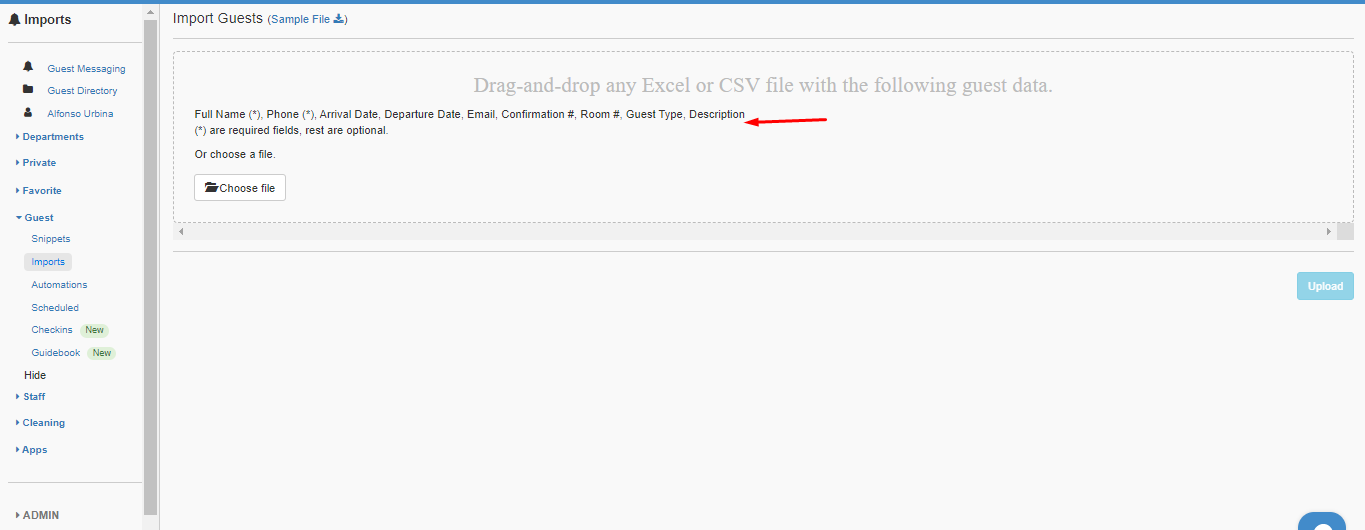
Please note that when importing guests, the title of the headers needs to match the fields requested in the manual Add Guest options.
If you need further assistance with guest import, please contact our support team.
How To Reset a Users Password
There are two paths, depending on whether the user has an email address in their profile.
1. Users with an email on file
Option A: Resend the green Invite
Go to Admin → Users / Departments.
Find the person.
Click the green Invite button next to their name.
HelloShift emails a fresh link.
When they open it, they choose a new password and confirm it.
Option B: User-initiated “Forgot password”
The user visits your HelloShift login page.
Click Forgot password? under the Sign In button.
Enter their account email, then follow the reset link sent to their inbox.
Works any time, no admin action needed.
2. Users without an email on file
They cannot receive invites or use the Forgot password link. An admin must set a password manually.
Go to Admin → Users / Departments.
Click the user’s name to open their profile.
In the Password row, click Edit.
Enter a new password, then Save.
Tell the user the new password directly and remind them to change it after logging in.
Tips and troubleshooting
Still “Invited” status? They have not opened their invite link yet. Resend the invite or check the email address for typos.
Multiple failed logins lock the account for a short time. Wait five minutes, then try again or reset.
Consider adding a placeholder email for staff who do not normally use email; it unlocks self-service resets later.
How to Add Rooms
Adding rooms to your HelloShift database is essential for efficient property management. It allows you to accurately represent your accommodations, set rates, and streamline operations. With this feature, you can enhance your property's organization and improve the overall guest experience by having all the room information readily available and integrated into your HelloShift platform.
In order to add rooms to your HelloShift database, follow these steps.
On the top menu click on Add
Scroll down to Add Assets/Tags
Select Add Room
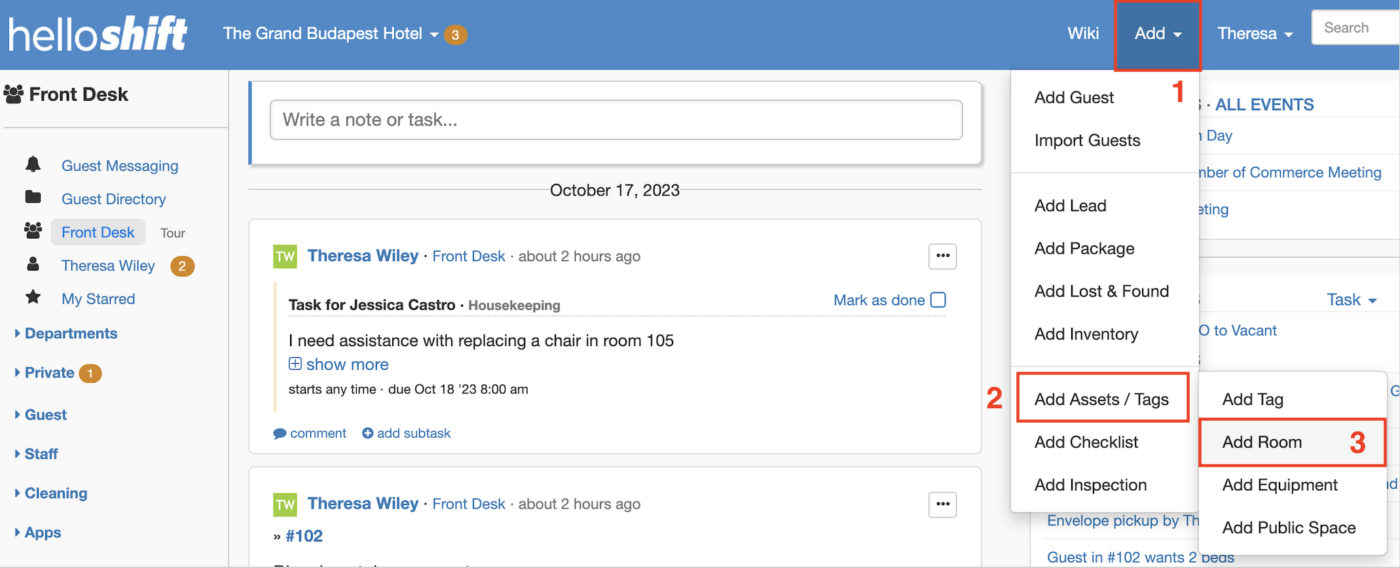
4. Proceed to name your room and make sure that the tag selected is Room.
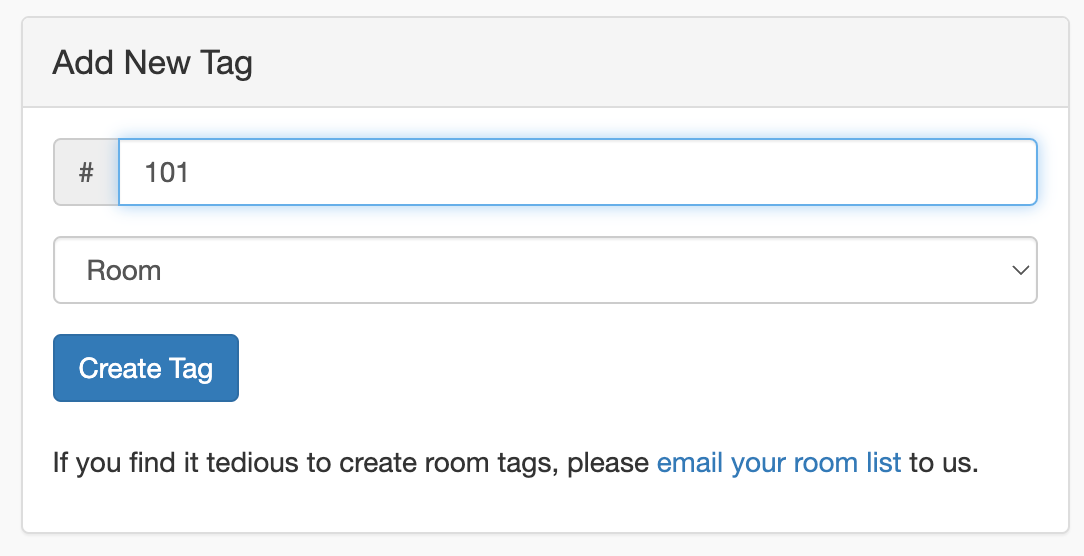
5. Click on Create Tag
Repeat this process for all the rooms you wish to add ⭐️
Feel free to review this video on how to add a room to your HelloShift app.
How can I message every staff member in the hotel at one time?
You can use the How To Use Tags (#) & Mentions (@)
We have set up some of our staff to share the same login. Is this wrong?
Having separate logins allows accountability. Each user action is tracked separately. Users can be mentioned by their names in addition to being mentioned as a department. Consider giving your staff individual accounts and putting them in a shared department (instead of shared login). A shared department allows the entire group to be treated as one in terms of accountability and notifications.
Tasks
You can create tasks to make sure issues get resolved. Assign tasks to individuals, departments, or everyone in a department and easily monitor progress
There are two types of tasks in HelloShift -- Spontaneous Tasks and Task Templates.
Spontaneous Tasks
Spontaneous tasks are assignments that you create at a moment's notice. For example, say a guest is reporting that they need towels. You might create a task and assign it to your housekeeping team.
How can I create a task?
Click in the box that says “write a note or task” at the top of the page
Press the “make this a task” button
Assign task to:
Choose one individual or department from the drop-down
The entire department will see the task, and any member of the department can complete the task
Subject:
This is what will appear in the task list
Use something simple and descriptive
Description
Here is where you can add more detail about the task
You can mention other individuals in the description if you would like them in the loop on the status of a task
Start
If you don’t want the assignee to begin the task immediately, use this field to schedule a task in the future (Want to schedule recurring tasks? Use checklists)
If a task has a Start time, then an alert is sent around 5 minutes prior to the Start time
If you don’t put in a Start time, the task will begin immediately
Due
Set a Due time to ensure that the task is completed on-time
If a task has Due time and it's not completed, then an alert is sent around 5 minutes past the Due time - the status also changes to overdue and shows up on management reports
Create task for each member of the department
Check this box if you want every member of the department to complete it - for instance, if a department needs to sign new payroll forms
Add file
Add pictures, PDF files, excel files, etc. to share more information about the task
Add task
Click this button to add your task
This task will show up on your “Watching” task list and in the “To Do” list for the person/department responsible for the task
Alerts will be sent to the department creating the task, the department responsible for the task, and any teammates who are mentioned in the task when the task is initially created and if it is not completed on time
Template Tasks
Template Tasks are tasks that you use over and over again. These templates can be created for each department, or be for use property-wide. Say that have a project to upgrade the light-bulbs in all rooms to LED lights. Since your property is large, you create a Task Template so that you can assign the rooms in blocks to have the process completed.
You can create template tasks using the checklist templates
Housekeeping Boards
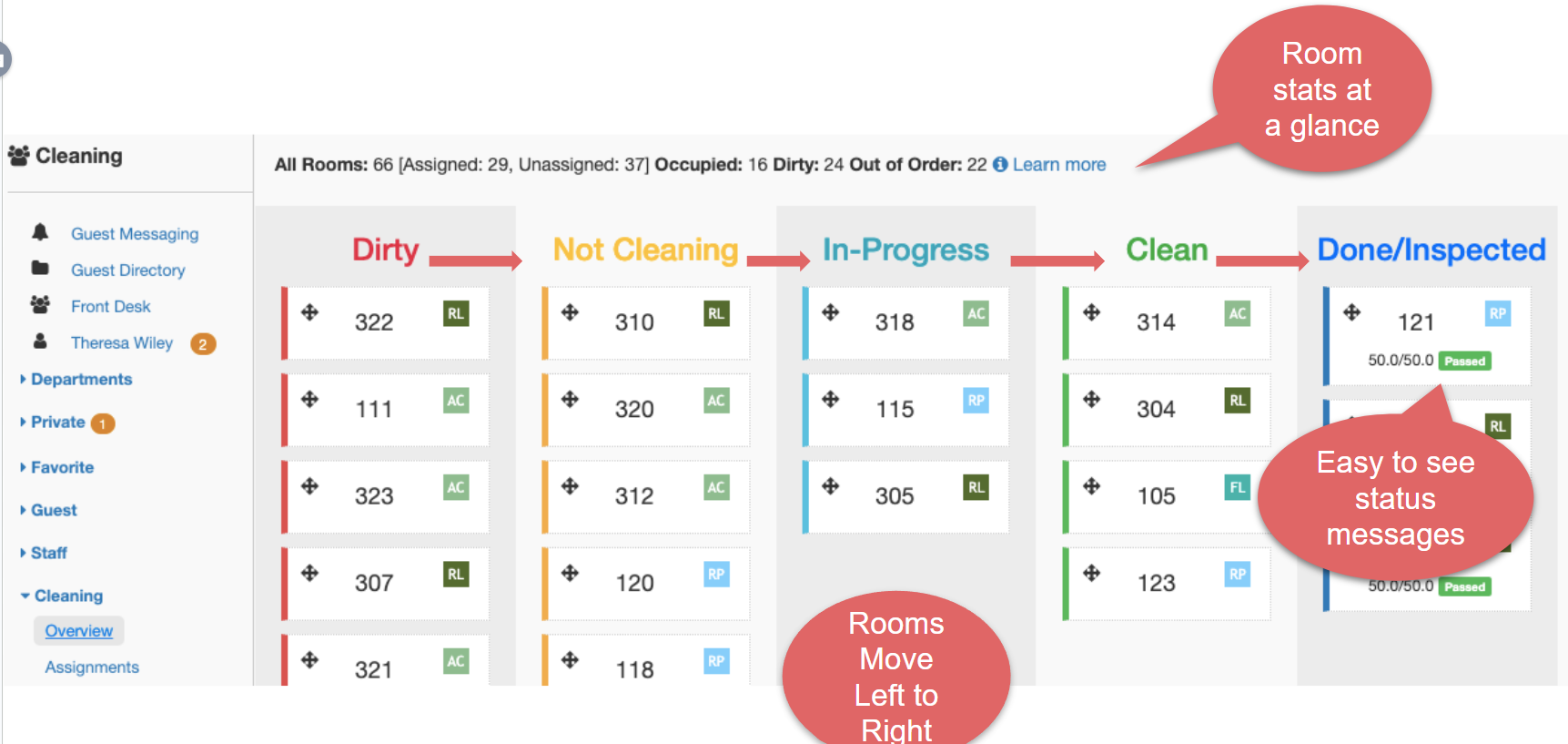
What do the columns mean?
Dirty: Rooms that need cleaning.
Not Cleaning: Rooms that are assigned but not yet started.
In Progress: Rooms currently being cleaned.
Clean: Rooms cleaned but not yet inspected.
Done/Inspected: Rooms cleaned and inspected, ready for the next guest.
How do rooms move between statuses?
Rooms automatically progress from left to right as cleaning tasks are updated by staff.
What information can I see at a glance?
Room stats (total, assigned, occupied, dirty, out of order).
Room numbers and their cleaning status.
Easy-to-read status labels (e.g., RL, AC, RP, FL).
Why use the Housekeeping Board?
Provides real-time visibility into cleaning operations.
Makes it easy for supervisors to track progress.
Helps staff coordinate and prioritize efficiently.
✅ The Housekeeping Board ensures your property’s cleaning workflow is transparent, efficient, and easy to manage.
Contactless Check-In Overview
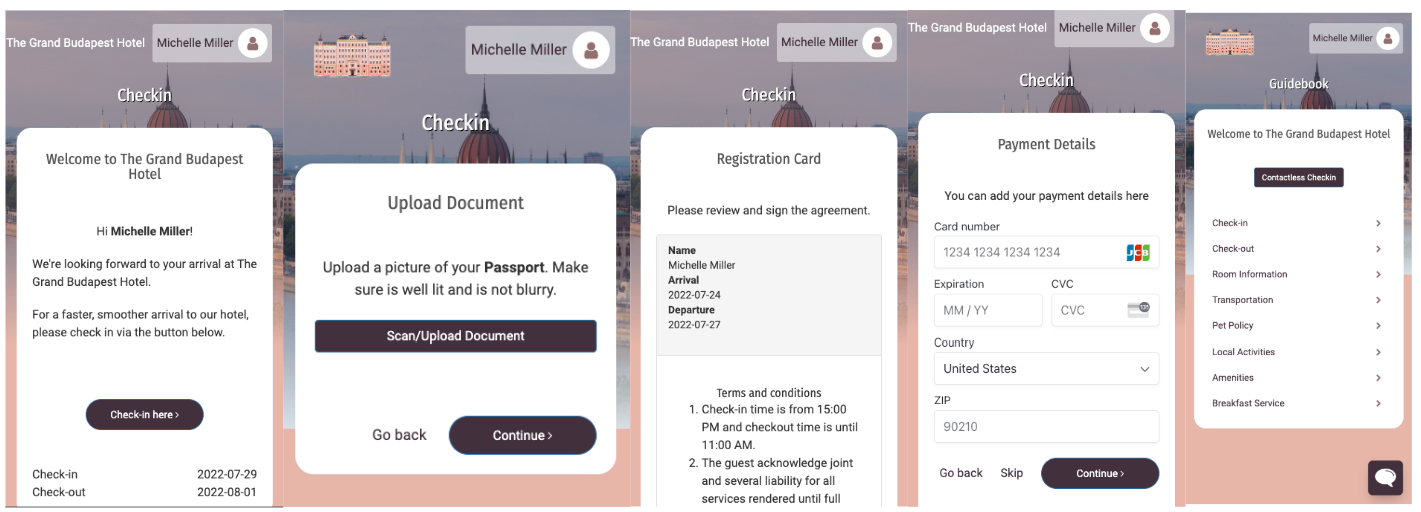
HelloShift’s Contactless Check-In allows guests to check in online before arrival, making the process faster and smoother. Guests can complete check-in from their phone or computer, upload documents, and securely add payment details.
Frequently Asked Questions
What steps does the guest complete during Contactless Check-In?
Check-in link: Guests receive a link to begin the process before arrival.
Upload ID/Passport: Guests scan or upload their identification document.
Registration card: Guests review and sign hotel terms and conditions.
Payment details: Guests add a credit/debit card for incidentals and room charges.
Payment collection integrates with Stripe and Shift4 for secure processing.
Confirmation: Guest check-in details are saved, making arrival quick and seamless.
Is payment mandatory during check-in?
Hotels can configure whether payment details are required before arrival. If enabled, guests must enter a valid card, which will be securely stored via Stripe or Shift4.
What happens if a guest skips payment details?
If the hotel allows skipping, the guest may still check in but must provide payment on arrival. If required, the system won’t allow completion without card entry.
What are the benefits of Contactless Check-In?
Faster arrival: Guests skip paperwork at the front desk.
Secure transactions: Stripe and Shift4 ensure PCI-compliant card handling.
Reduced contact: Guests and staff minimize in-person exchanges.
Convenience: Guests can review policies and sign digitally ahead of time.
What else can guests access after check-in?
Guests receive access to a digital guidebook, which may include:
Check-in/out times
Room and property information
Transportation details
Pet policy
Amenities and breakfast service
Staff Collaboration Overview
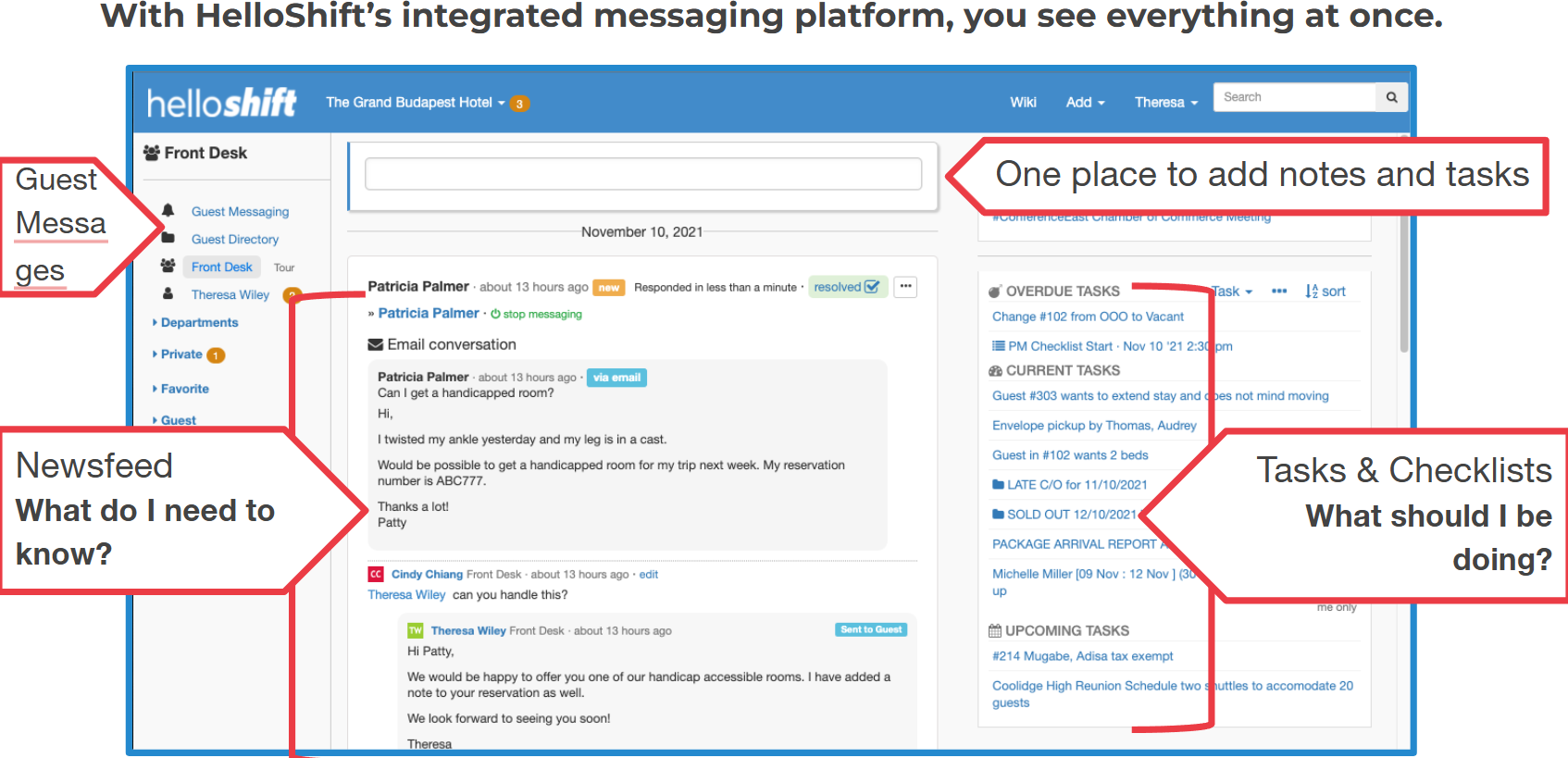
The Staff Collaboration Overview page in HelloShift brings together guest messages, team updates, and task management so your staff can stay aligned and efficient in one place.
Frequently Asked Questions
What can I see on the overview page?
Guest Messaging: View and respond to guest messages directly from the platform.
Newsfeed: Stay updated with the latest notes, updates, and important announcements from staff.
Tasks & Checklists: See overdue, current, and upcoming tasks so nothing is missed.
Notes and Assignments: Add notes for other staff or assign tasks right from the same screen.
How does the newsfeed help staff?
The newsfeed answers “What do I need to know?”. It’s where staff can quickly review updates about guests, reservations, or property events without having to chase down information.
What about tasks and checklists?
The tasks panel answers “What should I be doing?”. It shows:
Overdue tasks
Current tasks in progress
Upcoming assignments and scheduled checklists
This makes it easy for staff to prioritize and manage workload.
Why is the overview page useful?
Keeps all communication in one place.
Reduces missed messages and duplicated work.
Helps managers track staff accountability.
Improves guest service by keeping everyone informed.
Messaging Inbox Overview
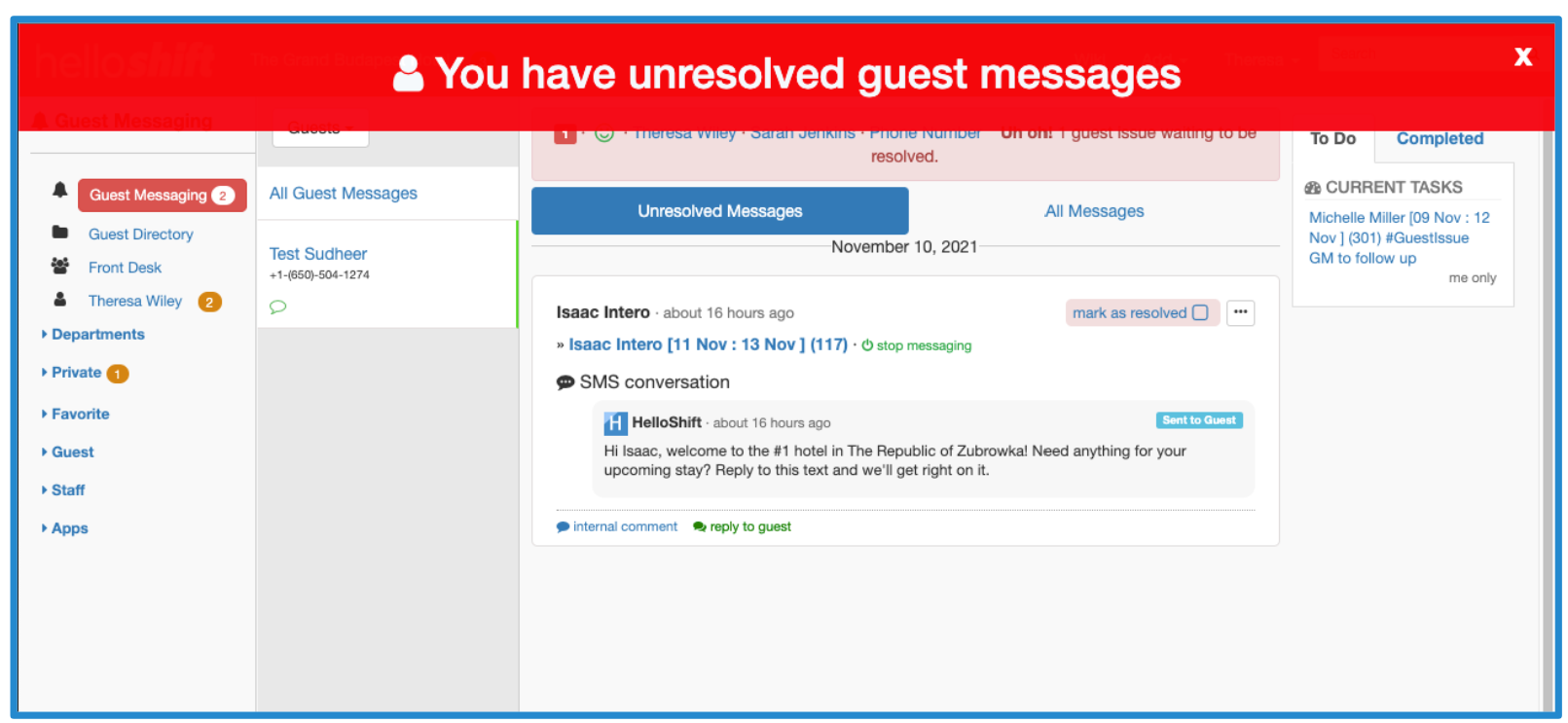
The Messaging Inbox in HelloShift keeps all guest conversations in one place. Staff can quickly view, reply, and resolve messages, ensuring nothing is missed.
Frequently Asked Questions
How is the inbox organized?
The inbox has two trays:
Unresolved Messages: Active conversations that still need attention or a response.
Resolved Messages: Completed conversations that no longer require follow-up.
How do I resolve a message?
Open the guest conversation.
Once the issue is addressed, click Mark as Resolved.
The message will move from the Unresolved tray to the Resolved tray.
What happens if a guest replies to a resolved message?
The message will automatically reappear in the Unresolved Messages tray, so staff can follow up immediately.
What types of messages appear in the inbox?
SMS texts
Emails
Web chat messages
All guest communication flows into the inbox, so staff never need to monitor multiple channels.
Why use the Messaging Inbox?
Keeps all guest communication centralized.
Ensures no message is missed with the unresolved tray.
Makes it easy to track which conversations are open vs. closed.
Improves response time and guest satisfaction.
Scheduling Guest Message Automations & Chat Widget Responses
Q: Can I set specific hours for my automations to run?
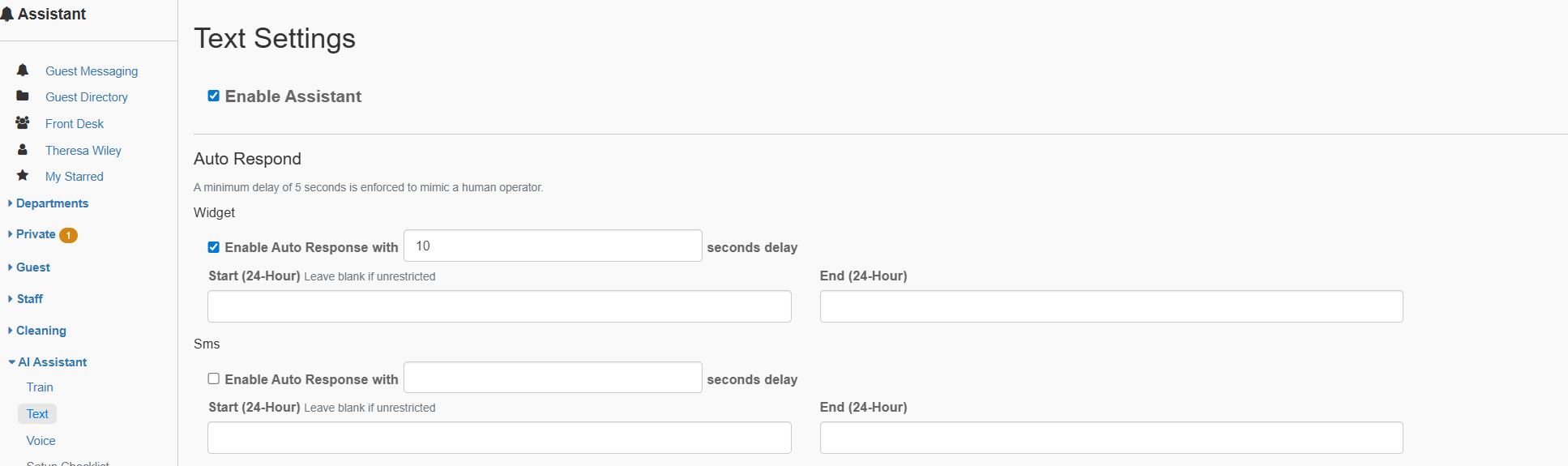
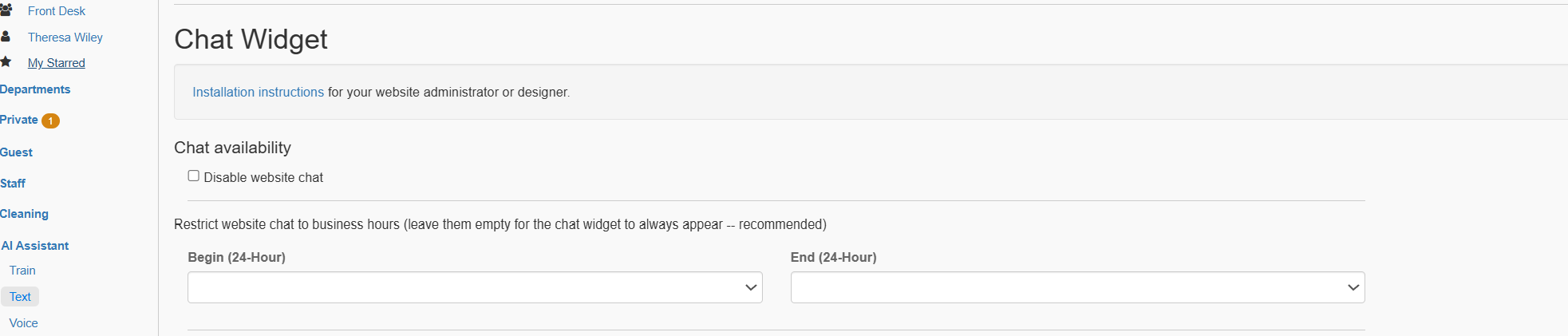
Yes. In HelloShift, you can define start and end times (24-hour format) for both guest message automations and chat widget auto-responses. Messages will only be sent within those time windows.
Q: What happens if a guest messages outside my set hours?
If hours are restricted, automations won’t trigger outside of your defined schedule. You can also enable an Away Message to let guests know when staff will be available again.
Q: How do delays work for auto-responses?
A minimum delay can be enforced to make the AI Assistant feel more human.
You can set longer delays (e.g., 600 seconds / 10 minutes) to give staff time to respond manually before the AI auto-replies.
Q: Can I use different schedules for Chat Widget and SMS?
Yes. Chat Widget and SMS have separate settings, so you can:
Run the widget 24/7 with AI responses overnight.
Limit SMS replies to daytime only.
Q: What’s the best practice for scheduling automations?
Use longer delays during staffed hours (so humans reply first).
Use shorter or no delays during off-hours so guests always get a response.
Align schedules with your Front Desk Hours to ensure consistency.
Related Articles
Still need help? Ask the team