Event Calendar
Plan and manage hotel events, group bookings, and internal meetings with HelloShift's shared event calendar.
Plan team meetings, schedule deadlines, and track important dates. The Event Calendar gives your staff a shared view of what's happening at your property.
Overview
HelloShift's Event Calendar lets you:
Create one-time or recurring events
Assign events to specific staff members
Tag events for easy filtering
View events in a monthly calendar format
Add notes and attachments to events
Track event history through the activity feed
Plan Required: Staff
Getting Started
Accessing the Calendar
Click Events in the left sidebar under the Staff section
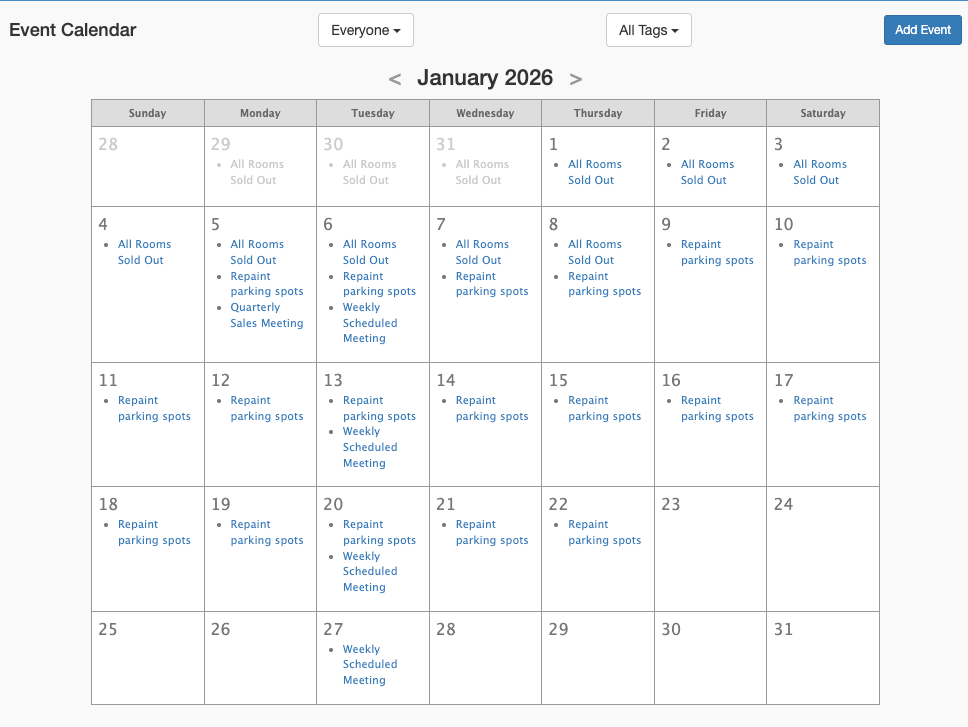
You'll see a monthly calendar view with all scheduled events
Events appear on their scheduled dates
Creating an Event
Click Add in the top menu
Select Add Event
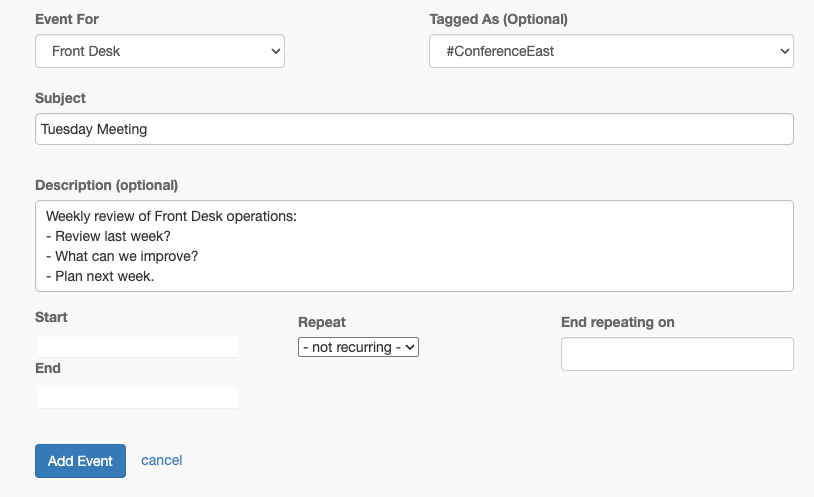
Fill in the event details:
Click Add Event
Event Types
One-Time Events
For events that happen once:
Set the Starts At date and time
Set the Ends At date and time
Leave Recurring unchecked
Save the event
Examples:
Staff meeting on January 15th at 2:00 PM
Guest speaker on March 10th from 10:00 AM to 11:00 AM
Annual fire inspection on April 1st
Recurring Events
For events that repeat on a schedule:
Set the Starts At date and time for the first occurrence
Set the Ends At date and time
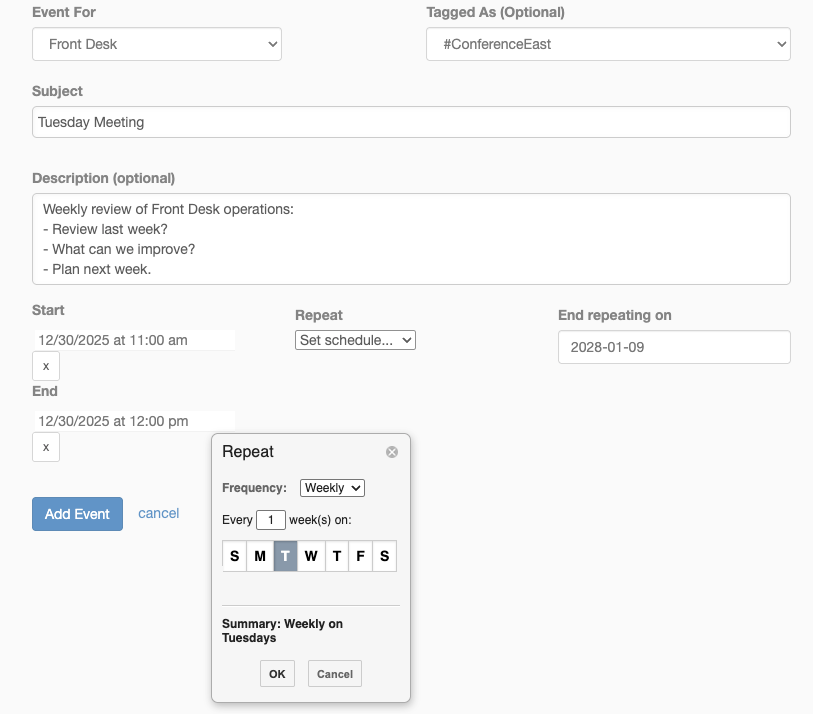
Check Recurring
Select a recurrence pattern:
Set the End Date for when the series should stop
Save the event
Examples:
Weekly staff meeting every Monday at 9:00 AM
Monthly safety inspection on the 1st of each month
Daily morning briefing at 8:00 AM
Managing Events
Viewing the Calendar
The calendar shows a monthly view by default:
Navigate months: Use the arrow buttons to move between months
Current month: Click the month/year header to return to today
Event indicators: Days with events show event subjects
Click to view: Click on an event to see full details
Event Detail Page
Click on any event to see its full record:
Event Information: All event details including schedule
Notes: Add internal notes about the event
Activity: See the history of updates
Attachments: Upload related documents
Tasks: Create follow-up tasks related to the event
Editing Events
Click on the event in the calendar
Click the Edit icon
Make your changes
Click Update Event
For recurring events, editing changes all future occurrences.
Deleting Events
Click on the event in the calendar
Click the Delete icon
Confirm the deletion
Note: Deleting a recurring event removes all occurrences.
Organizing Events
Assigning to Staff
Use the Event For field to assign events to specific staff members:
Helps staff see events relevant to them
Useful for individual schedules (training, reviews, shifts)
The assigned staff member can filter to see their events
Using Tags
Tags help categorize and filter events:
Create tags like "Meeting", "Training", "Inspection", "Holiday"
Apply multiple tags to a single event
Filter the calendar by tag to see specific event types
Example tag categories:
Meetings: Team meetings, one-on-ones, department meetings
Training: New hire orientation, safety training, skills workshops
Maintenance: Inspections, scheduled maintenance, vendor visits
Special: Holidays, VIP arrivals, group bookings
Best Practices
Event Naming
Use clear, descriptive subjects
Include the type of event (e.g., "Weekly Team Meeting", "Q1 Review")
For recurring events, the pattern is clear from the schedule
Planning Ahead
Add known events at the start of each month/quarter
Use recurring events for regular meetings and inspections
Review the upcoming month regularly with your team
Documentation
Add details in the event body for context
Attach relevant documents (agendas, checklists)
Use notes to record outcomes after the event
Team Communication
Tag team members in event notes to notify them
Create tasks from events for follow-up actions
Use consistent tags for easy filtering
Troubleshooting
Event Not Showing on Calendar
Symptom: Created an event but it doesn't appear
Solutions:
Check the date - navigate to the correct month
Verify the start date was set correctly
Clear any active filters
Recurring Event Issues
Symptom: Recurring event not appearing on expected dates
Solutions:
Check the End Date hasn't passed
Verify the recurrence pattern is correct
Make sure the start date is set properly
Can't Edit an Event
Symptom: Edit button not visible or not working
Solutions:
Check if you have permission to edit events
Refresh the page and try again
Contact your administrator if the issue persists