Sales CRM
Track leads, manage contacts, and monitor revenue opportunities with HelloShift's built-in hotel sales CRM.
Track potential business, manage contacts, and monitor revenue opportunities. The Sales CRM helps your sales team stay organized and close more deals.
Overview
HelloShift's Sales CRM lets you:
Create and manage leads (companies and organizations)
Track multiple contacts at each lead
Monitor sales opportunities with revenue projections
Customize lead types, sources, and statuses
Add notes and attachments to leads
View activity history and collaborate with your team
Get notifications when leads need follow-up
Plan Required: Staff
Getting Started
Accessing Sales
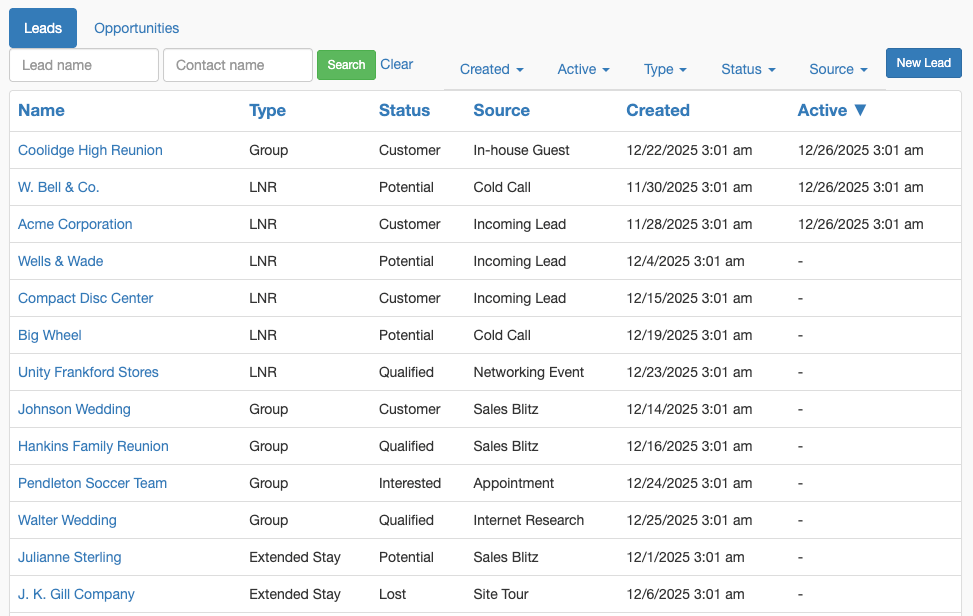
Click Sales in the left sidebar under the Staff section
You'll see a list of all active leads sorted by recent activity
Click on any lead to view its details
Creating a Lead
A lead represents a company or organization you're pursuing for business.
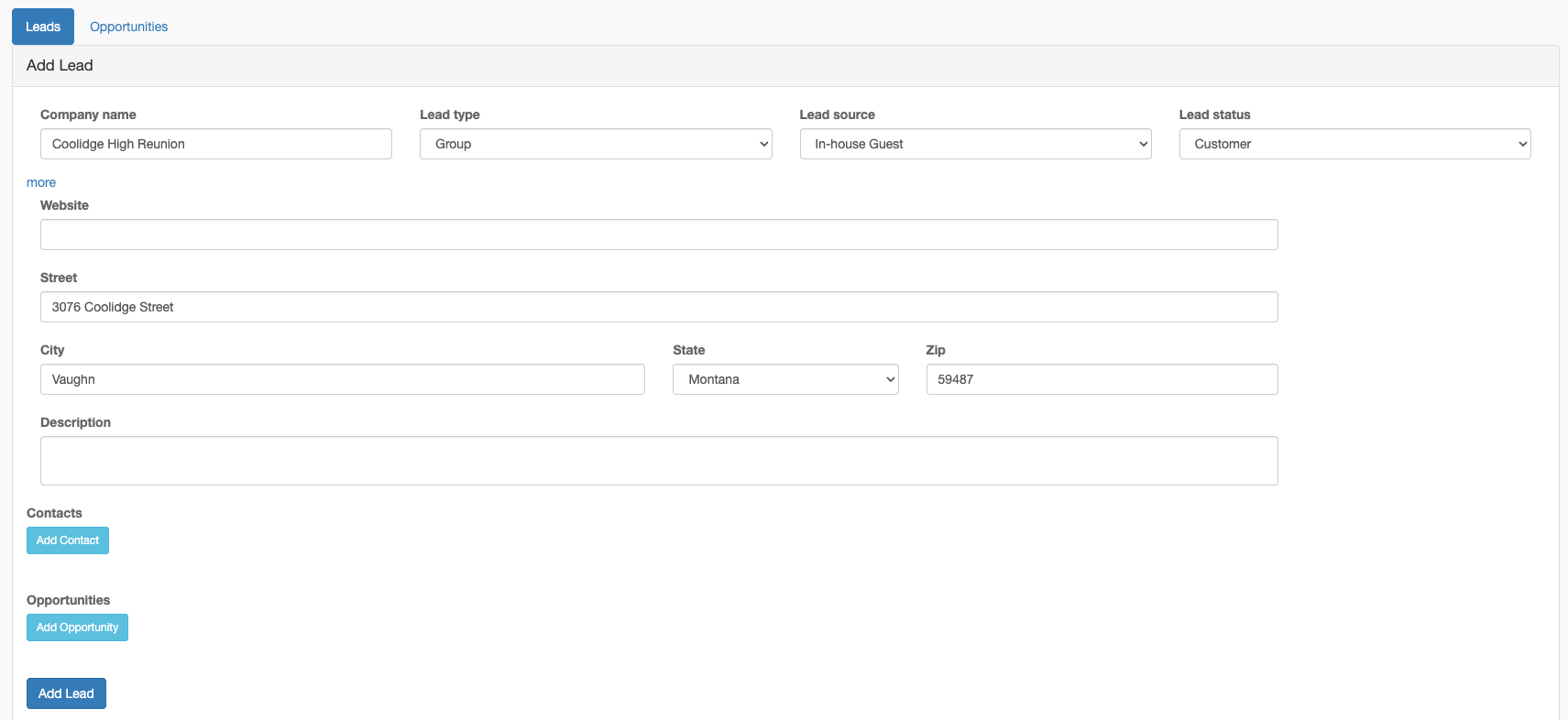
Click Add in the top menu
Select Add Lead
Fill in the lead details:
Click more to add additional details:
Click Create Lead
Managing Contacts
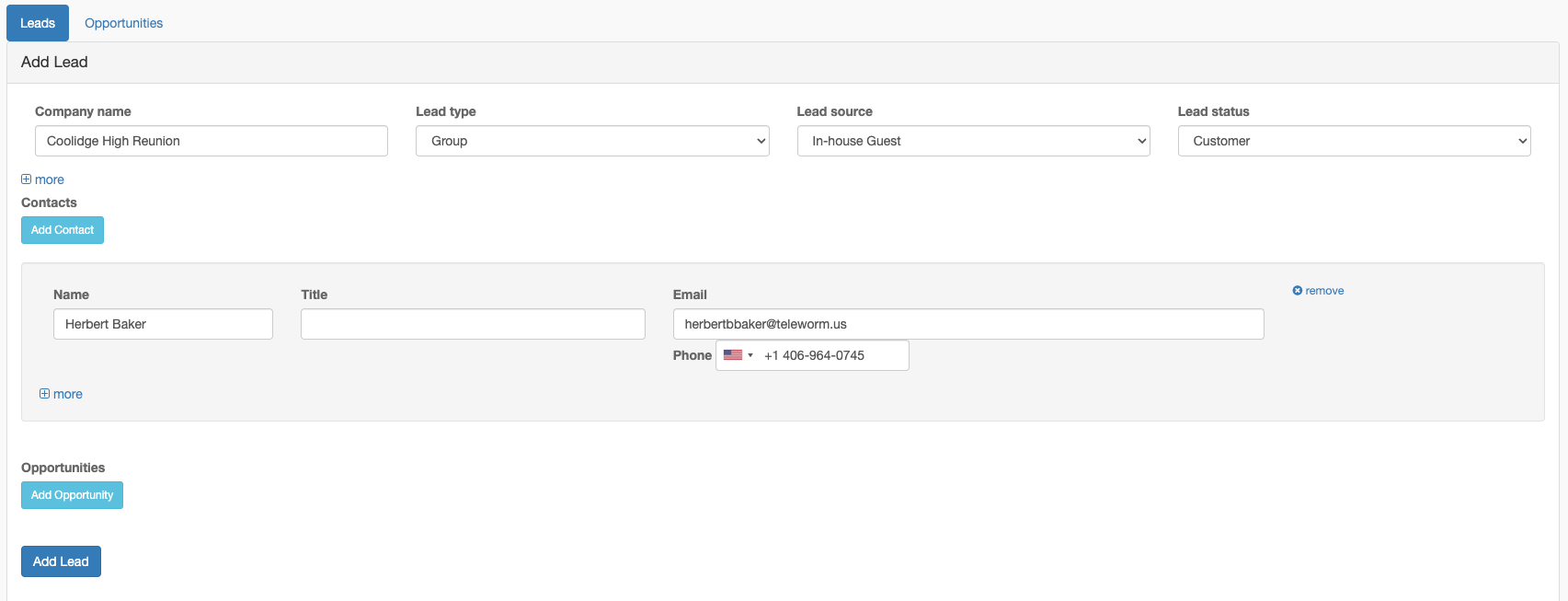
Each lead can have multiple contacts - the people you communicate with at that company.
Adding a Contact
When creating or editing a lead, click Add Contact
Fill in the contact details:
Add more contacts as needed
Save the lead
Managing Multiple Contacts
Add as many contacts as needed for each lead
Click the X icon to remove a contact
Update contact information anytime by editing the lead
Tracking Opportunities
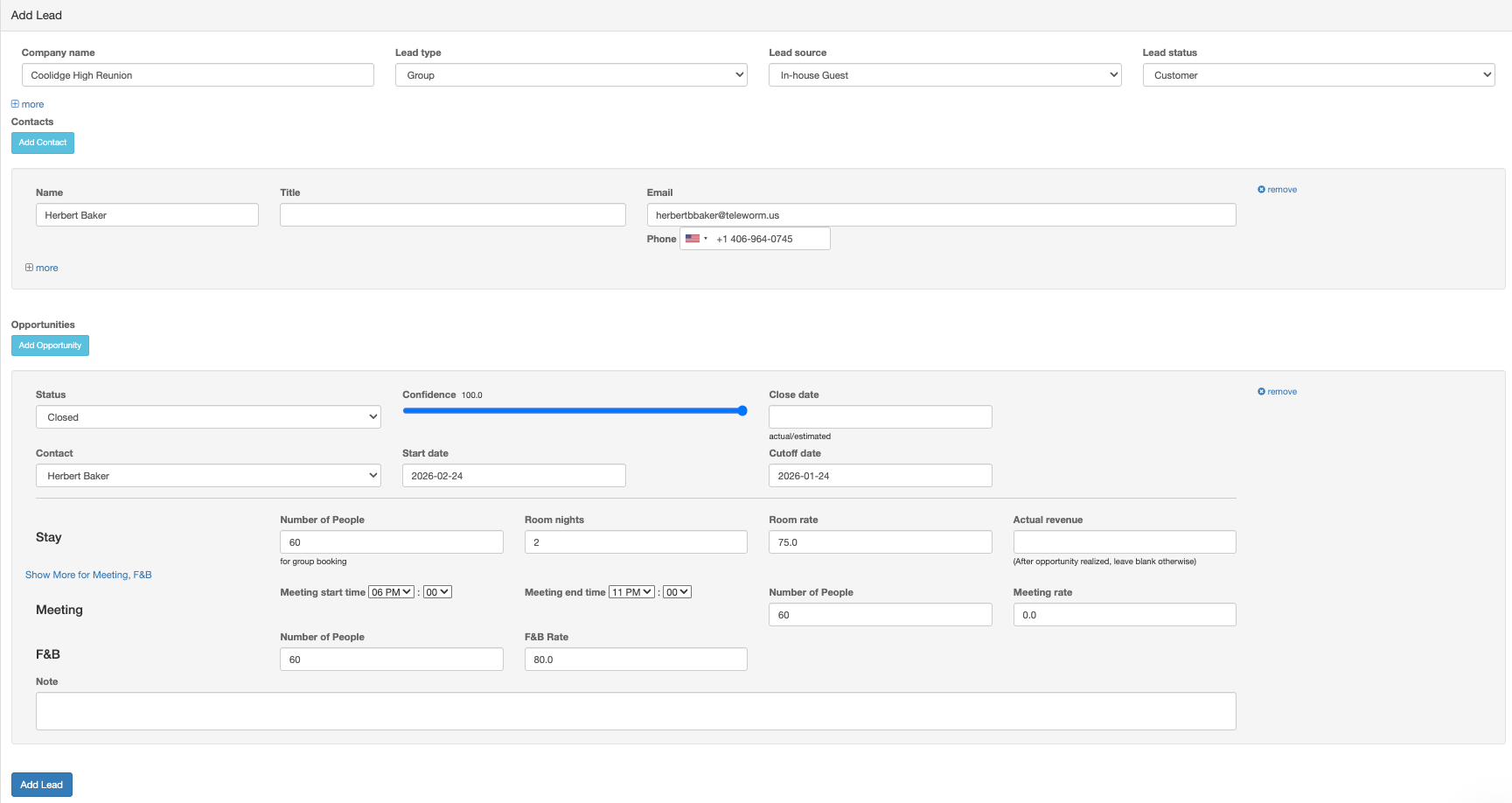
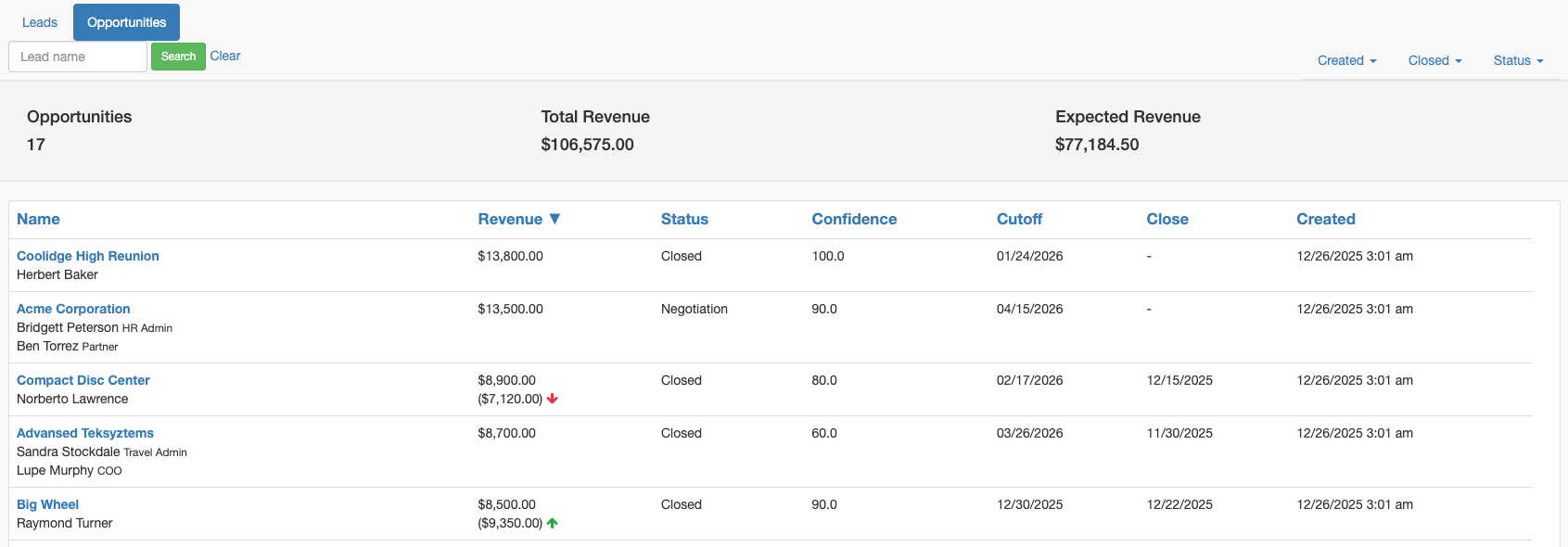
Opportunities represent potential revenue from a lead. Track room bookings, meetings, and food & beverage business.
Creating an Opportunity
When creating or editing a lead, click Add Opportunity
Fill in the opportunity details:
Basic Information:
Stay Revenue:
Meeting Revenue (click "Show More"):
F&B Revenue (Food & Beverage):
Notes:
Add any additional details about the opportunity.
Click Create Lead or Update Lead to save
Revenue Calculation
HelloShift automatically calculates total revenue:
Room Revenue = People x Nights x Rate
Meeting Revenue = Meeting Rate
F&B Revenue = People x F&B Rate
Total Revenue = Room + Meeting + F&B
Use the Actual Revenue field to record final numbers after the opportunity closes.
Lead Detail Page
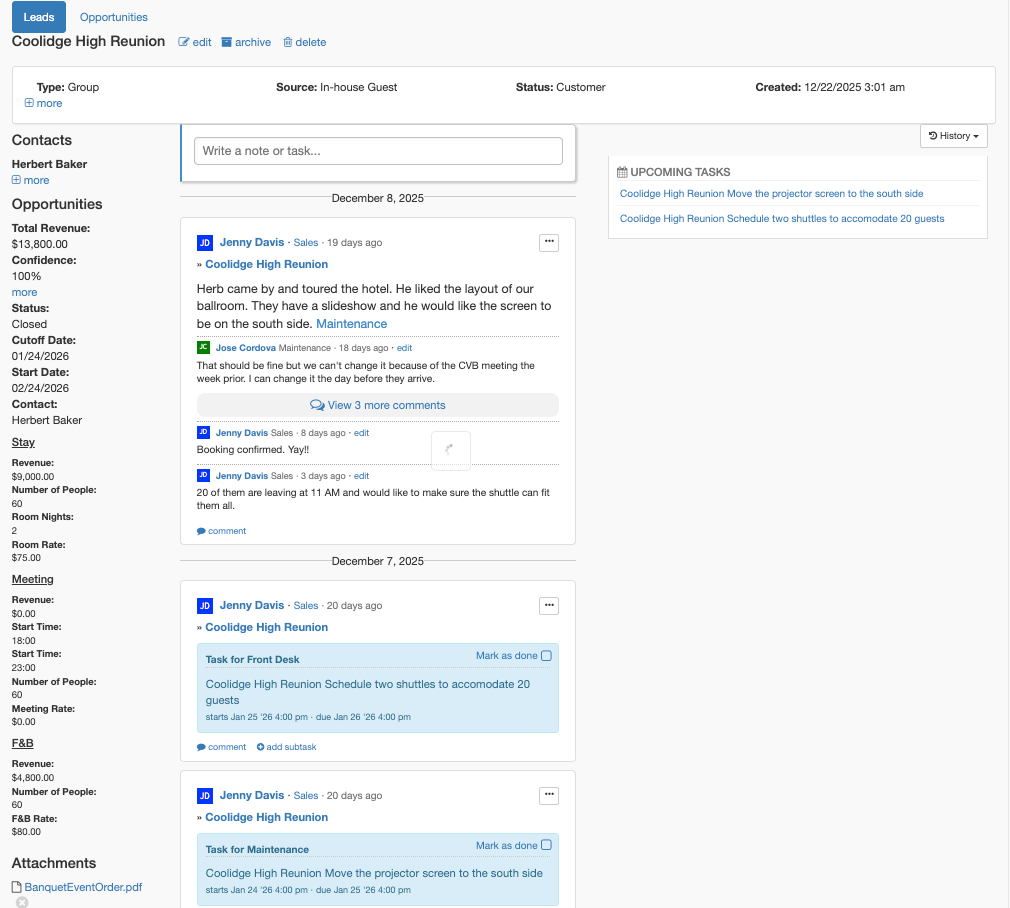
Click on any lead to see its full record:
Lead Information
Company details and address
All contacts with their information
All opportunities with revenue summaries
Notes and Activity
Add internal notes about the lead
Tag team members for follow-up
View the complete activity history
Tasks
Create follow-up tasks
See related task completion status
Attachments
Upload contracts, proposals, or other documents
Attach correspondence and meeting notes
Customizing Your Pipeline
Custom Field Values
HelloShift lets you customize the dropdown options for:
Lead Types: Categories like "Corporate", "Wedding", "Conference", "Group Tour"
Lead Sources: How leads come in - "Website", "Referral", "Phone", "OTA"
Lead Statuses: Pipeline stages like "New", "Contacted", "Proposal Sent", "Negotiating", "Won", "Lost"
Opportunity Statuses: Deal stages like "Prospecting", "Qualified", "Proposal", "Closed Won", "Closed Lost"
Contact your administrator to customize these options for your site.
Sales Notifications
When a new lead is created with "Notify Sales" enabled:
A task is automatically created
The task is assigned to your designated Sales user
This ensures timely follow-up on new opportunities
Filtering and Searching
Search
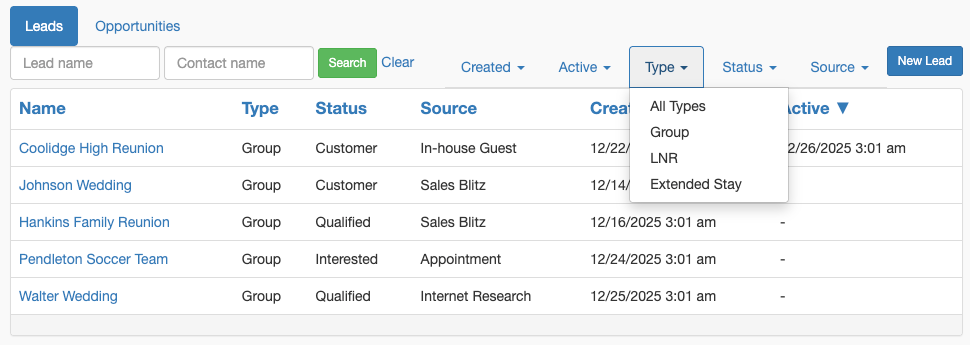
Use the search box to find leads by:
Company name
Contact name
Description
Sorting
Click column headers to sort by:
Company name
Activity date
Created date
Archived Leads
Active leads appear in the main list
Toggle "Show Archived" to see inactive leads
Archive leads that are no longer relevant
Restore archived leads when needed
Best Practices
Lead Management
Quick entry: Start with just company name and lead type, add details later
Assign contacts early: Add at least one contact for every lead
Track your source: Knowing where leads come from helps focus marketing efforts
Update status regularly: Keep the pipeline accurate for forecasting
Opportunity Tracking
Set realistic confidence: Start low and increase as deals progress
Use cutoff dates: Track booking deadlines to avoid missed opportunities
Record actual revenue: Compare projections to reality for better forecasting
One opportunity per event: Create separate opportunities for distinct events
Team Collaboration
Add notes consistently: Document all interactions and next steps
Create follow-up tasks: Don't rely on memory for important actions
Tag team members: Use mentions to notify colleagues about updates
Attach key documents: Keep contracts and proposals with the lead record
Troubleshooting
Lead Not Appearing in List
Symptom: Created a lead but can't find it
Solutions:
Check if the lead was archived
Clear any active search filters
Verify you have permission to view sales
Contact Not Linked to Opportunity
Symptom: Opportunity shows "Select Contact" even after adding contacts
Solution: Save the lead first, then edit to add opportunities - the contact dropdown populates from saved contacts.
Revenue Not Calculating
Symptom: Total revenue shows as zero
Solutions:
Ensure you've entered values in the rate and quantity fields
Revenue only calculates when both rate and quantity are provided
Save the lead to trigger recalculation