How To View Your Reports
Access and filter HelloShift reports for tasks, housekeeping, guest messaging, and staff activity at your property.
Reports are a valuable resource that provide you with a thorough understanding of your hotel's operations. From recording housekeeping assignments to distributing printed representations of cleaning jobs, they provide insights into a number of different facets of your operations.
We'll walk you through the process of printing reports in this knowledge base article so you can make the most of this crucial tool to improve operational excellence at your hotel.
Whether you're seeking to streamline your housekeeping or simply looking to evaluate and improve efficiency of different departments at your property, this guide is your key to making the most of your reports.
Accessing Your Report Page
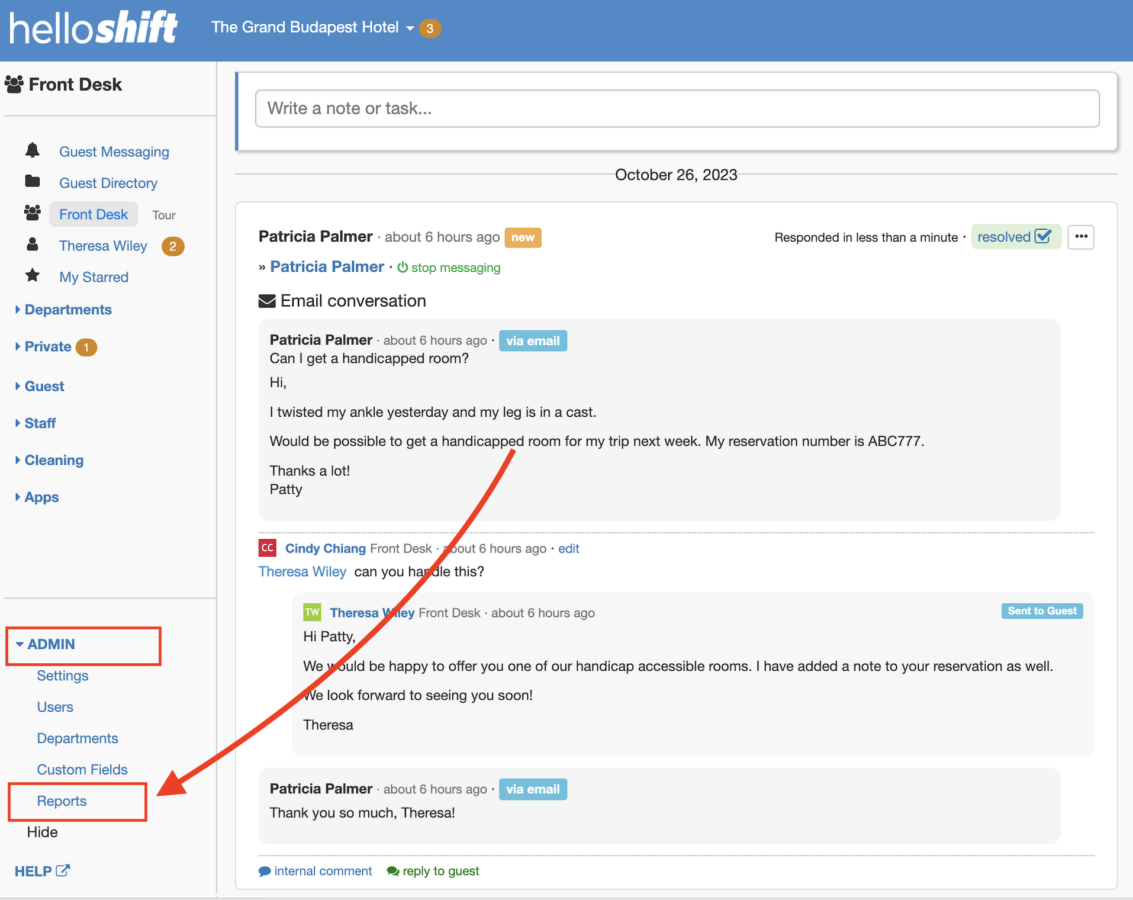
On the bottom-left corner of your screen, click on ADMIN > Reports.
On the reports page, you will get a holistic view of all of your reports within HelloShift. Let's take a closer look at what you can expect to find on this dynamic page:
Overview of Task Report: This section provides a summary of all tasks in your hotel, helping you track assignments and completions, ensuring efficient task management.
Guest Survey Scores: Monitor guest satisfaction levels through survey scores, enabling you to evaluate your hotel's performance and identify areas for improvement.
Types of Guest Requests: Gain insights into the specific types of guest requests made at your hotel, allowing you to tailor your services to meet guest preferences and needs effectively.
Housekeeping Report: Keep a close eye on housekeeping assignments and their progress, ensuring that rooms are clean and ready for guests.
Overview of Reports per Department: Get detailed insights into the performance of different hotel departments, helping you make informed decisions to enhance departmental efficiency and guest service.
Overview of Tags Report: Review how tags are used to categorize and organize communication in your hotel. This report reflects the unique variables you've set up in your hotel's processes.
Please note that the department and tags report will vary according to what variables you've set up previously.
Per-Housekeeper Report
The report page summarizes housekeeping at the property level. For a breakdown by individual housekeeper — rooms cleaned per day, average time per room, and inspection pass/fail scores — open the Housekeeping section on the report and click Detailed report.
That page lists every cleaner for the selected date range. Click a cleaner's name to drill into their individual day-by-day record, and use your browser's print function for a paper copy. Change the window with the date range selector described below.
Selecting a Date Range
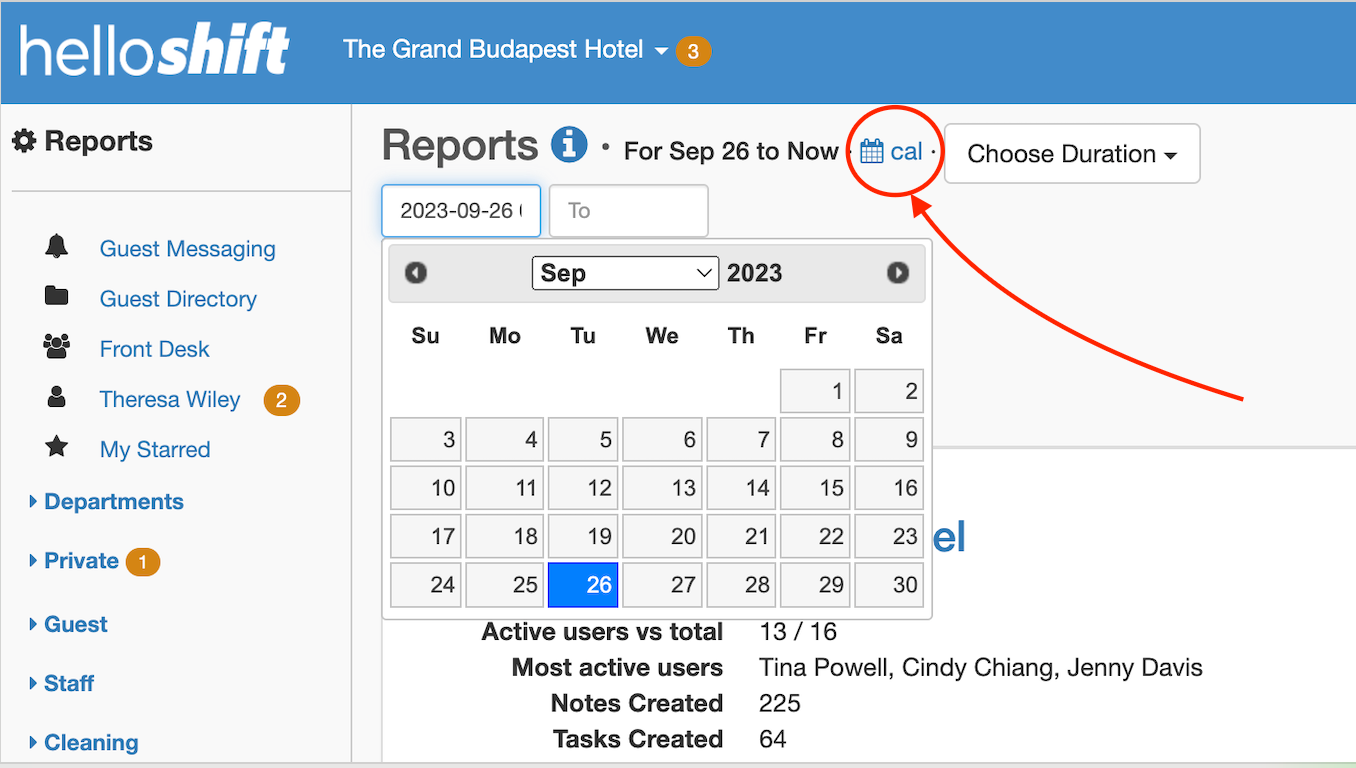
On the top of the screen, right next to the title Reports, you'll find the date. By clicking on the Calendar icon (cal), you will be able to choose the date or date range from which you'd like to view your statistics.
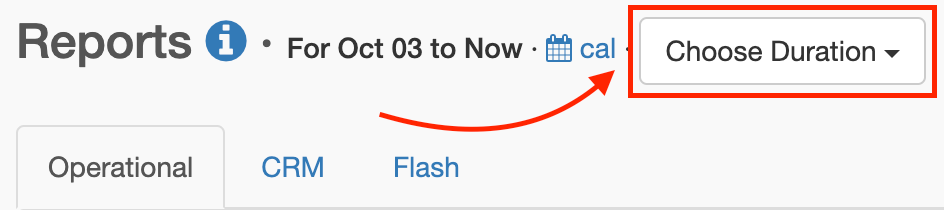
You can also click on "Choose Duration" and select one of the options presented.
This will display the following drop-down menu:
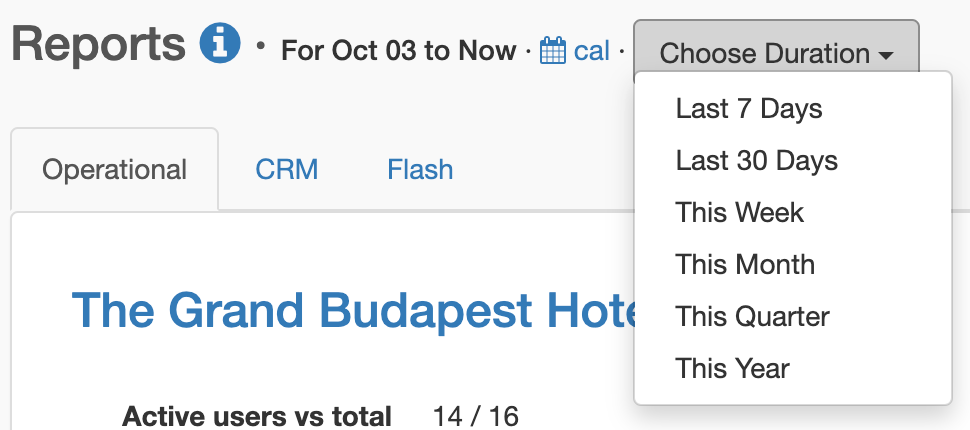
After choosing your desired date range, the reports displayed will be updated.
AI Insights Tab
The Reports page also includes an AI Insights tab that provides AI-powered daily, weekly, and shift reports. These reports automatically analyze your property's operational data — tasks, guest messages, housekeeping, revenue, and more — and deliver concise narrative summaries.
Key features of AI Insights:
Daily Reports — Comprehensive summaries of the previous day's operations, generated automatically each morning once the day is complete
Weekly Reports — Trend-focused summaries that roll up the week's highlights
Shift Reports — Per-shift handoff summaries for seamless transitions between teams
Configurable Sections — Choose from 11 report sections (Operations, Guest Experience, Housekeeping, Revenue, and more)
Email Delivery — The AI daily and weekly summaries are included in the Daily site report and Weekly site report emails you already subscribe to under My Profile > Email Reports; shift reports have their own email. There is no separate "AI report" email.
To access AI Insights, click the AI Insights tab on the Reports page.
For a complete guide to AI-powered reports, see AI Insights & Reports.
Related Articles
Was this helpful?
Still need help? Ask the team